A workflow taught by Adobe Certified Instructors at Adobe Video World.
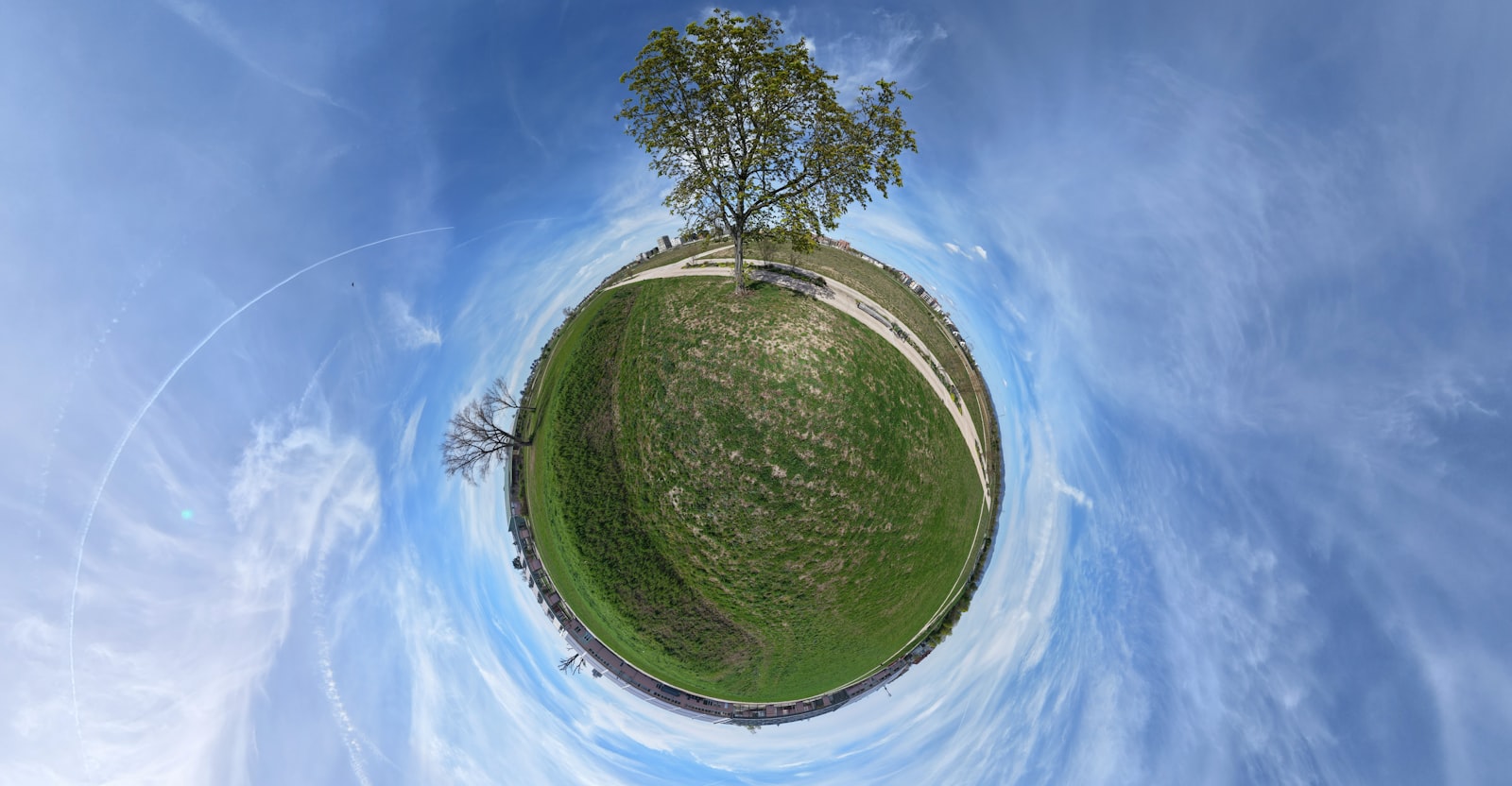
Polar Coordinates is a distortion effect that bends straight images into circles and back, creating the famous tiny planet effect, circular text, and surreal warps. It looks complex but follows a simple principle. This guide explains how Polar Coordinates works and how to use it for creative circular distortions.
What Polar Coordinates Does
Polar Coordinates remaps an image between rectangular and polar coordinate systems, which sounds technical but simply means it wraps a flat image into a circle or unwraps a circle into a flat strip. This produces striking circular distortions.
The classic result is the ‘tiny planet’ effect, where a panoramic landscape wraps into a little spherical world. The same effect creates circular text, spiraling patterns, and surreal warps, all from this coordinate conversion.

Understand the Two Conversions
The effect has a Type of Conversion setting with two main modes. Rect to Polar wraps a flat image into a circle, while Polar to Rect unwraps a circular image into a flat strip.
Knowing which direction you want is the key choice. Rect to Polar is what creates tiny planets from landscapes, while Polar to Rect can flatten a circular image, so choosing the right conversion type sets up your entire effect.
Create a Tiny Planet Effect
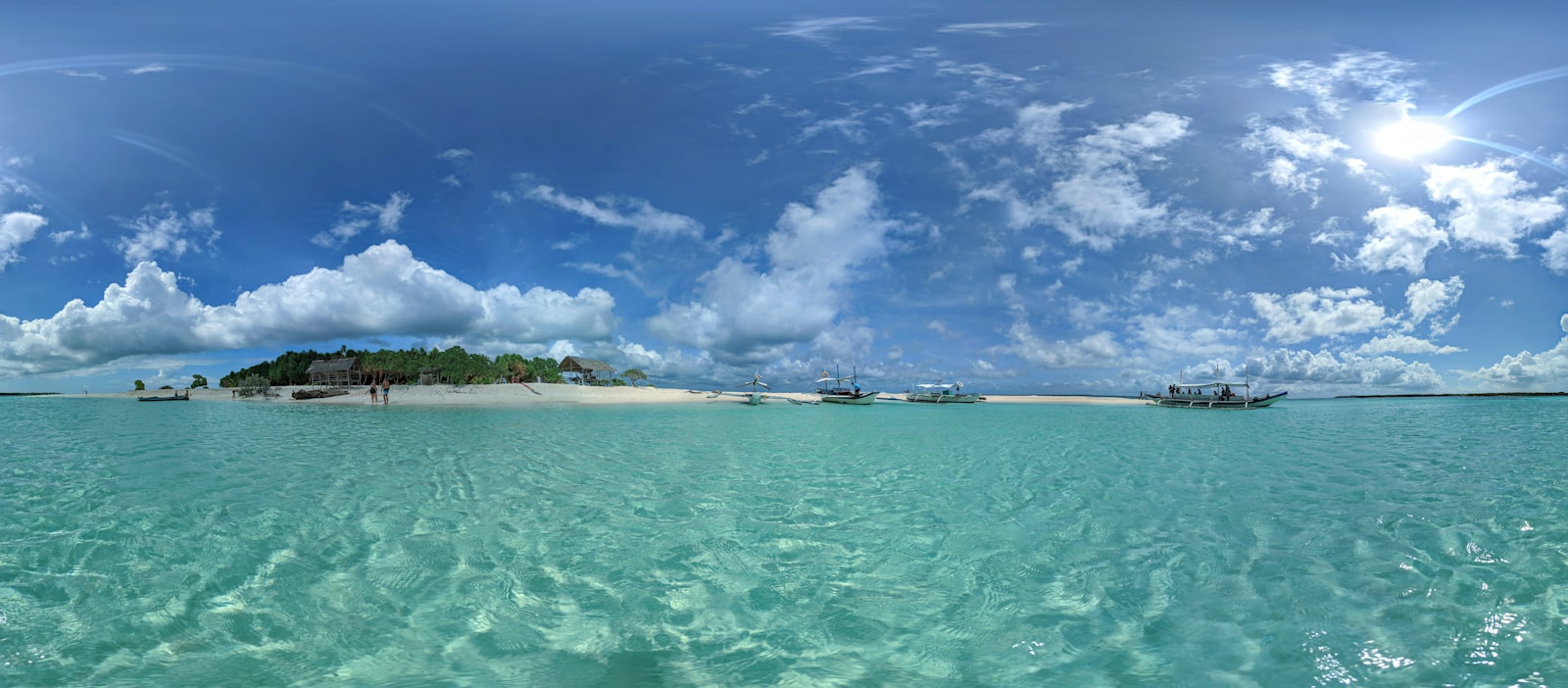
The famous tiny planet wraps a panoramic image into a sphere. Apply Polar Coordinates with Rect to Polar at 100% interpolation, and the bottom of your image becomes the planet’s surface while the top stretches into the surrounding sky.
For the best result, use a wide panorama where the left and right edges match, so the planet’s seam is invisible. The horizon wraps into a circle, turning a landscape into a charming little world floating in space.
Control the Interpolation
The Interpolation slider controls how much of the polar conversion is applied, from 0% (no effect) to 100% (full conversion). Animating it lets the effect transition smoothly, like a landscape curling into a planet.
This animatable control opens up dynamic reveals — a flat image bending into a circle over time. Keyframing the interpolation creates eye-catching transitions and transformations that the static effect alone can’t achieve.
Make Circular Text and Patterns
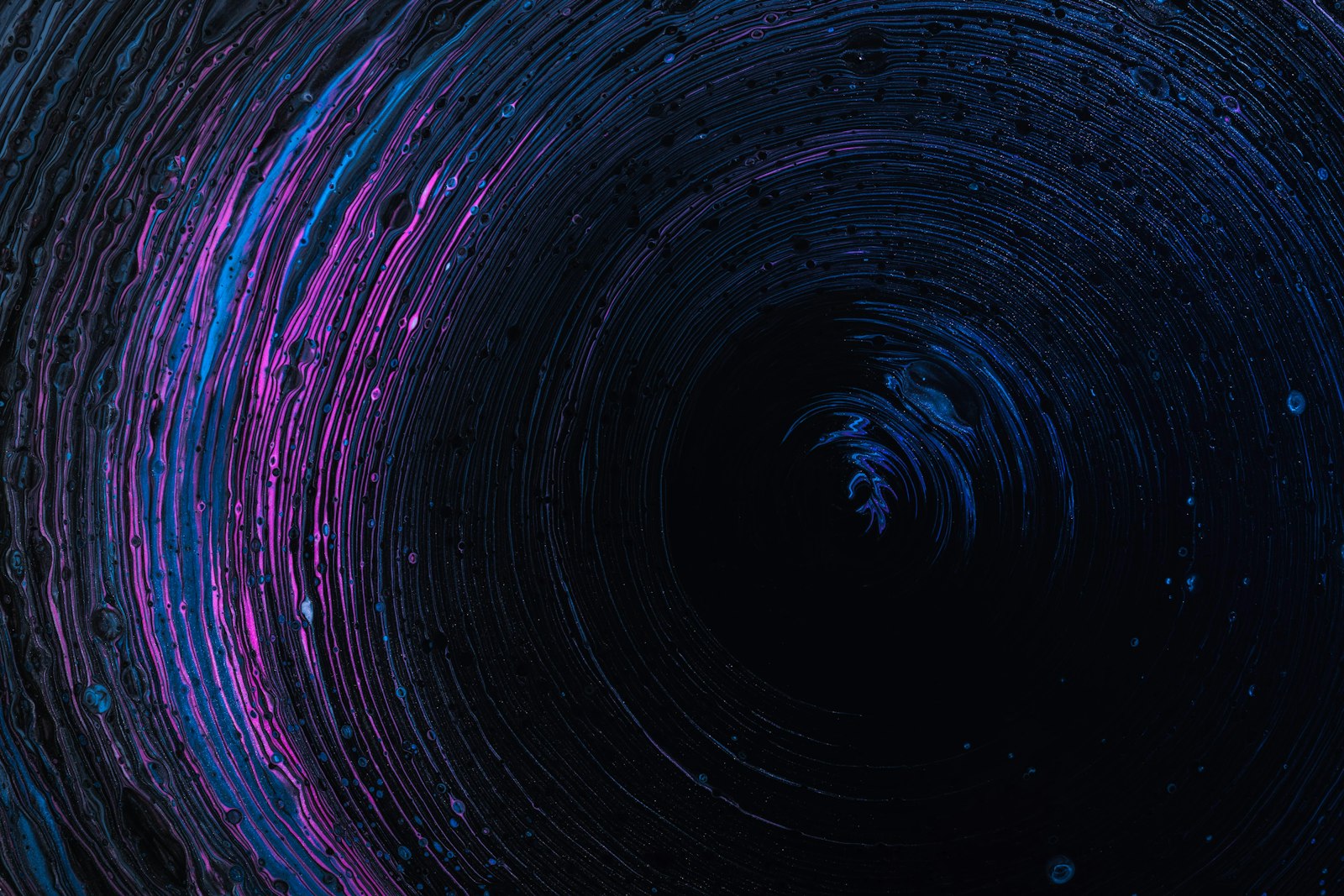
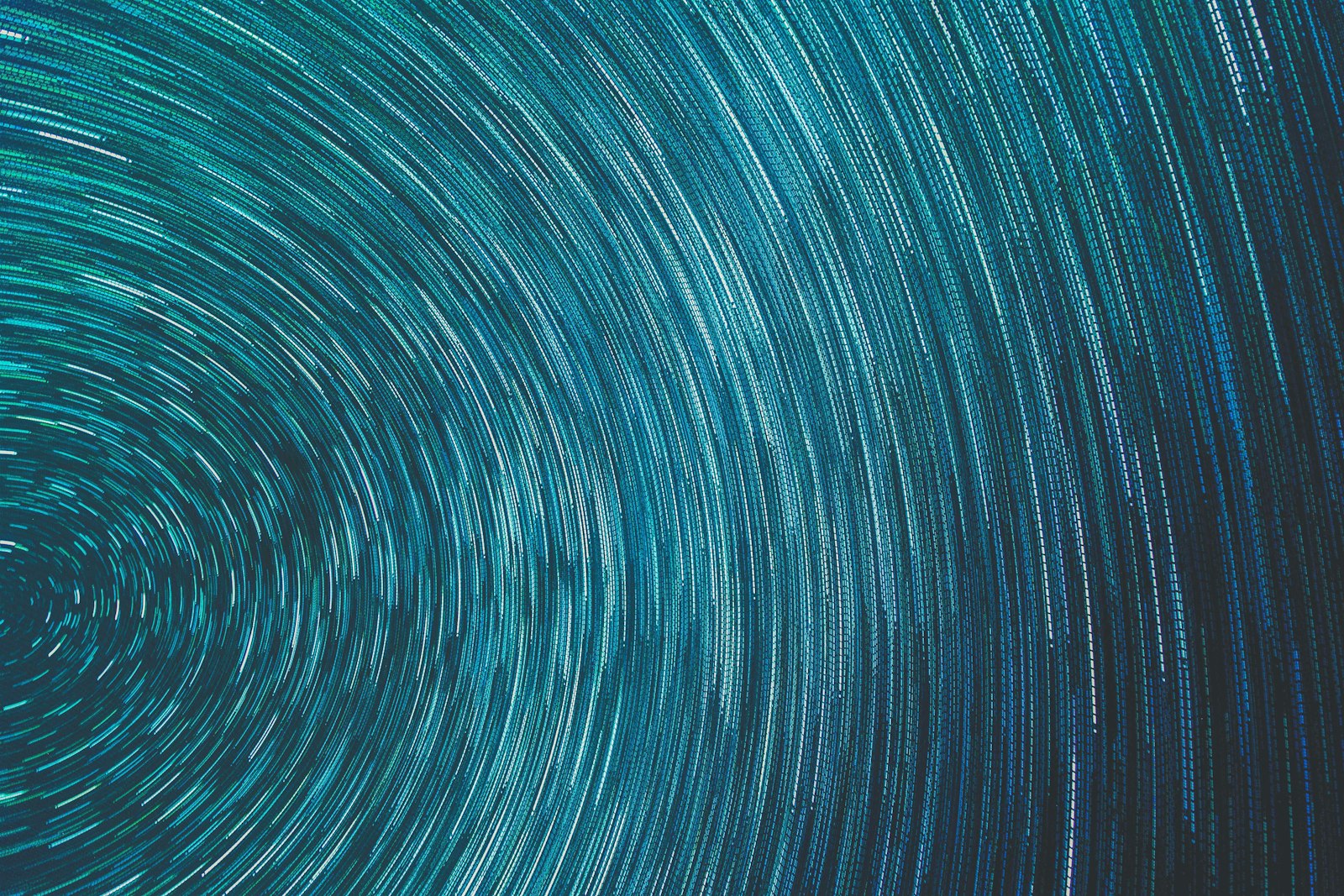
Polar Coordinates wraps anything into a circle, including text and patterns. Applying Rect to Polar to a strip of text bends it around a circle, while patterns become spiraling, radial designs.
This is a quick way to create curved text or kaleidoscopic patterns without manual warping. Combining it with animated source material produces mesmerizing circular motion graphics, a creative use beyond the tiny planet.
Prepare Your Source Image
Good results depend on the source. For tiny planets, a square image with matching left and right edges avoids a visible seam, and a clear horizon line wraps cleanly into the planet’s edge.
Composing or cropping your source with the wrap in mind makes the difference between a seamless planet and an obviously distorted one. Thinking about how the edges will meet when wrapped is the key preparation step.
Combine with Other Distortions
Polar Coordinates pairs well with other effects for complex results. Adding a twirl, a turbulent distortion, or rotation before or after the polar conversion creates spiraling, organic, surreal warps.
Layering distortions opens up abstract, psychedelic visuals built on the circular base. Experimenting with the order and combination of effects yields endless creative warps, making Polar Coordinates a building block for surreal motion design.
Fix Common Issues
The most common problem is a visible seam where the image edges don’t match, or excessive stretching at the poles. Choosing a suitable source image and accepting some stretch at the center are part of working with the effect.
Pre-distorting or carefully cropping the source minimizes seams, and combining the effect with masking can hide rough areas. Understanding that polar conversion inevitably stretches certain parts helps you plan around its limitations.
Polar Coordinates Best Practices
- Use Rect to Polar at 100% for the tiny planet effect.
- Use a panorama with matching edges to hide the seam.
- Animate Interpolation for smooth wrapping transitions.
- Combine with other distortions for surreal warps.
Common Polar Coordinates Mistakes
- A source image whose edges don’t match, showing a seam.
- Choosing the wrong conversion direction.
- Expecting no stretching at the center of the circle.
- Not animating interpolation for dynamic transitions.
A Real Tiny Planet Example
Picture turning a panoramic beach photo into a tiny planet. You start with a wide panorama whose left and right edges match, apply Polar Coordinates set to Rect to Polar at 100% interpolation, and the horizon curls into a perfect circle — the sand wrapping into a little spherical world with the sky stretching out around it.
Because the edges matched, there’s no visible seam where the panorama joins. A touch of cropping and a subtle vignette finish the effect, transforming an ordinary landscape into a charming, surreal little planet. That seamless wrap, from one effect and a well-chosen source, is exactly what makes the tiny planet look so satisfying.
Polar Coordinates for Transitions
Animating the Interpolation slider turns Polar Coordinates into a striking transition. A scene can curl up into a tiny planet and spin away to reveal the next shot, or a flat image can bend into a circle as it exits, creating surreal, eye-catching handoffs between clips that standard transitions can’t replicate.
Timing the wrap to a beat or a camera move heightens the impact, and combining it with rotation adds a spiraling flourish. Built alongside the techniques in our transitions guide, polar-coordinate transitions give montages and creative edits a distinctive, dreamlike way to move between scenes.
Tiny Planet Tips for Best Results
The cleanest tiny planets come from purpose-shot or stitched panoramas with a continuous, unbroken horizon and matching left and right edges. A clear foreground at the bottom of the frame becomes the planet’s surface, while open sky at the top stretches gracefully around it, so composing with that in mind pays off.
Avoid panoramas with objects cut off at the edges, since they create an obvious seam when wrapped. A little planning at capture, plus minor cleanup of the seam and pole in After Effects, is what separates a polished, magical tiny planet from a distorted, broken one.
Bending an image into new shapes connects polar tricks to creating a mesh warp in After Effects.
Rippling and bending an image are close relatives, so creating a wave warp in After Effects pairs well with polar distortions.
Once you understand wrapping with polar coordinates, creating a kaleidoscope in After Effects is the natural mirrored, hypnotic next step.
Combining radial distortion with the After Effects roughen edges effect yields wild, organic shapes.
Key Takeaways
- Polar Coordinates wraps flat images into circles and back.
- Rect to Polar creates the tiny planet effect.
- Animate Interpolation for smooth wrapping transitions.
- Use matching-edge sources and combine with other distortions.
Frequently Asked Questions
How do I make a tiny planet in After Effects?
Apply Polar Coordinates with the Type of Conversion set to Rect to Polar and Interpolation at 100%. The bottom of your image becomes the planet’s surface and the top stretches into the sky. Use a panorama with matching edges.
What does Polar Coordinates do?
Polar Coordinates remaps an image between rectangular and polar coordinate systems — essentially wrapping a flat image into a circle (Rect to Polar) or unwrapping a circle into a flat strip (Polar to Rect).
How do I make circular text with Polar Coordinates?
Apply Polar Coordinates with Rect to Polar to a horizontal strip of text, and it bends the text around a circle. Combining it with animation creates spiraling, radial text and pattern effects.
Sources: Adobe’s documentation on Polar Coordinates and other distort effects.
Bend reality at Adobe Video World
Train hands-on with Adobe Certified Instructors across 100+ Premiere Pro & After Effects sessions.



