A workflow taught by Adobe Certified Instructors at Adobe Video World.
Video editing is demanding, and the right computer makes the difference between smooth, enjoyable work and constant lag. But specs are confusing, and it’s easy to overspend on the wrong parts. This guide explains what actually matters for editing — CPU, GPU, RAM, and storage — so you can choose a machine that performs well without wasting money.
What Editing Demands from a Computer
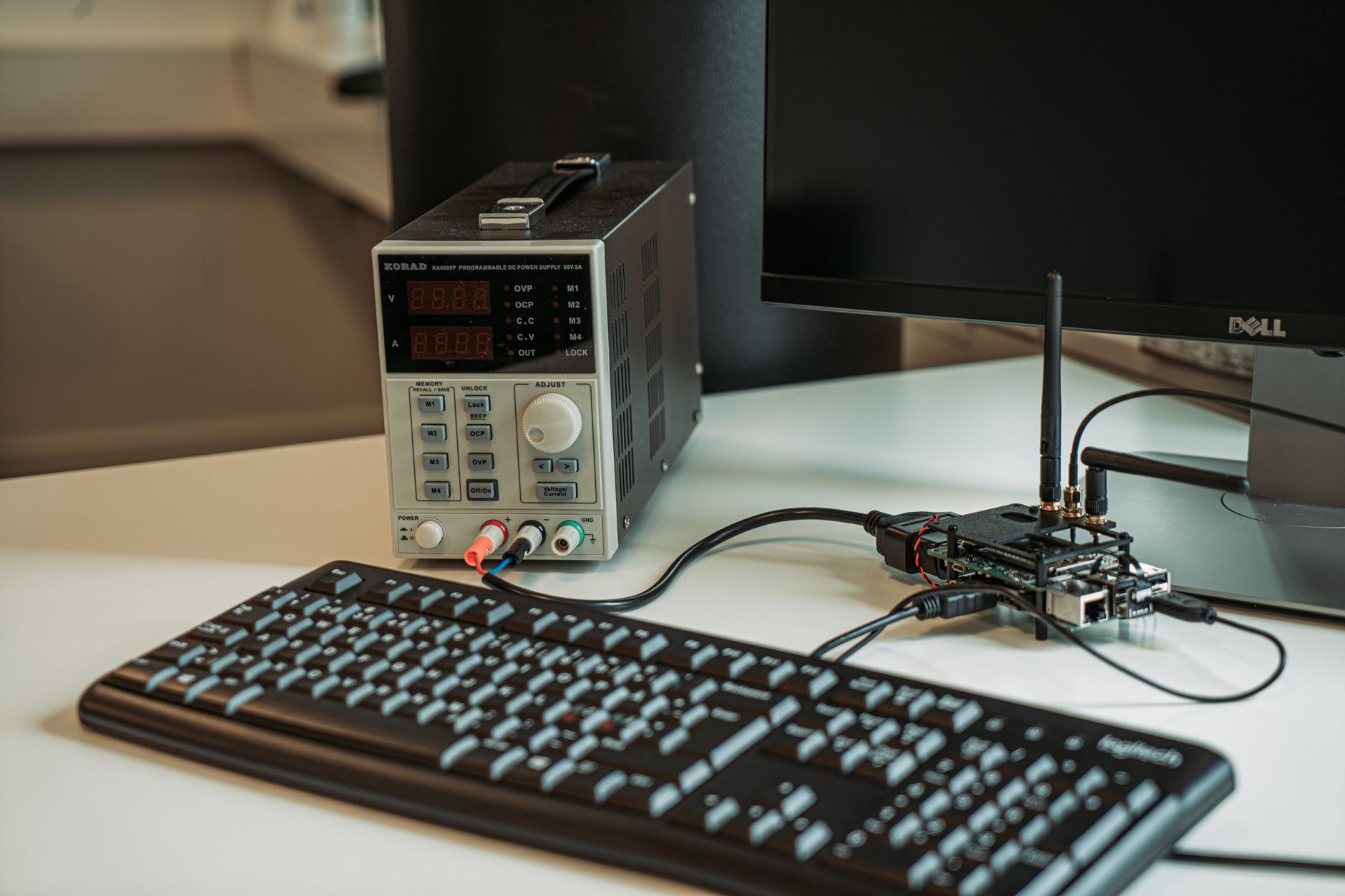
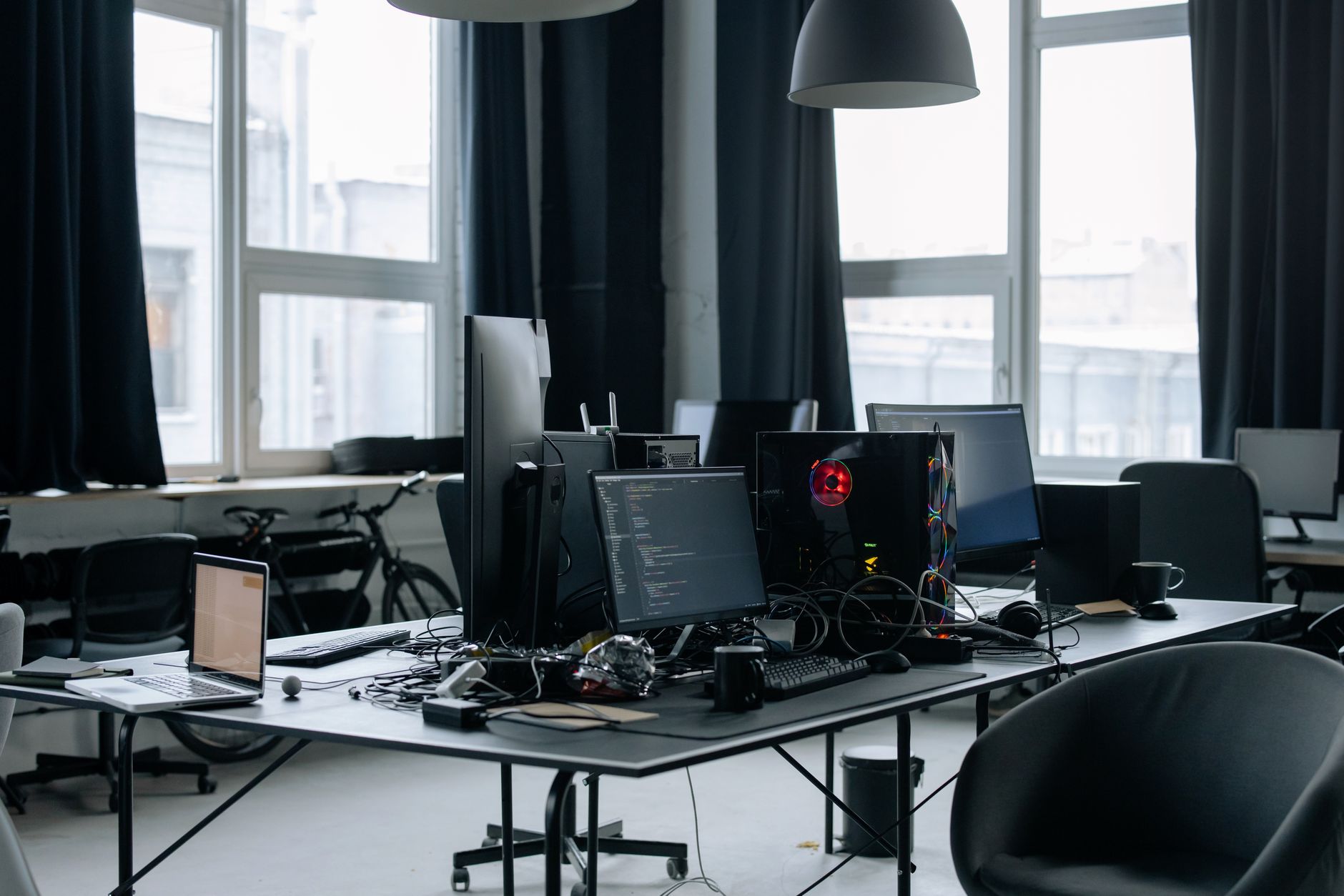
Video editing stresses nearly every part of a computer — the processor decodes and processes footage, the graphics card accelerates effects and playback, memory holds your project, and storage feeds large files quickly. A weak link in any of these causes lag.
This is why editing computers need balanced, capable hardware rather than one standout part. Understanding what each component does for editing lets you prioritize sensibly, building or buying a machine that handles your footage smoothly.
The Processor (CPU)
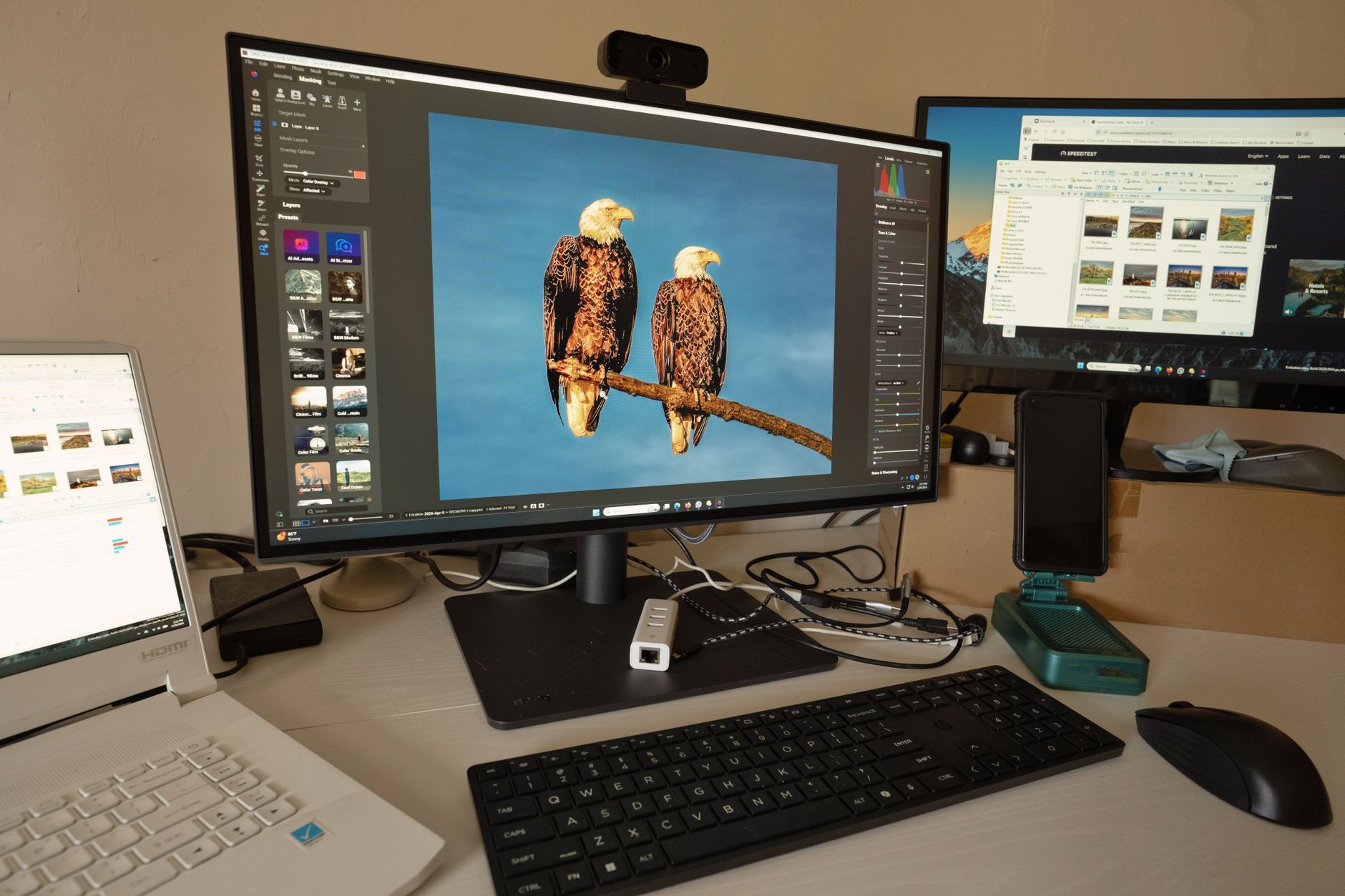
The CPU is central to editing, handling decoding, encoding, and much of the processing in Premiere Pro. A modern multi-core processor speeds up playback, rendering, and export, making it one of the most important components to get right.
More cores and higher speeds help, especially for exporting and effects-heavy work. While you don’t need the absolute top-end, a capable current-generation CPU is the backbone of a smooth editing experience and worth prioritizing in your budget.
The Graphics Card (GPU)
The GPU accelerates playback, effects, and rendering, and it matters more than ever as software offloads work to it. Effects-heavy work in After Effects and grading, plus features like hardware encoding, lean heavily on a capable graphics card.
A dedicated GPU with sufficient video memory makes a real difference in playback smoothness and render times. For grading, effects, and high-resolution footage, investing in a solid GPU pays off directly in how responsive your editing feels.
Memory (RAM)
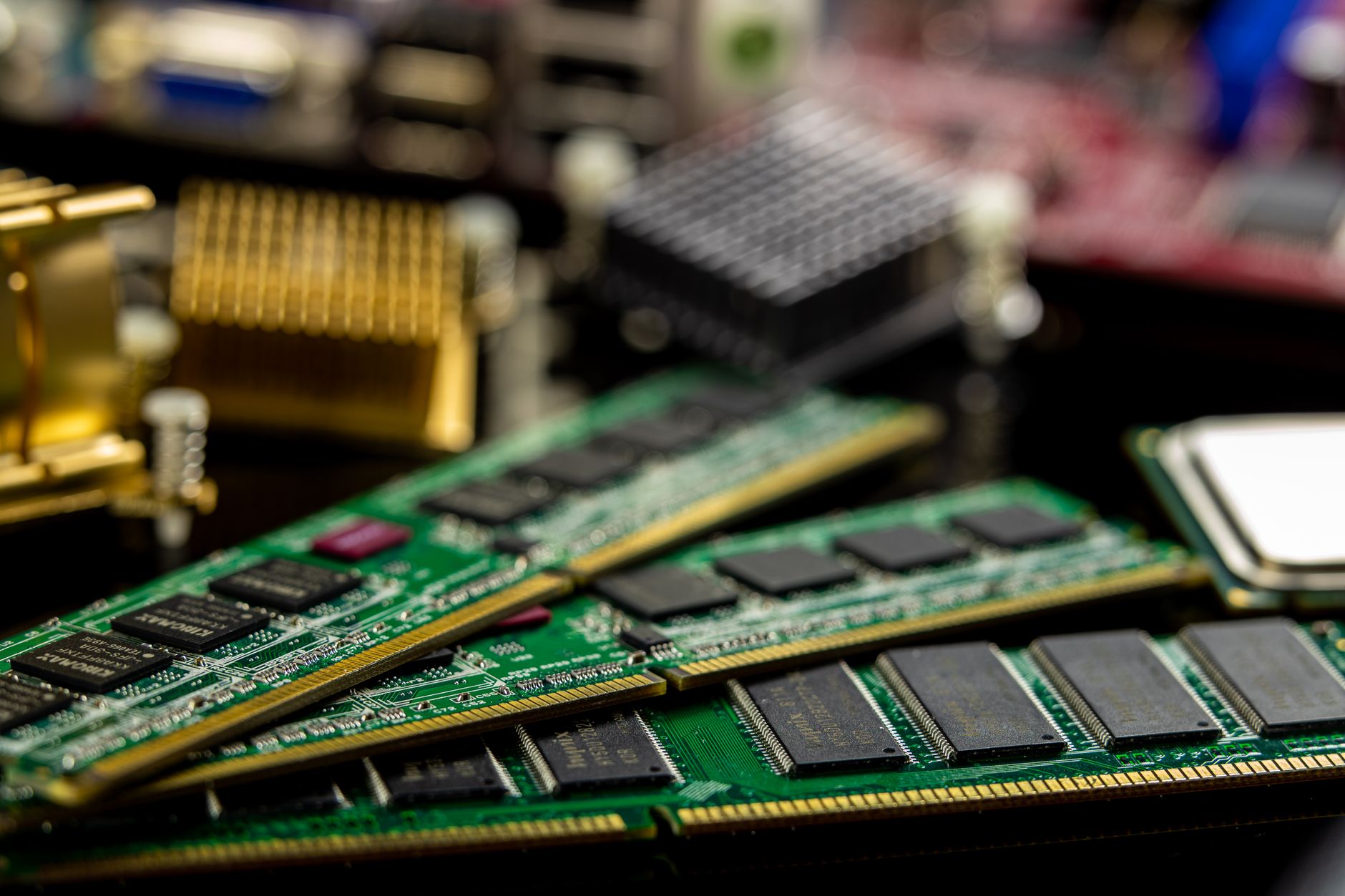
RAM holds your project and footage while you work, and editing is memory-hungry, especially After Effects, which uses RAM for previews. Too little RAM causes stuttering and slowdowns as the system struggles to hold everything.
For comfortable editing, a generous amount of RAM is essential — modest amounts quickly become a bottleneck with high-resolution footage and complex projects. After Effects in particular benefits enormously from plenty of memory for smooth previews.
Storage and Speed
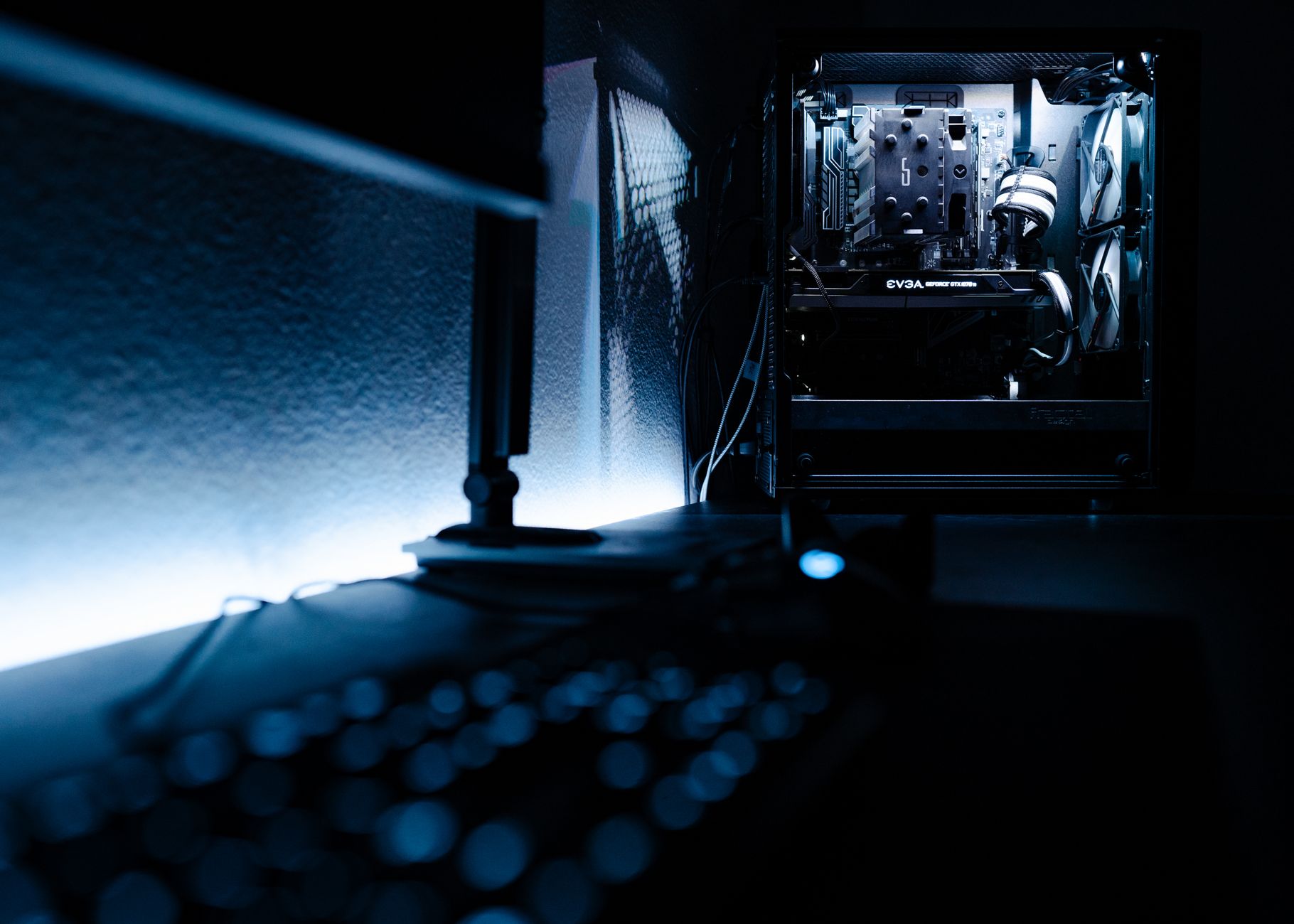
Storage affects both capacity and speed. Fast SSD storage, especially NVMe drives, dramatically improves how quickly your computer loads projects and plays footage, while large capacity holds the big files video produces.
A common professional setup uses a fast SSD for the operating system and active projects, plus larger drives for storage and backup. Editing from a fast drive rather than a slow one removes a frequent, frustrating bottleneck in playback and loading.
Balance Your Components
The key to a good editing machine is balance, not one extreme part. A powerful CPU paired with too little RAM, or a great GPU with slow storage, leaves performance bottlenecked by the weakest component, wasting money on the strong ones.
Spend across the board so no single part holds the others back. A balanced machine — capable CPU, solid GPU, ample RAM, and fast storage — outperforms one with a single flashy component and glaring weaknesses elsewhere.
Laptop vs. Desktop
The choice between laptop and desktop comes down to portability versus power and value. Desktops offer more performance per dollar and easier upgrades, while laptops let you edit anywhere at a premium and with less future flexibility.
If you edit in one place, a desktop usually gives more power for the money. If you need to work on location or travel, a capable laptop is worth the trade-off. Matching the form factor to how you actually work avoids overpaying for portability you won’t use.
Match the Machine to Your Work
Your needs depend on what you edit. Casual 1080p editing runs on modest hardware, while 4K footage, heavy effects, and After Effects work demand significantly more power, so be honest about your projects before spending.
Buying far more than you need wastes money, while underbuying causes daily frustration. Matching your machine to your actual resolution, codecs, and complexity — and leaving a little headroom for growth — is how you spend wisely on an editing computer.
Choosing a Computer Best Practices
- Prioritize a capable modern CPU as the editing backbone.
- Get a solid GPU for effects, grading, and playback.
- Fit ample RAM, especially for After Effects previews.
- Use fast SSD storage and balance all components.
Common Buying Mistakes
- Overspending on one part while bottlenecking others.
- Too little RAM, causing constant stuttering.
- Editing from slow storage instead of an SSD.
- Buying far more or less power than your work needs.
A Real Build-Balancing Example
Imagine a budget for a new editing machine. It’s tempting to blow most of it on the flashiest graphics card, but if that leaves too little for RAM and a fast SSD, the system stutters anyway as it runs out of memory and waits on slow storage. The expensive GPU sits underused while the weak links throttle everything.
A smarter split spreads the budget — a strong current-generation CPU, a solid GPU, ample RAM, and a fast NVMe drive — so nothing bottlenecks the rest. The result outperforms a lopsided build that cost the same, proving that balance, not a single hero component, is what makes editing feel fast. Pairing that machine with optimized Premiere performance settings squeezes out even more.
Plan for the Footage You’ll Actually Edit
Specs should follow your real work, not the most demanding scenario imaginable. If you edit mostly 1080p talking-head videos, a mid-range machine handles it comfortably, while heavy 4K, multicam, and effects-laden motion graphics work genuinely needs more power across the board. Being honest about your projects prevents both overspending and frustrating slowdowns.
It’s also worth leaving a little headroom for where your work is heading, since resolutions and project complexity tend to grow over time. Buying for your actual footage today plus modest room to grow is the sweet spot — enough power to work smoothly without paying for capability you’ll never touch.
Alongside a capable machine, an accurate, calibrated editing monitor is essential for reliable color work.
Both editors lean on your hardware, so read the Premiere Pro and DaVinci Resolve comparison alongside our machine recommendations.
Key Takeaways
- Editing stresses CPU, GPU, RAM, and storage together.
- Prioritize a capable CPU and a solid GPU.
- Fit ample RAM and fast SSD storage.
- Balance components and match the machine to your work.
Frequently Asked Questions
What’s most important in a video editing computer?
Editing needs balanced hardware: a capable multi-core CPU as the backbone, a solid GPU for effects and playback, ample RAM (especially for After Effects), and fast SSD storage. A weak link in any of these causes lag.
How much RAM do I need for video editing?
Editing is memory-hungry, and After Effects especially uses RAM for previews. Modest amounts quickly bottleneck with high-resolution footage, so a generous amount is essential for smooth, comfortable editing of complex projects.
Should I get a laptop or desktop for editing?
Desktops offer more performance per dollar and easier upgrades, ideal if you edit in one place. Laptops let you work anywhere at a premium with less upgrade flexibility. Match the form factor to how you actually work.
Sources: Wikipedia’s overview of computer hardware.
Build the right rig at Adobe Video World
Train hands-on with Adobe Certified Instructors across 100+ Premiere Pro & After Effects sessions.



