A workflow taught by Adobe Certified Instructors at Adobe Video World.
Your monitor is how you see your edit, and an inaccurate display leads to footage that looks wrong everywhere else. Choosing a good editing monitor means prioritizing color accuracy, resolution, and calibration. This guide covers what matters when choosing a monitor for video editing, so you grade and edit with confidence.
Why the Monitor Matters
Your monitor determines how you perceive your footage’s color, brightness, and detail. An inaccurate display causes you to make wrong decisions, so your video looks different — often worse — on other screens, making color accuracy critical for editing.
Since you can’t grade what you can’t see accurately, the monitor is fundamental to color work, as our scopes guide complements. Choosing a display that shows accurate color ensures the decisions you make translate correctly to how others see your video.
Prioritize Color Accuracy
For editing, color accuracy is the most important feature. A monitor that covers a wide, accurate color gamut and displays color faithfully ensures your grading decisions are based on what the footage really looks like, not a distorted version.
Look for monitors with good color accuracy specifications and wide gamut coverage. This accuracy is what makes a monitor suitable for serious editing and grading, since a display that misrepresents color undermines every color decision you make.
Consider Resolution
Monitor resolution affects how much detail and timeline you see. A high-resolution display, like 4K, shows your footage in full detail and gives you more screen real estate for panels and timeline, improving both quality and workflow.
Higher resolution lets you see fine detail and work more comfortably with more on screen. While not as critical as color accuracy, a sharp, high-resolution monitor enhances both how you judge your footage and how efficiently you work in your editing software.
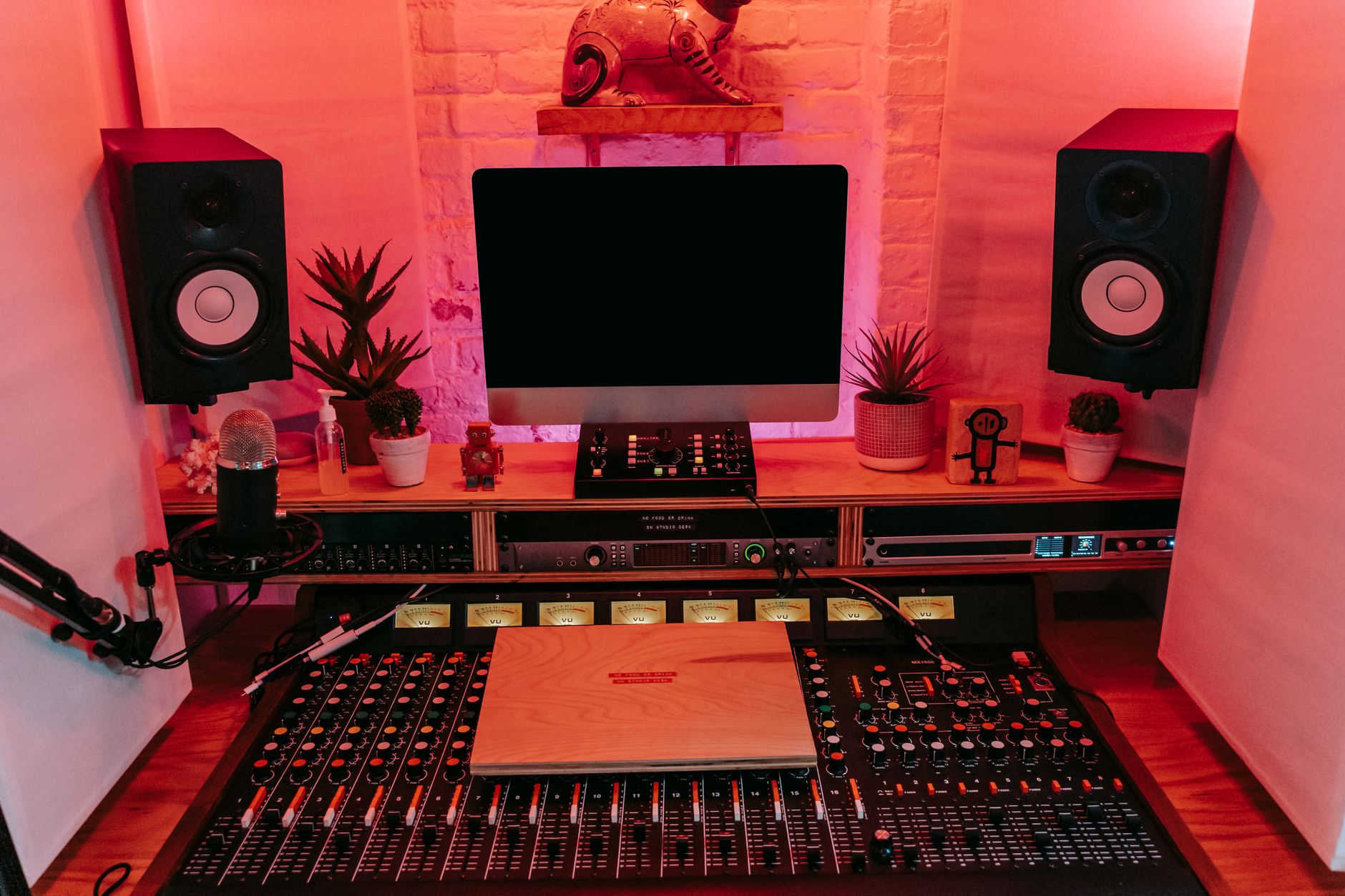
Understand Panel Types
Monitor panel technology affects color and viewing. IPS panels are favored for editing due to their accurate color and wide viewing angles, while other panel types prioritize speed or contrast over color fidelity.
For editing, IPS panels are generally the best choice, offering the consistent, accurate color that grading requires. Understanding that panel type affects color performance helps you choose a display suited to editing rather than one optimized for gaming or other uses.
Calibrate Your Monitor
Even a good monitor needs calibration for accuracy. Calibrating your display with a hardware calibration tool ensures it shows color accurately and consistently, correcting any drift and matching it to standards.
Calibration is what guarantees your monitor shows true color, and it should be done periodically as displays drift. Investing in calibration, alongside a quality monitor, ensures your color decisions are reliable, which is essential for grading that looks right everywhere.
Consider a Reference Monitor
For professional grading, a dedicated reference monitor offers the highest accuracy. These specialized displays, separate from your computer monitor, show precisely accurate color for critical grading, used in professional post-production.
While not necessary for most creators, a reference monitor is the gold standard for color-critical work. Understanding that professional grading often uses a dedicated, accurate reference display helps you appreciate the importance of accuracy and decide what level your work requires.
Match the Monitor to Your Work
The right monitor depends on your needs. Serious colorists need highly accurate, possibly reference displays, while general editors need a good, color-accurate monitor at a sensible price, so matching the monitor to your work and budget makes sense.
Considering how color-critical your work is guides the investment. A general creator benefits from a solid, accurate, calibrated monitor, while professional grading demands more, so choosing based on your actual needs ensures you get the accuracy your work requires.
Editing Monitor Best Practices
- Prioritize color accuracy and wide gamut coverage.
- Choose a high-resolution IPS panel for editing.
- Calibrate your monitor with a hardware tool.
- Match the monitor’s accuracy to how color-critical your work is.
Common Monitor Mistakes
- Prioritizing speed or contrast over color accuracy.
- Never calibrating the display, letting color drift.
- Using a gaming monitor for color-critical grading.
- Overspending on a reference monitor you don’t need.
A Real Monitor Choice Example
Picture a creator upgrading from a generic display to an editing monitor. They choose a 4K IPS panel with strong color accuracy and wide gamut coverage, then calibrate it with a hardware probe. Suddenly their grades that looked great before now reveal a slight green cast they’d been missing, which they correct — and their videos finally look consistent across phones, TVs, and other screens.
That transformation came purely from seeing color accurately. An accurate, calibrated monitor doesn’t just look nicer; it changes the decisions you make, ensuring your work translates everywhere. That reliability is exactly why color accuracy and calibration matter more than any other monitor feature for editing.
Monitor Brightness and Environment
How you view your monitor matters as much as the monitor itself. A bright, accurate display still misleads if your room is too bright or has colored walls casting tints, so a neutral, dimly-lit editing environment with consistent lighting is part of seeing color correctly.
Setting your monitor’s brightness to a sensible standard, rather than blasting it, and controlling your room’s light keeps your perception reliable. Pairing a calibrated monitor with a controlled environment, alongside the objective reference of our scopes guide, gives you the most trustworthy view of your footage.
Dual Monitors for Editing
Many editors use two monitors to expand their workspace — one for the timeline and program preview, another for panels and bins. This setup, covered in our workspaces guide, dramatically improves efficiency by letting you see more at once without constantly rearranging panels.
When using two displays, the one you judge color on must be the accurate, calibrated one, while a secondary screen can be less critical for panels. Combining a spacious dual-monitor layout with one trusted color-accurate display gives you both the room to work and the accuracy to grade reliably.
Key Takeaways
- An accurate monitor is essential for reliable editing and grading.
- Prioritize color accuracy and wide gamut.
- Choose a high-resolution IPS panel and calibrate it.
- Match the monitor’s accuracy to your work’s needs.
Frequently Asked Questions
What should I look for in a video editing monitor?
Prioritize color accuracy and wide gamut coverage above all, since accurate color is critical for grading. Choose a high-resolution IPS panel for accurate color and detail, and calibrate it with a hardware tool for reliable results.
Why does my video look different on other screens?
Usually your editing monitor isn’t accurate or calibrated, so you’re grading on a distorted view. Use a color-accurate IPS monitor, calibrate it periodically with a hardware tool, and your decisions will translate correctly to other screens.
Do I need a reference monitor for editing?
Only for professional, color-critical grading, where a dedicated reference monitor offers the highest accuracy. Most creators are well served by a good, color-accurate, calibrated IPS monitor at a sensible price.
Sources: Wikipedia’s overview of computer monitors.
See true color at Adobe Video World
Train hands-on with Adobe Certified Instructors across 100+ Premiere Pro & After Effects sessions.



