A workflow taught by Adobe Certified Instructors at Adobe Video World.
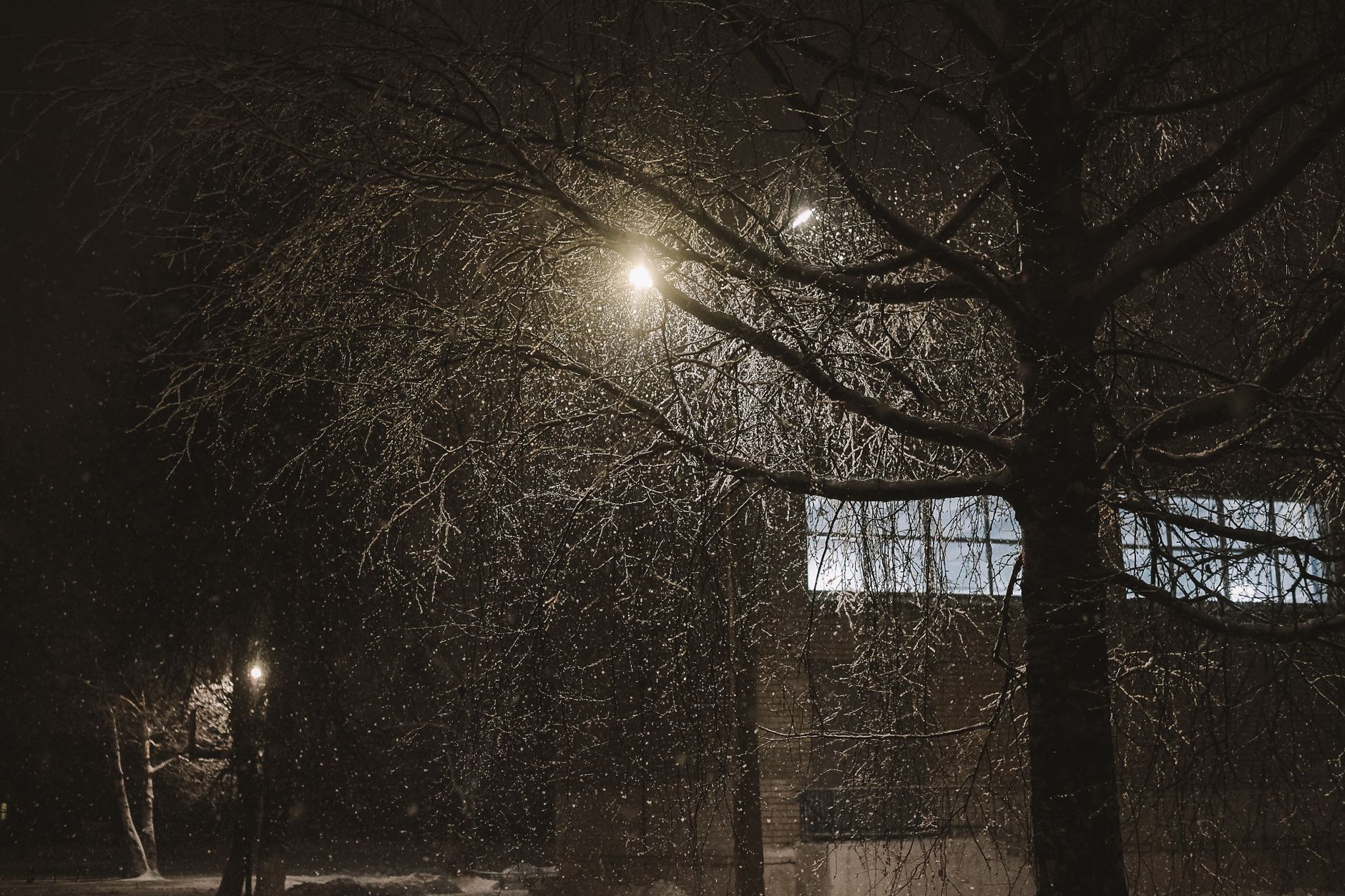
Falling snow adds atmosphere and magic to a scene — a gentle winter flurry, a heavy snowfall, or a dreamy holiday backdrop. After Effects creates snow with built-in effects and particles, or composites real snow overlays. This guide covers generating snow, adding depth and drift, and making it believable rather than a flat layer of dots.
What Makes Snow Believable
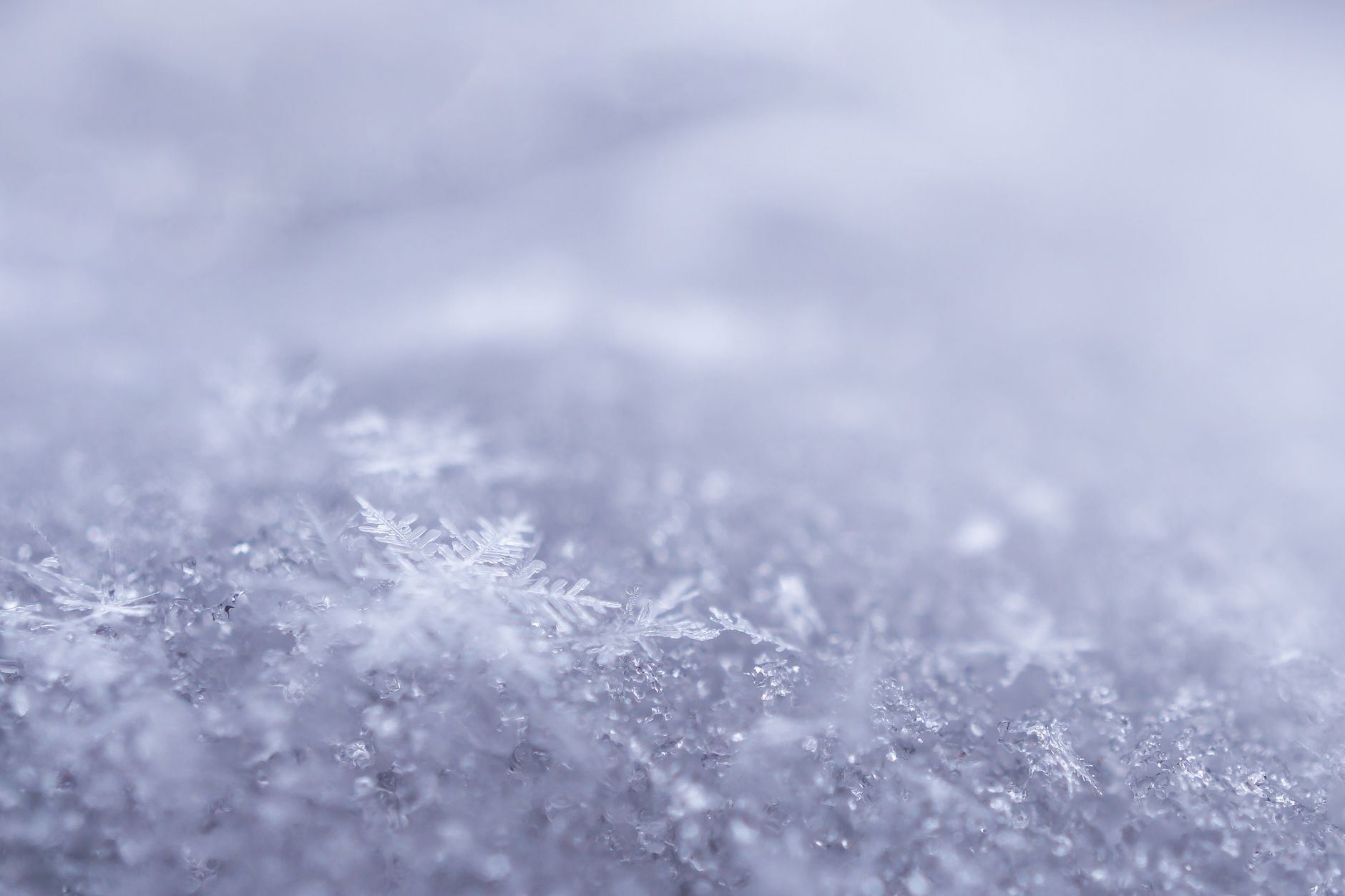
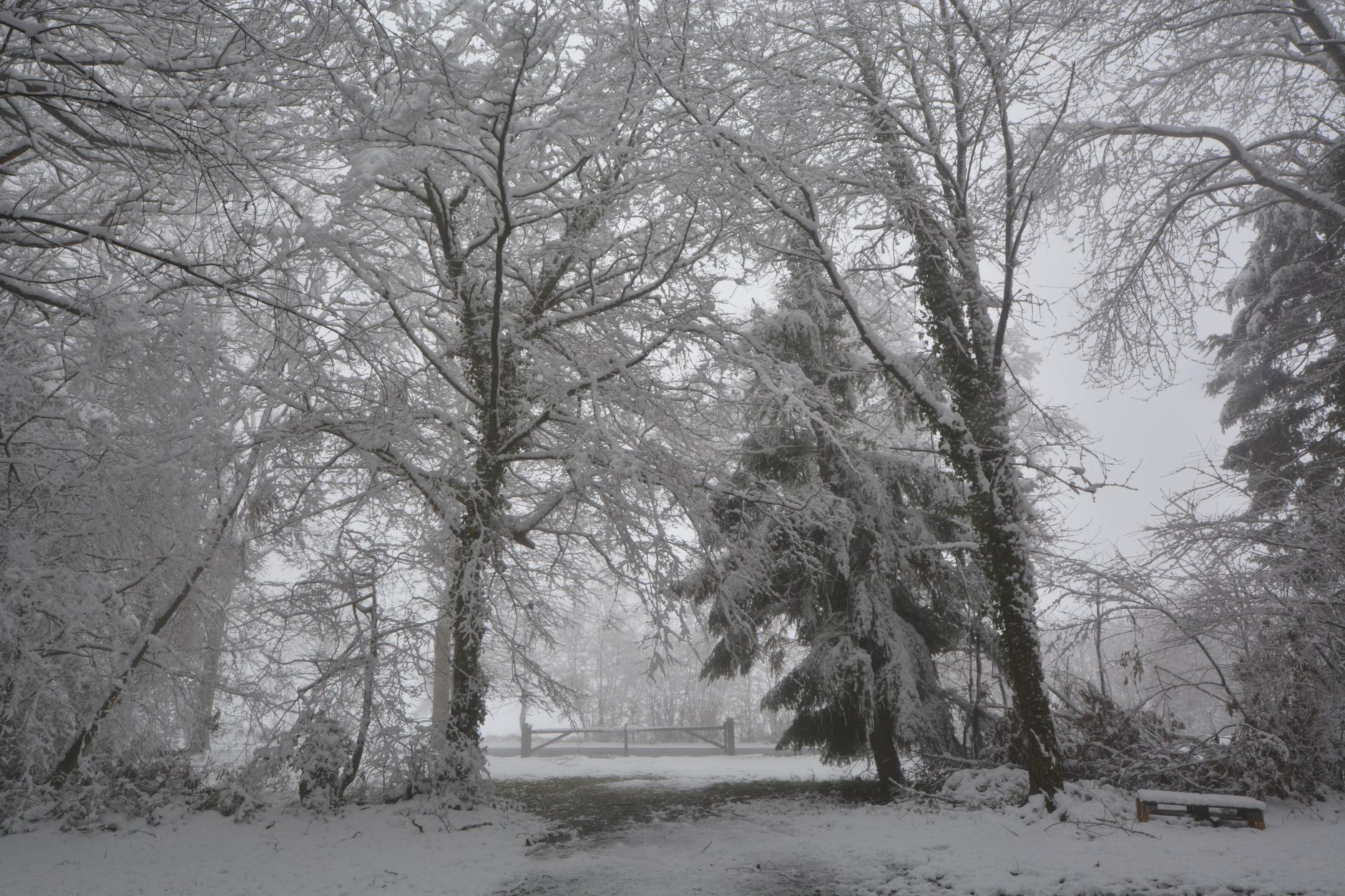
Convincing snow has variety and depth: flakes of different sizes falling at different speeds, gentle drifting rather than straight lines, soft focus on nearer flakes, and a natural, irregular spread. These qualities separate real-feeling snow from a uniform dot pattern.
Real snow also drifts with the air, swaying as it falls rather than dropping straight down. Capturing this variation and movement is the key to snow that adds atmosphere instead of looking like an obvious overlay of white specks.
Use the CC Snowfall Effect
After Effects includes a built-in CC Snowfall effect that quickly generates falling snow. Apply it to a layer and adjust the amount, speed, size, and wind, and you get a sheet of snow falling across your scene with minimal setup.
CC Snowfall is the fastest route to instant snow and handles the basics well. Tuning its flake size, fall speed, and wind so the snow drifts naturally gives you a solid foundation you can enhance with extra depth and detail.
Build Snow with Particles
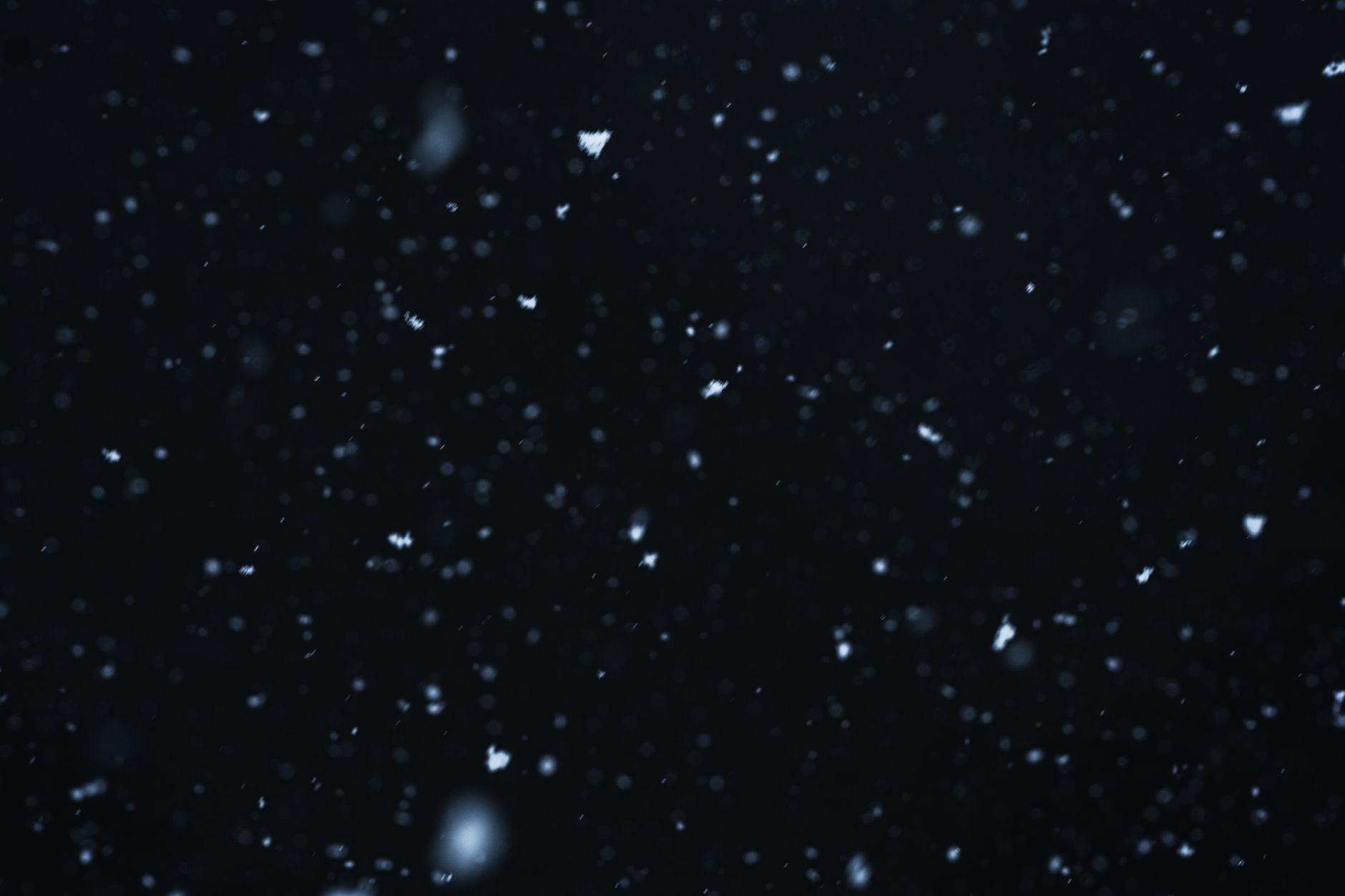
For more control, generate snow with a particle system like CC Particle World. Configure small white particles falling slowly with a little gravity and some horizontal drift, styled as soft, round flakes.
Particles let you control every aspect — flake size, density, speed, and drift — for custom snowfall. Adding a slight sideways motion and varying the particle size produces the gentle, irregular fall that makes snow feel natural.
Add Depth with Layers
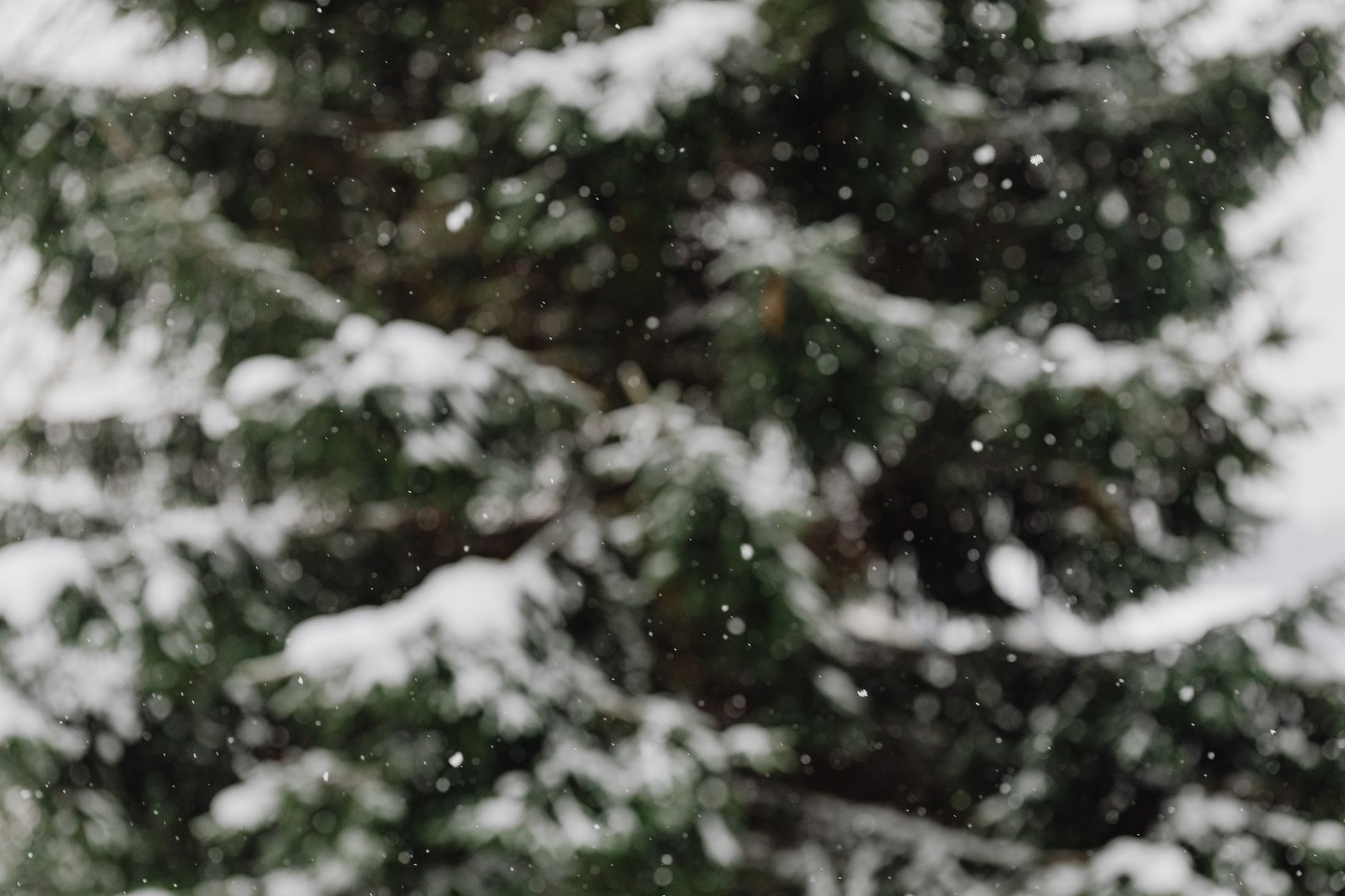
Real snow fills the space between camera and scene, so build it in layers. Create a foreground layer of large, fast, soft-focused flakes and a background layer of small, slow, faint ones, giving the snowfall genuine three-dimensional depth.
This layering, ideally with 3D layers a camera can move through, is what makes snow surround the scene rather than sit flatly over it. The blurred foreground flakes especially sell the sense of depth and proximity.
Add Natural Drift
Snow rarely falls straight, so adding drift is essential. Give your flakes gentle horizontal movement and a slight sway, using a wiggle or wind setting, so they meander down naturally rather than dropping in rigid vertical lines.
This drifting motion is one of the biggest factors in believable snow. A subtle, varied sideways drift makes the flakes feel light and airborne, caught by the slightest breeze, exactly as real snow behaves.
Use Real Snow Overlays
As with rain and smoke, real snow footage shot against black is the most authentic option. Drop a snow overlay onto a layer set to Screen or Add, and the black drops out, leaving genuine falling snow to composite over your shot.
Real snow carries natural variation and movement that’s hard to fully generate. Blending overlays with the techniques from our blending modes guide is often the quickest way to add believable snowfall, especially for hero shots.
Build Winter Atmosphere
Snow rarely comes alone. Adding a cool, slightly desaturated color grade, a soft haze, and perhaps a gentle fog completes the wintry mood, tying the snowfall into a cohesive cold-weather scene.
A cool grade with soft atmosphere reinforces the chill that snow implies. Combining the falling snow with this overall mood, rather than dropping snow over a warm scene, is what makes the effect feel genuinely wintry and cinematic.
Add Settled Snow and Detail
For extra realism, suggest snow accumulating. Adding a soft layer of settled snow on surfaces, or flakes catching the light, grounds the falling snow in the environment rather than floating it over a snowless scene.
These touches connect the snowfall to the world it’s falling on. Even a subtle hint of settled snow or a few flakes glinting in a light source makes the scene feel cohesive, completing the believable winter picture.
Snow Effect Best Practices
- Use CC Snowfall for speed or particles for full control.
- Layer foreground and background snow for depth.
- Add gentle drift so flakes meander naturally.
- Use real overlays and a cool grade for winter atmosphere.
Common Snow Mistakes
- Uniform flakes falling in straight vertical lines.
- No depth, leaving a flat layer of white dots.
- Snow with no drift, looking rigid and fake.
- A warm scene that contradicts the wintry feel.
A Real Snowfall Scene Example
Picture turning a plain shot of a street at dusk into a magical snowy evening. You build three snow layers — large soft-focused flakes drifting close to camera, medium flakes in the midground, and a fine haze of distant ones — each with a gentle sideways drift from a wiggle. A cool desaturated grade and a faint fog complete the chill.
As the layered flakes meander down at different speeds and the streetlights glow through the haze, the ordinary clip becomes a quiet, atmospheric winter moment. That sense of depth and softness, built from layered drifting snow inside a cold-toned scene, is what makes snowfall feel enchanting rather than like dots falling over footage.
Snow for Holiday and Seasonal Content
Snow is a workhorse for holiday and seasonal projects, where a touch of snowfall instantly signals winter warmth and festivity. Adding gentle snow to a logo reveal, a greeting card animation, or a product promo gives it a cozy, celebratory feel that audiences associate with the season.
Keeping the snow soft and not too heavy lets it enhance the mood without obscuring your message, and pairing it with a warm glow on lights creates an inviting contrast against the cold. Combined with the festive styling in our motion graphics guide, a light snowfall is one of the simplest ways to give seasonal content genuine charm.
If you can drive a snowfall with particles, creating a rain effect in After Effects uses the same simulation tools with a faster, streakier look.
From cold to hot, adding fire in After Effects uses the same fractal-noise foundations as a snowfall.
Even a blizzard can flash, so adding lightning in After Effects layers neatly over falling snow.
Trade flakes for bright paper and a confetti effect in After Effects bursts from the same particle engine as snow.
Key Takeaways
- Believable snow needs varied flakes, depth, and drift.
- Use CC Snowfall, particles, or real overlays on Screen.
- Layer snow at different distances and add gentle drift.
- Finish with a cool grade and winter atmosphere.
Frequently Asked Questions
How do I create snow in After Effects?
Use the built-in CC Snowfall effect for quick falling snow, or build it with a particle system like CC Particle World for full control. Composite real snow overlays on a Screen layer for the most realism, and add drift.
How do I make snow look realistic?
Layer foreground and background snow for depth, vary the flake sizes and speeds, add gentle horizontal drift so flakes meander rather than fall straight, and finish with a cool, desaturated grade and soft atmosphere.
What’s the easiest way to add snow?
Real snow footage shot against black, dropped onto a layer set to Screen or Add so the black disappears, is the quickest route to believable snow. Real overlays carry natural variation that’s hard to generate.
Sources: Adobe’s documentation on After Effects simulation effects for falling snow.
Create winter magic at Adobe Video World
Train hands-on with Adobe Certified Instructors across 100+ Premiere Pro & After Effects sessions.



