A workflow taught by Adobe Certified Instructors at Adobe Video World.
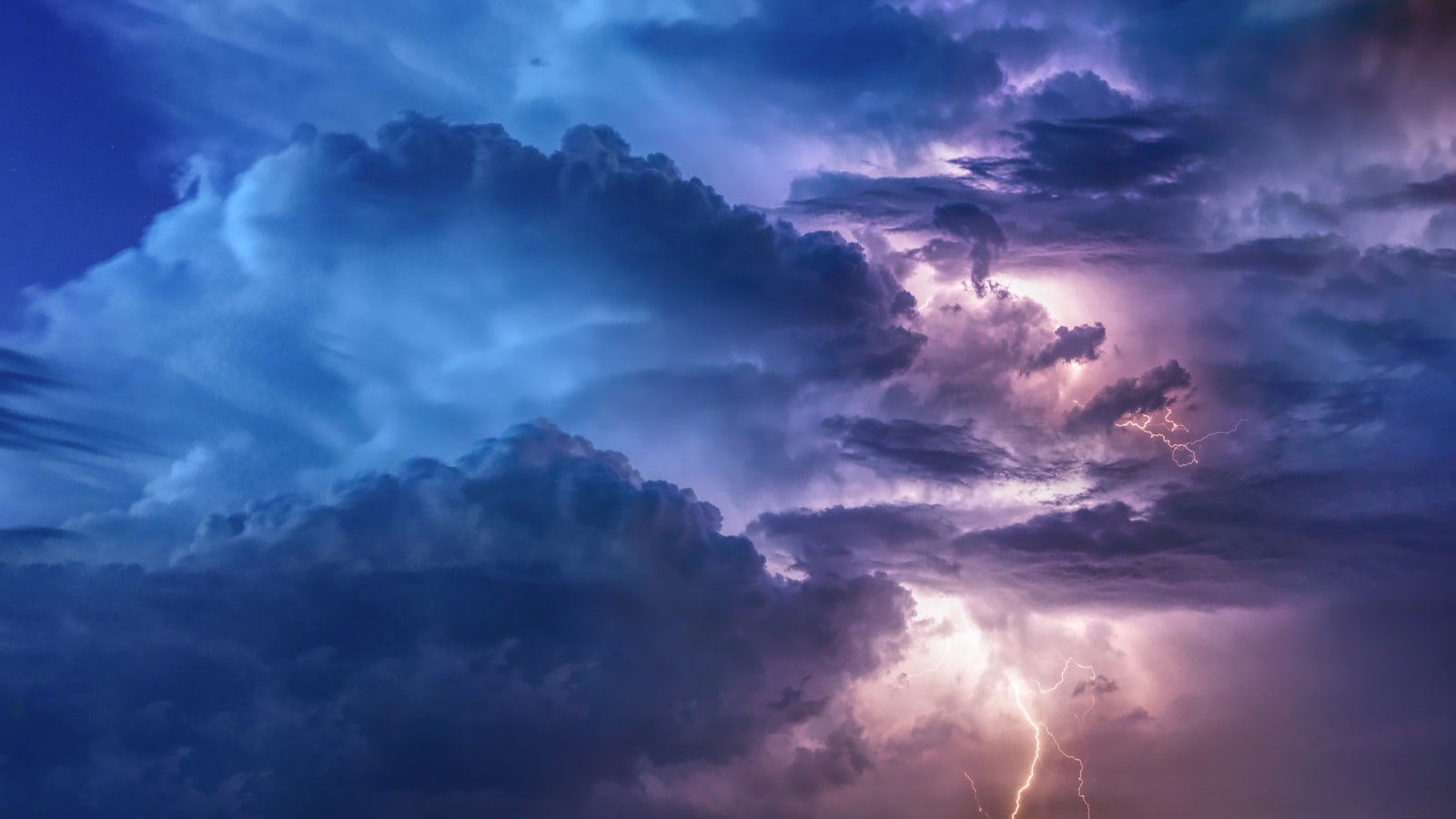
Lightning and electricity add drama and power to a shot — a storm strike, crackling energy, or a magical bolt. After Effects generates lightning with the Advanced Lightning effect, which you animate and enhance with glow and flashes. This guide covers creating bolts, animating strikes, and building dramatic, believable electrical effects.
What the Lightning Effect Adds
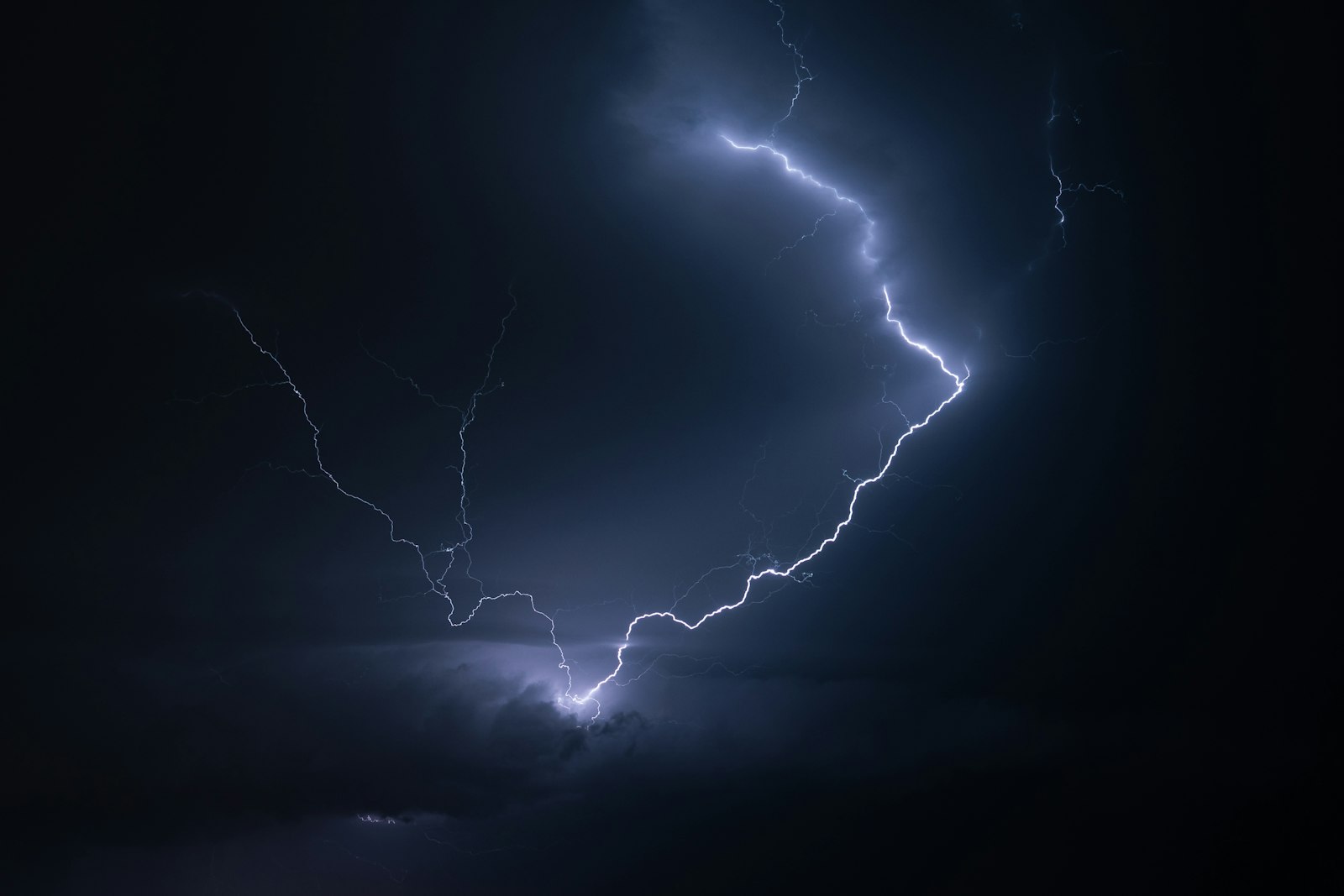
Lightning brings energy, danger, and spectacle to a scene — a dramatic storm, an electrical surge, or a fantasy spell. The jagged, branching bolts and their bright flash instantly raise the intensity of a shot.
After Effects can generate realistic, animated lightning that branches and crackles convincingly. Whether you want a single storm strike or continuous arcing electricity, the built-in tools produce dynamic bolts you can shape and enhance.

Use the Advanced Lightning Effect
The main tool is Advanced Lightning (under Generate), which creates realistic branching bolts. Apply it to a solid, and it generates a bolt of lightning between two points you set — an origin and a direction or end point.
Advanced Lightning is far more realistic than the older Lightning effect, with natural branching and decay. Setting its Origin and Direction points positions the bolt, giving you a believable strike to animate and refine.
Choose the Lightning Type
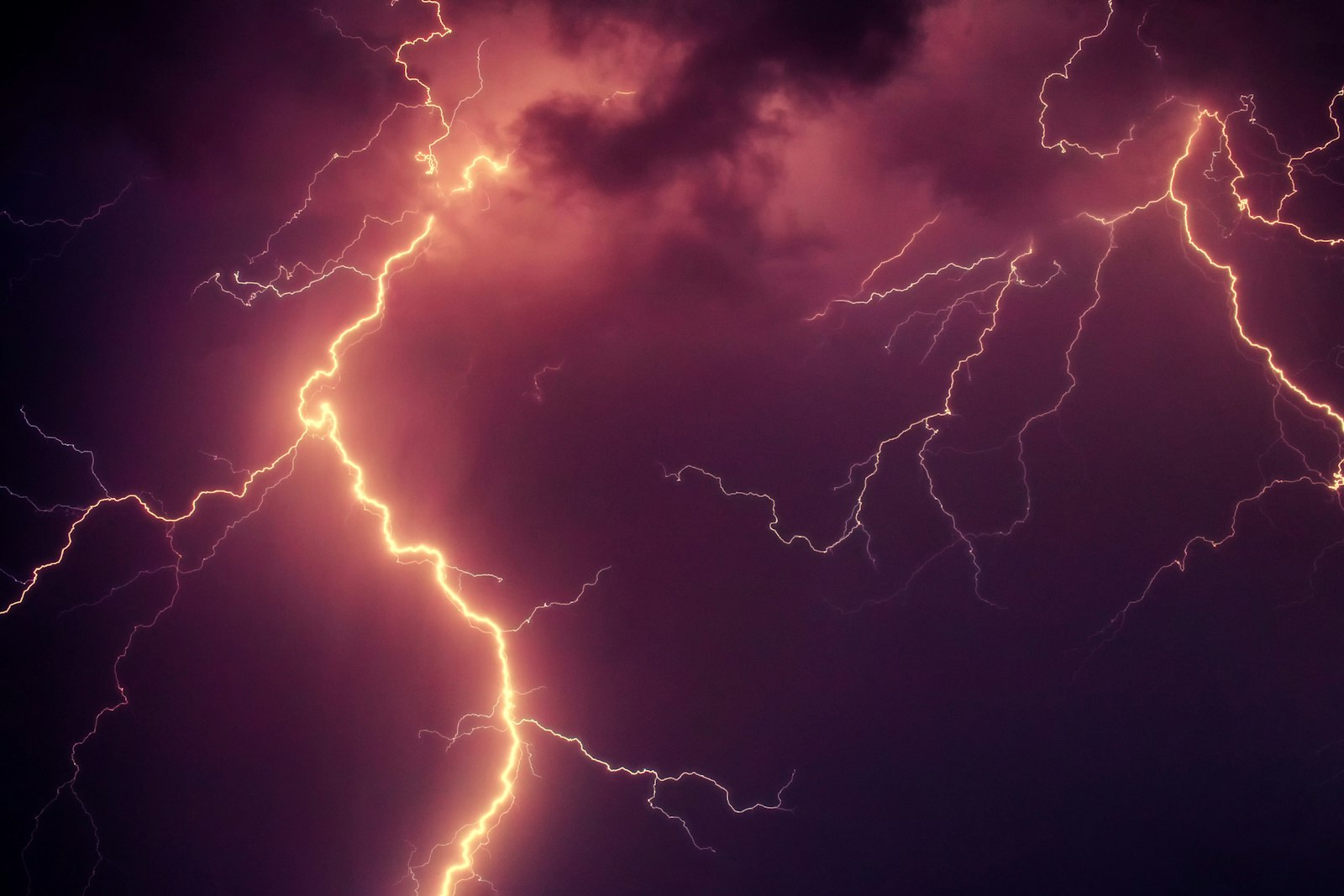
Advanced Lightning offers several conductivity and lightning types — Direction, Strike, Breaking, and others — each producing a different behavior. Strike connects two points, while others create wandering or breaking bolts for varied electrical effects.
Choosing the type sets how the bolt behaves and branches. Strike suits a bolt hitting a target, while breaking and forking types suit chaotic energy, so the type you pick shapes the entire character of your lightning.
Shape the Bolt
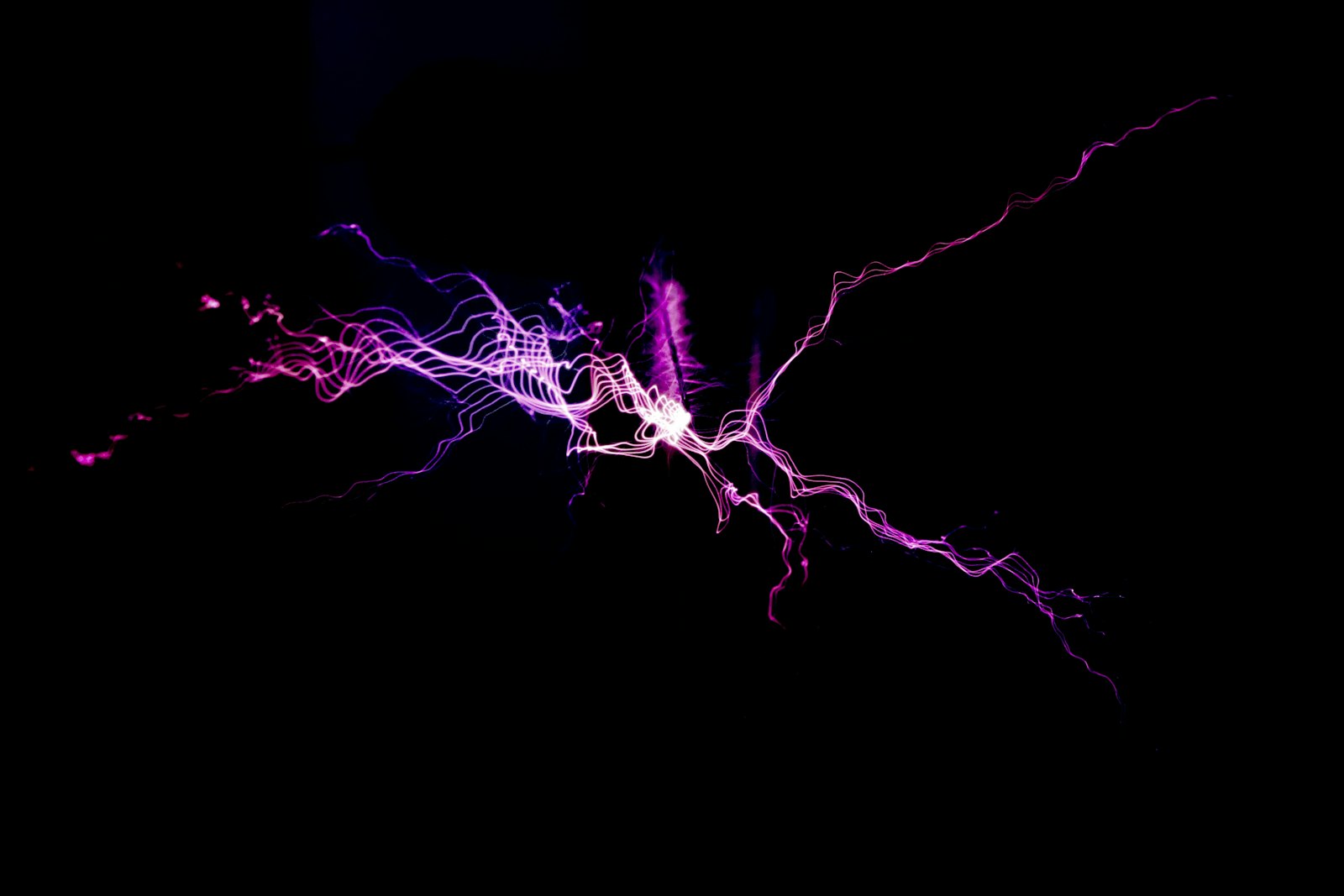
Several controls refine the bolt’s appearance. Core Settings adjust the thickness and color of the main bolt, Glow Settings control its surrounding glow, and complexity and forking settings determine how much it branches.
Tuning these gives you control over whether the lightning is a thin, sharp bolt or a thick, heavily branching one. Adjusting the core color toward blue-white and adding glow produces the classic electric look most effects need.
Animate the Strike
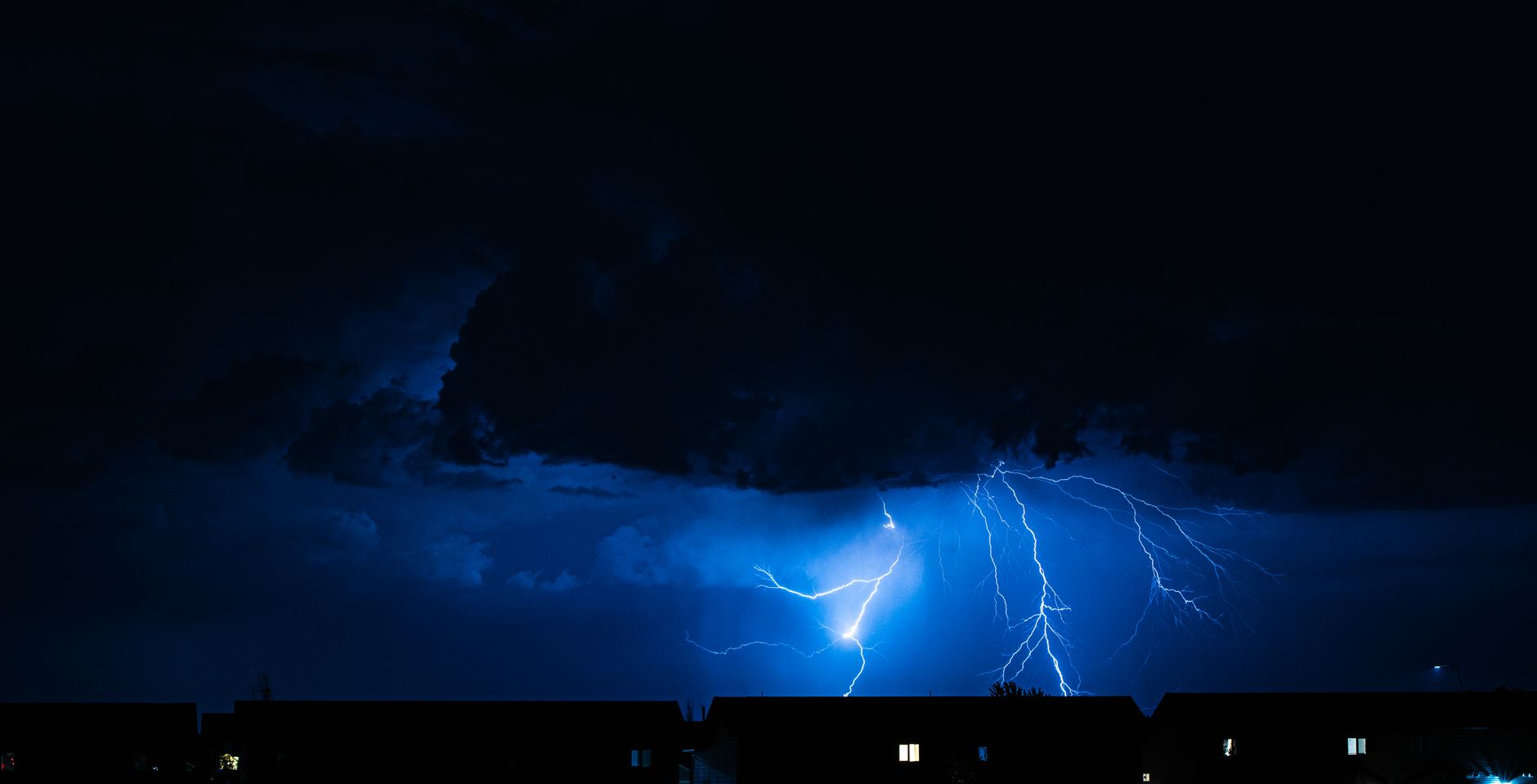
Lightning is dynamic, so animation is essential. Animating the Conductivity State makes the bolt flicker and rewrite itself, simulating the crackling instability of real lightning, while keyframing the origin or direction moves the strike.
For a single strike, animate it appearing for a few frames and vanishing, paired with a bright flash. For continuous electricity, animate the conductivity so the bolt constantly writhes, giving it the restless energy real lightning has.
Add Glow and Flash
Real lightning lights up everything around it, so enhancement sells the effect. Add a strong glow over the bolt so it radiates, and create a brief, bright flash across the whole frame at the moment of the strike.
That flash — a quick full-frame brightening synced to the bolt — mimics how lightning momentarily illuminates a scene. Together, glow and flash transform a thin generated bolt into a powerful strike that genuinely feels like it lights up the sky.
Composite Lightning into a Scene
To place lightning over footage, blend it. Set the lightning layer to Add or Screen, using the techniques from our blending modes guide, so the black background drops out and only the glowing bolt shows.
Adding a matching flash of light onto the scene’s surfaces, and perhaps a subtle color shift, grounds the lightning in the environment. This compositing makes the bolt feel like it’s truly striking within your shot rather than floating on top.
Create Electricity and Energy Effects
Beyond storms, Advanced Lightning creates arcing electricity, energy weapons, and magical effects. Smaller, faster-flickering bolts arcing between objects suggest electrical current, while colored, branching energy suits sci-fi and fantasy.
Tinting the bolts different colors and animating them crackling between points opens up a world of energy effects. The same tool that makes a storm strike, with adjusted settings and color, powers everything from a Tesla coil to a magic spell.
Lightning Effect Best Practices
- Use Advanced Lightning and set its origin and direction.
- Choose the lightning type to suit a strike or arcing energy.
- Animate the conductivity so the bolt flickers and crackles.
- Add glow and a synced flash, and blend with Add or Screen.
Common Lightning Mistakes
- A static bolt that doesn’t flicker or crackle.
- Forgetting the flash that makes lightning illuminate a scene.
- No glow, leaving the bolt thin and weak.
- Compositing without Add or Screen, leaving a dark box.
A Real Lightning Strike Example
Imagine a stormy establishing shot that needs a dramatic strike. You apply Advanced Lightning on a solid, set the origin in the clouds and the direction down to the horizon, and choose a Strike type with heavy branching. You animate it visible for just three frames, flickering its conductivity, then add a full-frame white flash on those same frames and a glow on the bolt.
For the final touch, you brighten the whole scene momentarily so the landscape lights up as the bolt fires. The result is a split-second of spectacle that feels genuinely powerful, because the bolt, the flash, and the scene lighting all hit together — exactly how real lightning announces itself.
Time Lightning with Thunder
Lightning lands hardest when paired with sound. Syncing the visual flash precisely to a sharp thunder crack, or to a musical hit in a stylized piece, makes the strike feel physically powerful because the eye and ear confirm the same violent event together. Even a delayed rumble after the flash adds realism, mimicking how distant thunder lags the light.
Building the audio alongside the visual, as our audio guide describes, is what turns a bright flash into a believable storm moment. Timing the bolt, the flash, and the thunder as one coordinated beat is the difference between a lightning effect that looks good and one that genuinely makes the viewer flinch.
A storm scene wants both, so adding rain in After Effects naturally accompanies your lightning.
A winter storm pairs the After Effects snow effect with the flashes you’ve already built.
Both are glowing energy phenomena, so creating a fire effect in After Effects shares the turbulence and glow approach behind lightning.
Pairing a strike with the After Effects shatter effect sells the moment something gets blown apart.
Key Takeaways
- Advanced Lightning generates realistic branching bolts.
- Set the origin, direction, and lightning type.
- Animate the conductivity to make it flicker and crackle.
- Add glow and a flash, and blend with Add or Screen.
Frequently Asked Questions
How do I create lightning in After Effects?
Apply the Advanced Lightning effect (under Generate) to a solid, set its Origin and Direction points to position the bolt, choose a lightning type, then animate the Conductivity State so it flickers and crackles.
How do I make lightning look realistic?
Add a strong glow so the bolt radiates, create a brief bright flash across the frame at the moment of the strike, animate the conductivity so the bolt writhes, and blend the layer with Add or Screen over your footage.
Can I make colored electricity or energy effects?
Yes. Tint the bolts a different color in the Core Settings, use smaller faster-flickering bolts, and animate them arcing between points. The same Advanced Lightning effect powers sci-fi energy and magical effects, not just storms.
Sources: Adobe’s documentation on simulation and lightning effects in After Effects.
Charge your scenes at Adobe Video World
Train hands-on with Adobe Certified Instructors across 100+ Premiere Pro & After Effects sessions.



