A workflow taught by Adobe Certified Instructors at Adobe Video World.
Smoke and fog add mood, depth, and atmosphere to a scene — a drifting haze in a forest, a smoky concert stage, or a mysterious foggy night. After Effects creates these with the Fractal Noise effect or with smoke overlays. This guide covers generating smoke from scratch, compositing overlays, and animating believable atmosphere.
What Smoke and Fog Add
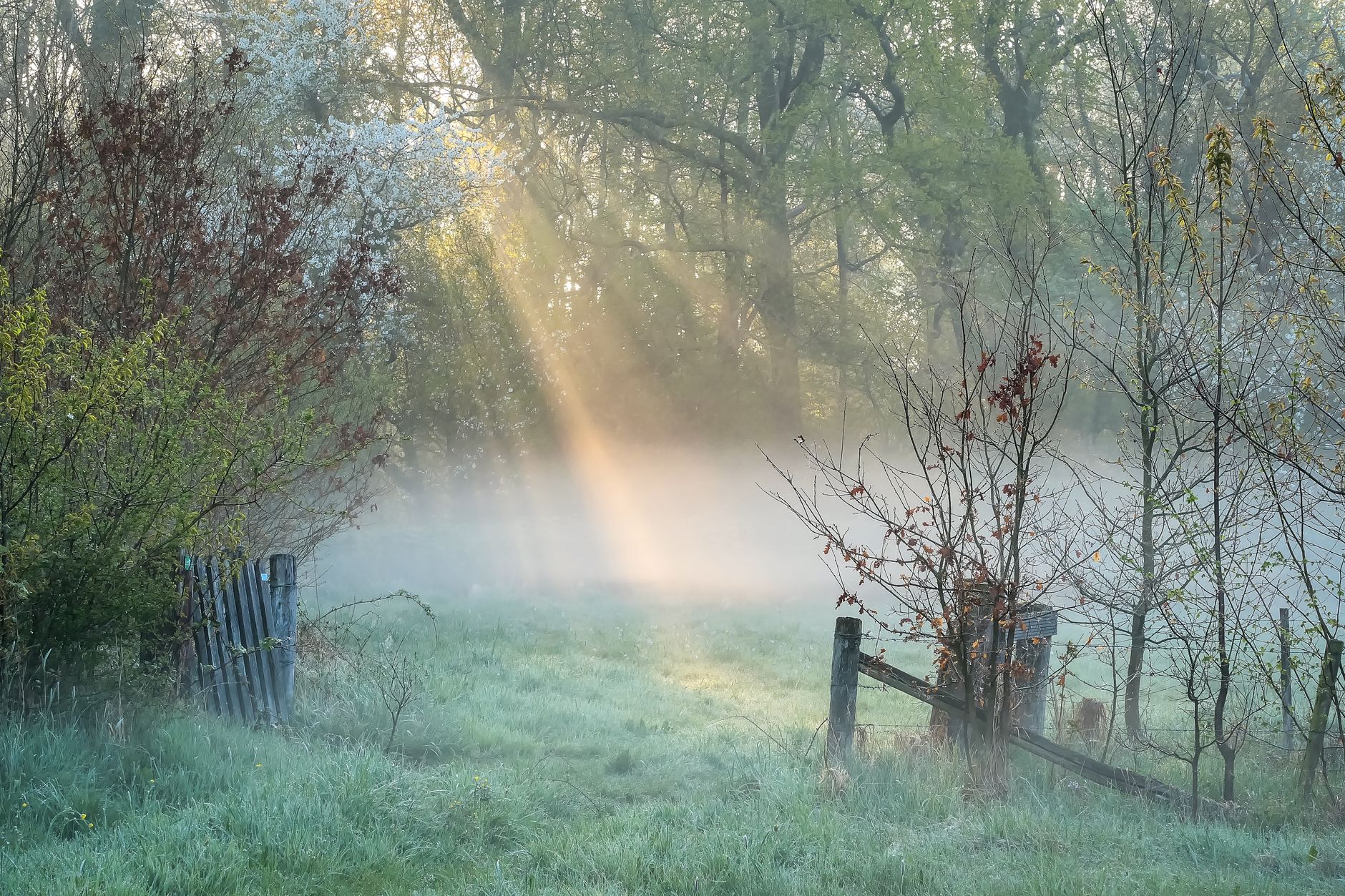
Atmospheric effects like smoke and fog transform the feel of a shot. They add depth by separating foreground from background, set a mood from eerie to dramatic, and catch light beautifully, giving a scene a cinematic, immersive quality.
From subtle ground mist to thick rolling fog, these effects are everywhere in film and music videos. After Effects lets you generate them or composite real footage, so you can add atmosphere to any scene that needs it.
Generate Smoke with Fractal Noise
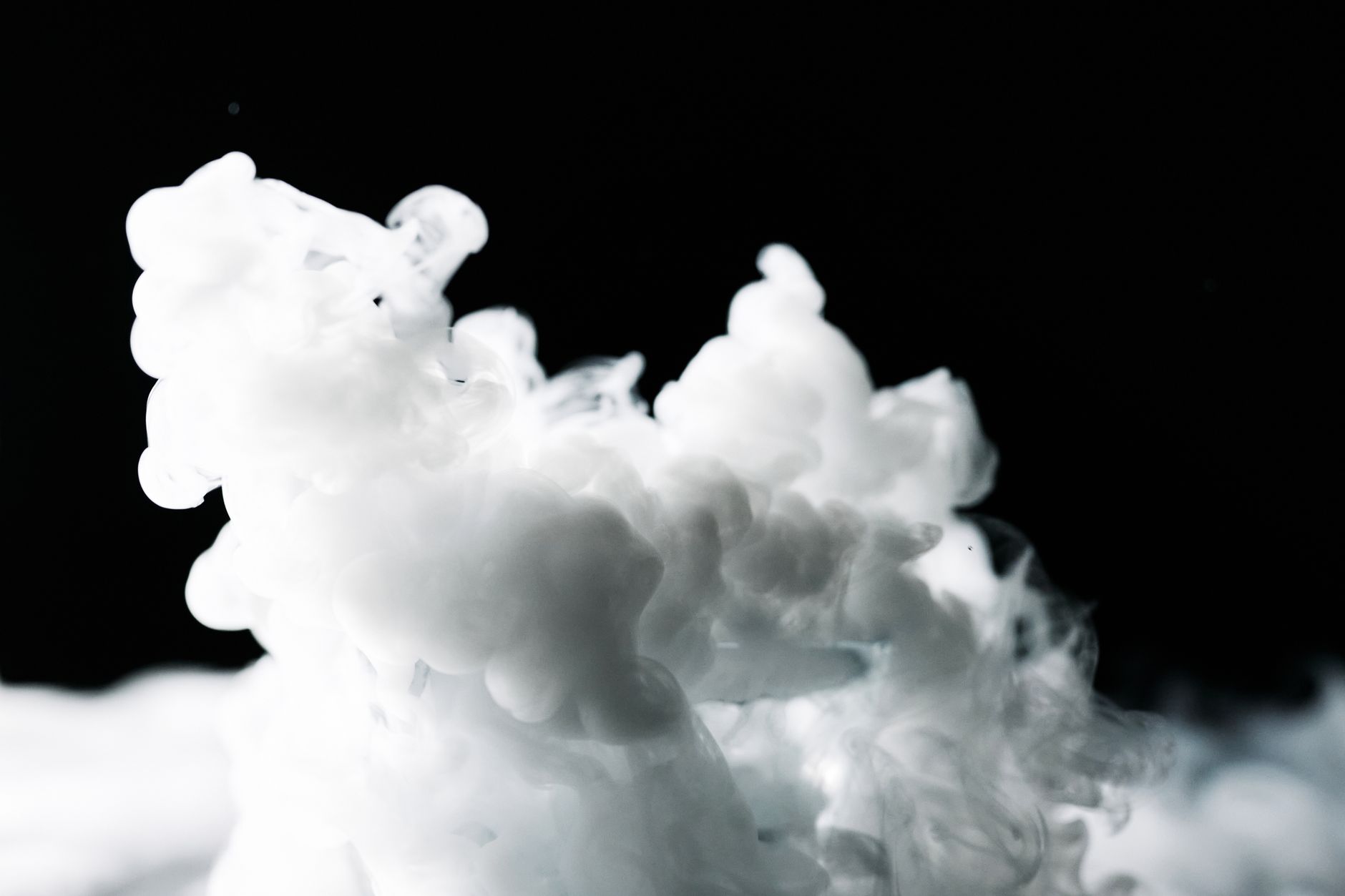
The built-in workhorse for atmosphere is Fractal Noise. Applied to a solid, it creates cloudy, organic patterns you can shape into smoke and fog by adjusting its contrast, brightness, and complexity until it reads as haze.
Fractal Noise is endlessly tweakable, producing everything from fine mist to dense smoke. Learning its key controls gives you a flexible, royalty-free way to create custom atmosphere without relying on any footage or plugins.
Animate the Drift
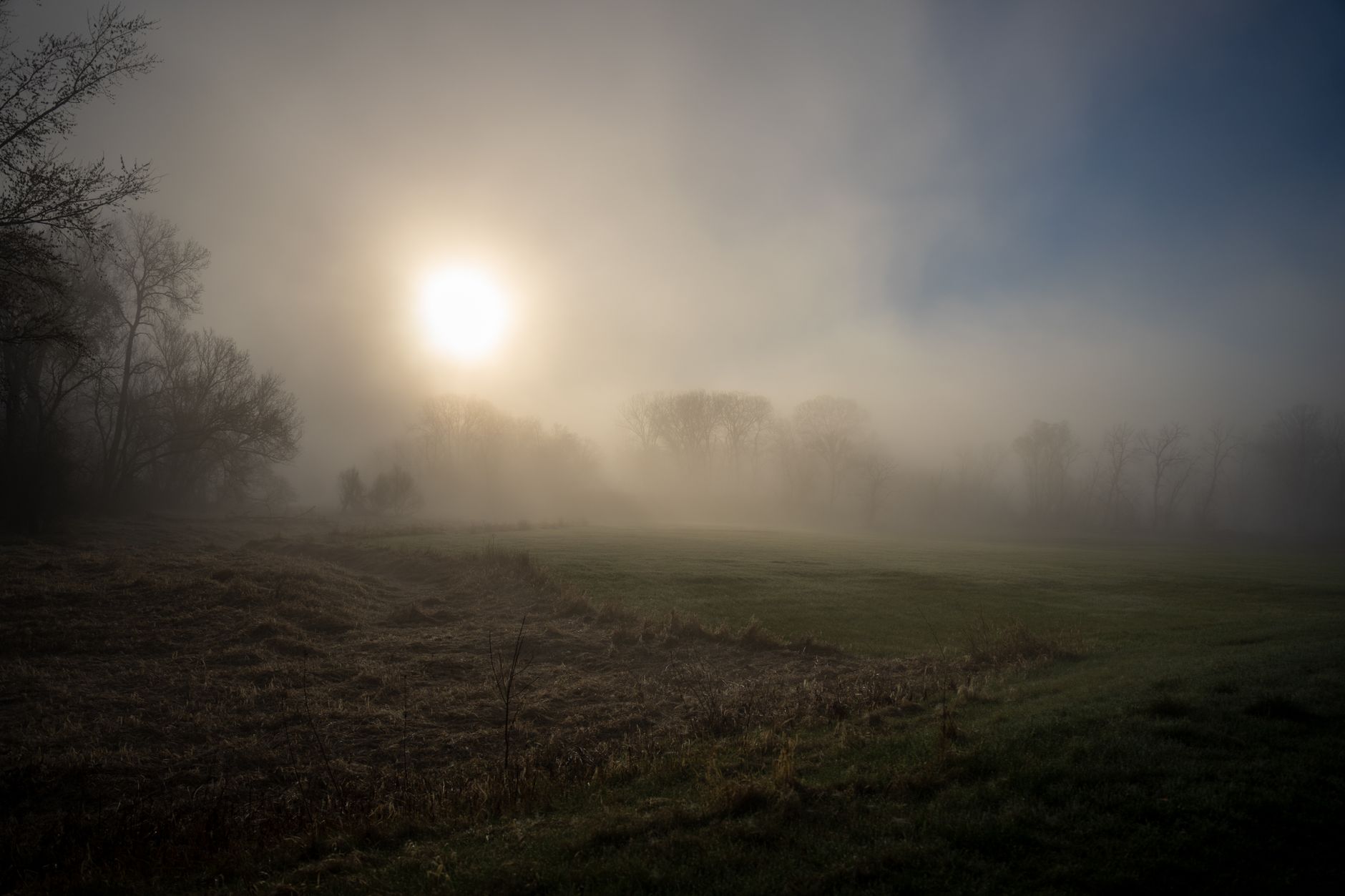
Static smoke looks fake, so animate it moving. Keyframe Fractal Noise’s Evolution property to make the pattern churn and roil internally, and animate its position to drift the haze slowly across the frame.
This combination of internal evolution and overall movement gives smoke its living, flowing quality. A slow, continuous drift, eased smoothly, makes the atmosphere feel real rather than like a frozen texture sitting on the shot.
Composite Smoke with Blending Modes
To lay smoke over your footage, blend it. Set the smoke layer to Screen for light smoke on a dark scene, or use other modes depending on whether your smoke is bright or dark against the background.
This blending, from our blending modes guide, drops out the parts of the smoke layer you don’t want and integrates the haze into the scene. Adjusting opacity then dials the atmosphere to exactly the density you want.
Use Real Smoke Overlays
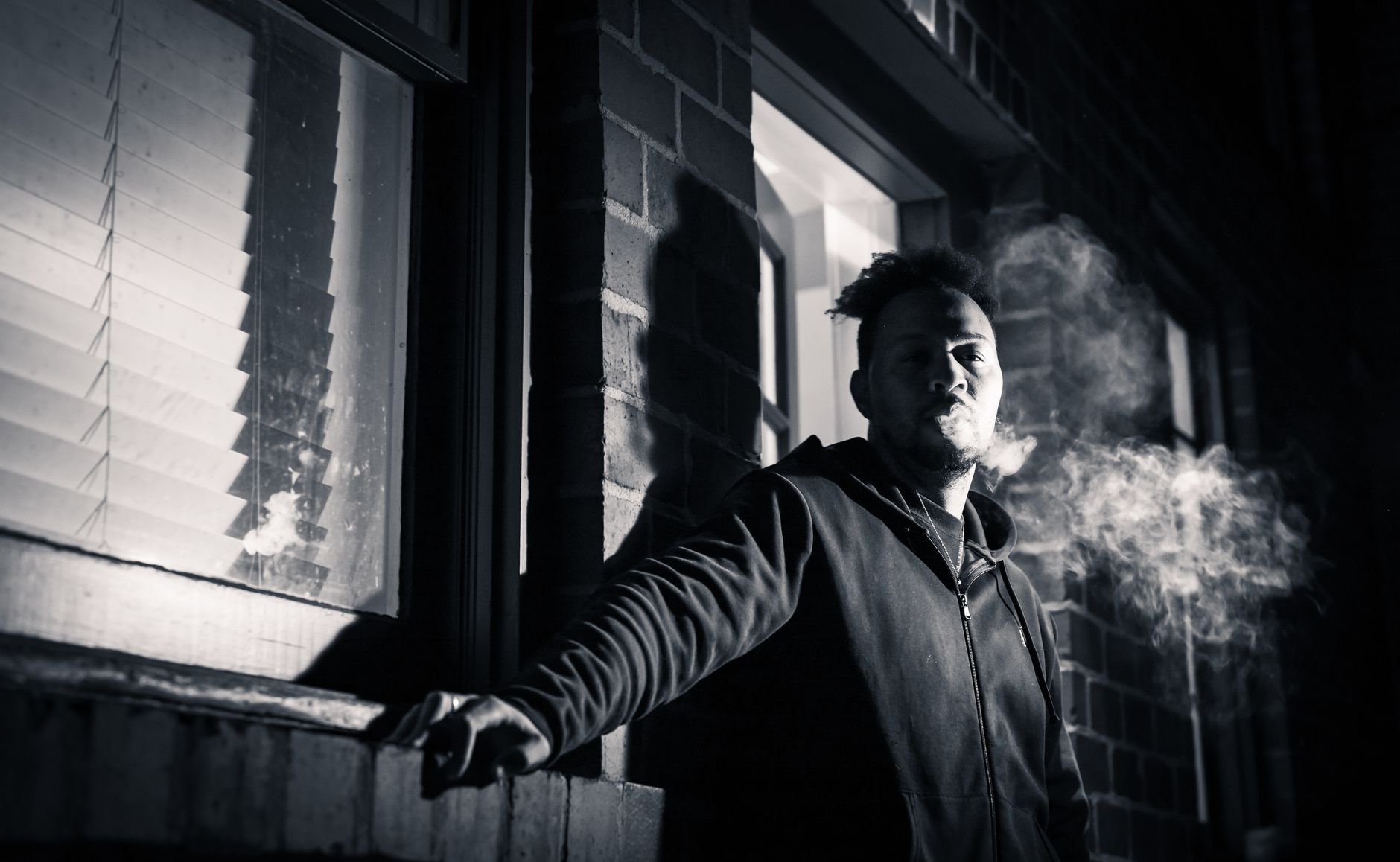
For the most realistic results, real smoke footage shot against black is widely available. Drop these overlays onto a layer set to Screen or Add, and the genuine smoke composites over your scene with authentic movement and detail.
Real smoke carries turbulence and light interaction that’s hard to fully fake. Many artists combine generated Fractal Noise haze for broad atmosphere with real overlays for hero plumes, getting the best of both approaches.
Add Depth with Layered Fog
Fog reads as depth when you layer it. Place fog elements at different distances — a denser bank in the background, thin wisps in the foreground — to create a sense of three-dimensional space the camera looks through.
Using 3D layers for your fog lets a camera move through it convincingly, with parallax between the layers. This layering is what turns flat haze into atmosphere your scene genuinely feels surrounded by.
Light Your Smoke
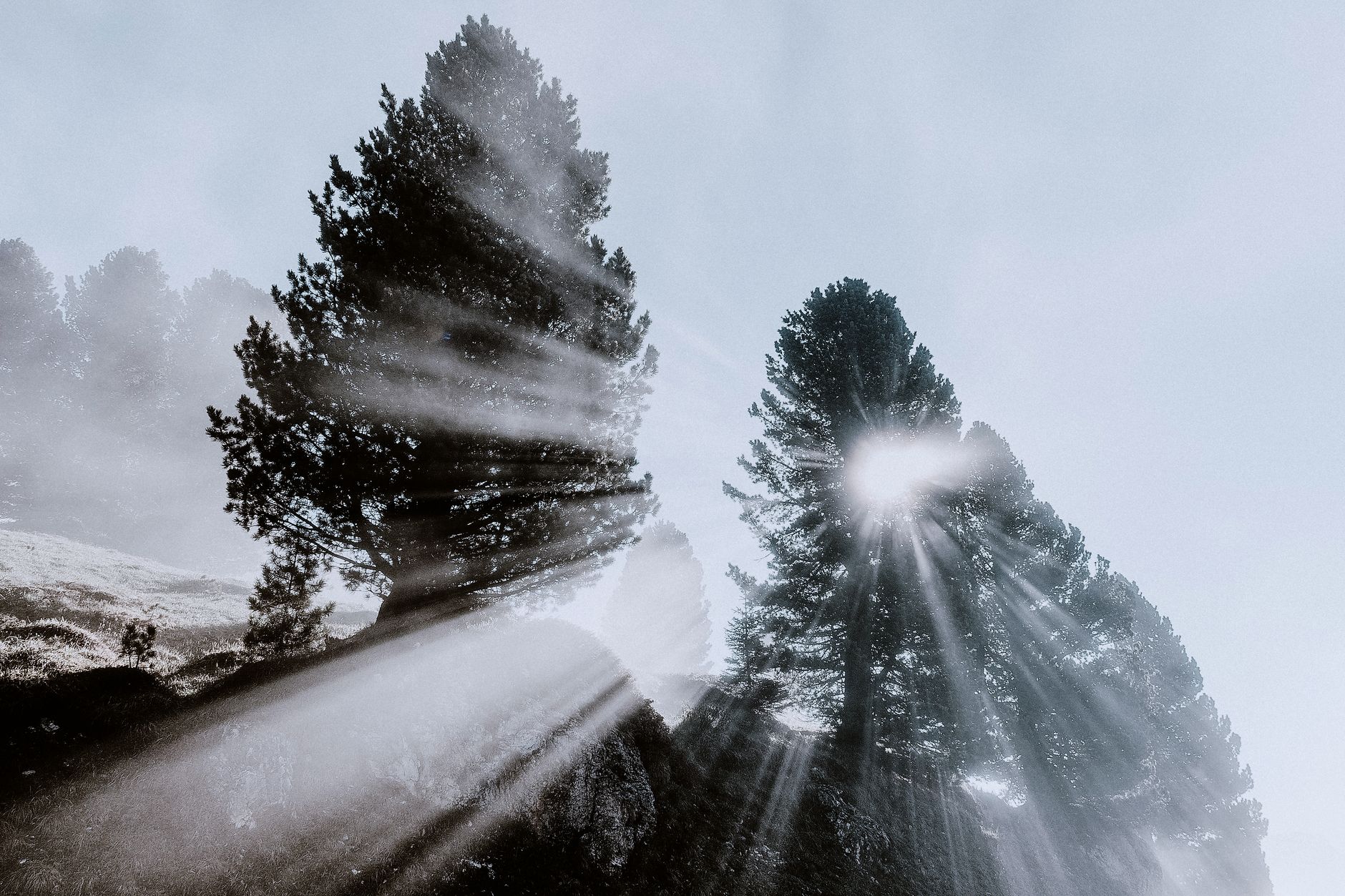
Smoke and fog are defined by how light passes through them. Adding light rays, a glow, or a bright source behind the haze creates volumetric beams and god rays that make the atmosphere dramatic and believable.
A shaft of light cutting through fog instantly elevates a shot. Combining your smoke with a glow or light rays, and matching the lighting to your scene, is what makes the atmosphere feel like it belongs in the environment.
Keep Atmosphere Subtle
The most common atmosphere mistake is too much — a wall of fog that hides the scene or smoke so thick it distracts. Real atmosphere is often subtle, a gentle haze that adds mood without overwhelming what’s important.
Dial your smoke and fog back so they enhance the shot rather than dominate it. A light, well-lit haze reads as cinematic and atmospheric, while an overpowering one quickly looks like an obvious effect.
Smoke and Fog Best Practices
- Generate custom haze with Fractal Noise’s contrast and evolution.
- Animate Evolution and position for living, drifting smoke.
- Composite with Screen or Add, or use real smoke overlays.
- Layer fog at different depths and light it for realism.
Common Smoke Mistakes
- Static smoke that doesn’t churn or drift.
- Atmosphere so thick it hides the scene.
- Forgetting to blend, leaving a visible layer edge.
- Flat, unlit fog with no sense of depth.
A Real Atmospheric Fog Example
Picture a forest path shot you want to feel mysterious. You generate a soft Fractal Noise haze, animate its evolution so it churns slowly, and set it to Screen so it drifts between the trees. Then you add a second, denser fog bank deep in the background on a 3D layer, and a shaft of light cutting through it from one side.
As the gentle haze rolls and the light beam catches it, the flat woodland clip becomes a moody, atmospheric scene with real depth. Layering broad generated haze with a lit background bank, then keeping the density restrained, is exactly how cinematic atmosphere is built without overwhelming the shot.
Use Smoke for Transitions and Reveals
Smoke isn’t only set dressing — it makes a striking transition. A plume of smoke that billows up to fill the frame can hide a cut, then clear to reveal a new scene, wiping between shots with organic, cinematic movement. Real smoke overlays work especially well for this because of their natural turbulence.
Timing the densest part of the smoke to the cut point hides the edit completely, so one scene appears to emerge from the haze of the last. Built alongside the techniques in our transitions guide, smoke reveals give montages and title sequences a dramatic, atmospheric way to move between shots.
Key Takeaways
- Smoke and fog add depth, mood, and cinematic atmosphere.
- Generate haze with Fractal Noise and animate its evolution.
- Composite with Screen or Add, or use real smoke overlays.
- Layer and light fog for depth, and keep it subtle.
Frequently Asked Questions
How do I create smoke in After Effects?
Apply Fractal Noise to a solid and adjust its contrast, brightness, and complexity to shape it into haze, then animate the Evolution property and position so it drifts. Blend the layer with Screen to composite it over footage.
How do I make fog look realistic?
Animate the smoke so it churns and drifts, layer fog at different depths for a sense of space, and light it with rays or a glow behind the haze. Real smoke overlays shot against black add authentic detail.
What blending mode should I use for smoke?
Use Screen or Add for light smoke over a darker scene, so the black background drops out and only the haze shows. Adjust the layer’s opacity to control how dense the atmosphere appears.
Sources: Adobe’s reference for After Effects simulation effects.
Build atmosphere at Adobe Video World
Train hands-on with Adobe Certified Instructors across 100+ Premiere Pro & After Effects sessions.



