A workflow taught by Adobe Certified Instructors at Adobe Video World.
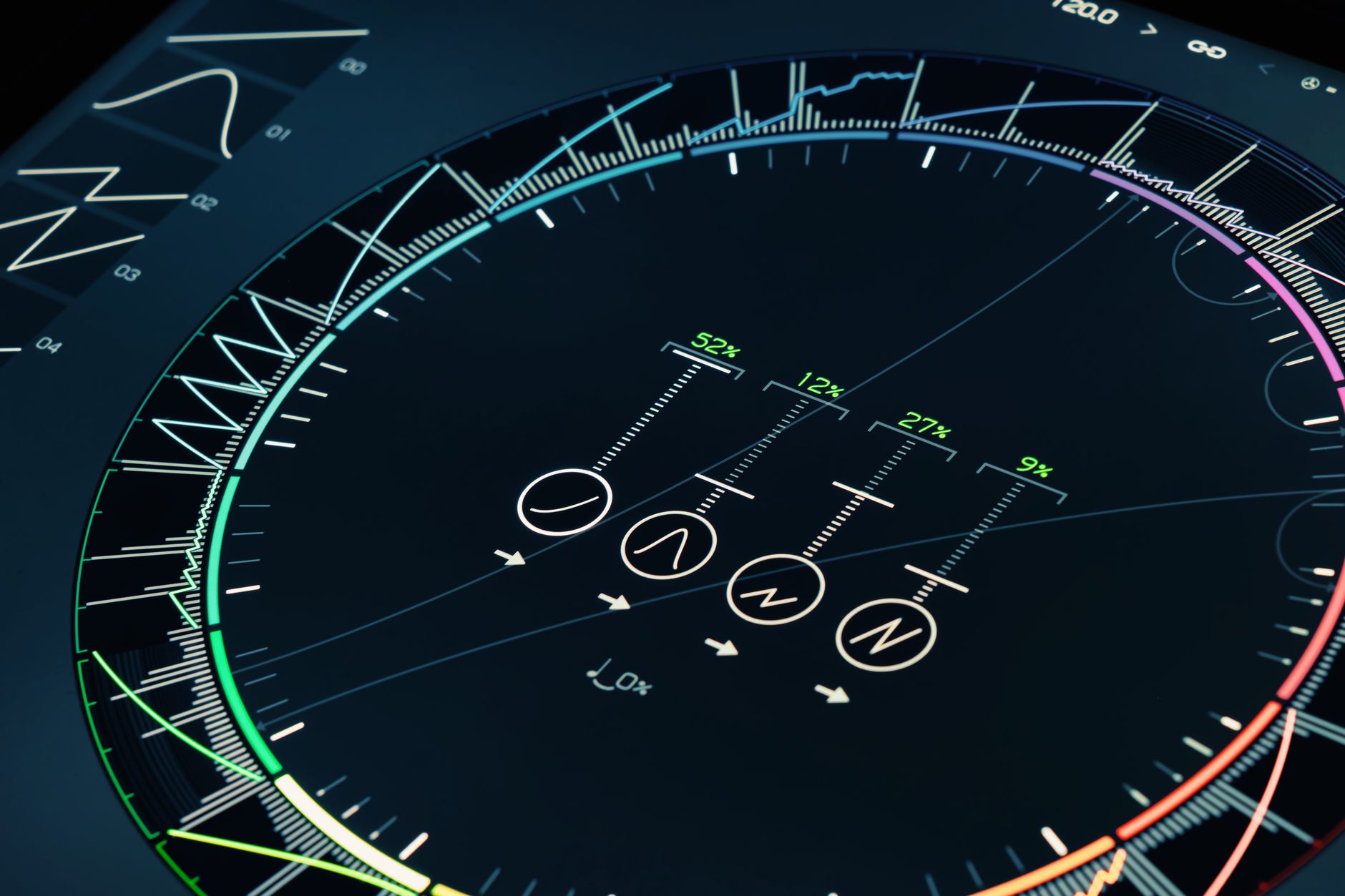
A HUD — heads-up display — is the futuristic interface of glowing rings, data readouts, and graphics seen in sci-fi films and games. Building one in After Effects creates immersive, high-tech visuals for titles, overlays, and effects. This guide covers designing HUD elements, animating them, and assembling a convincing sci-fi interface.

What a HUD Is
A HUD is a graphical interface overlaid on a scene, displaying data and controls — think the targeting displays, scanners, and readouts in science fiction. It’s built from glowing geometric elements, text, and animated graphics that feel high-tech and futuristic.
HUDs add a layer of immersive technology to footage, suggesting advanced systems at work. Whether overlaid on live action or used as a standalone graphic, a well-built HUD conveys a sense of cutting-edge interface design and sci-fi atmosphere.

Design the HUD Elements
HUDs are built from geometric shape elements — circles, rings, arcs, grids, lines, and brackets — arranged into a cohesive interface. Thin strokes, clean geometry, and a consistent style give the elements a precise, technical look.
Designing a library of these elements — concentric rings, segmented circles, data bars, corner brackets — gives you the building blocks of a HUD. Keeping them geometric and precise is what makes the interface read as a real digital display.
Choose a Color and Glow
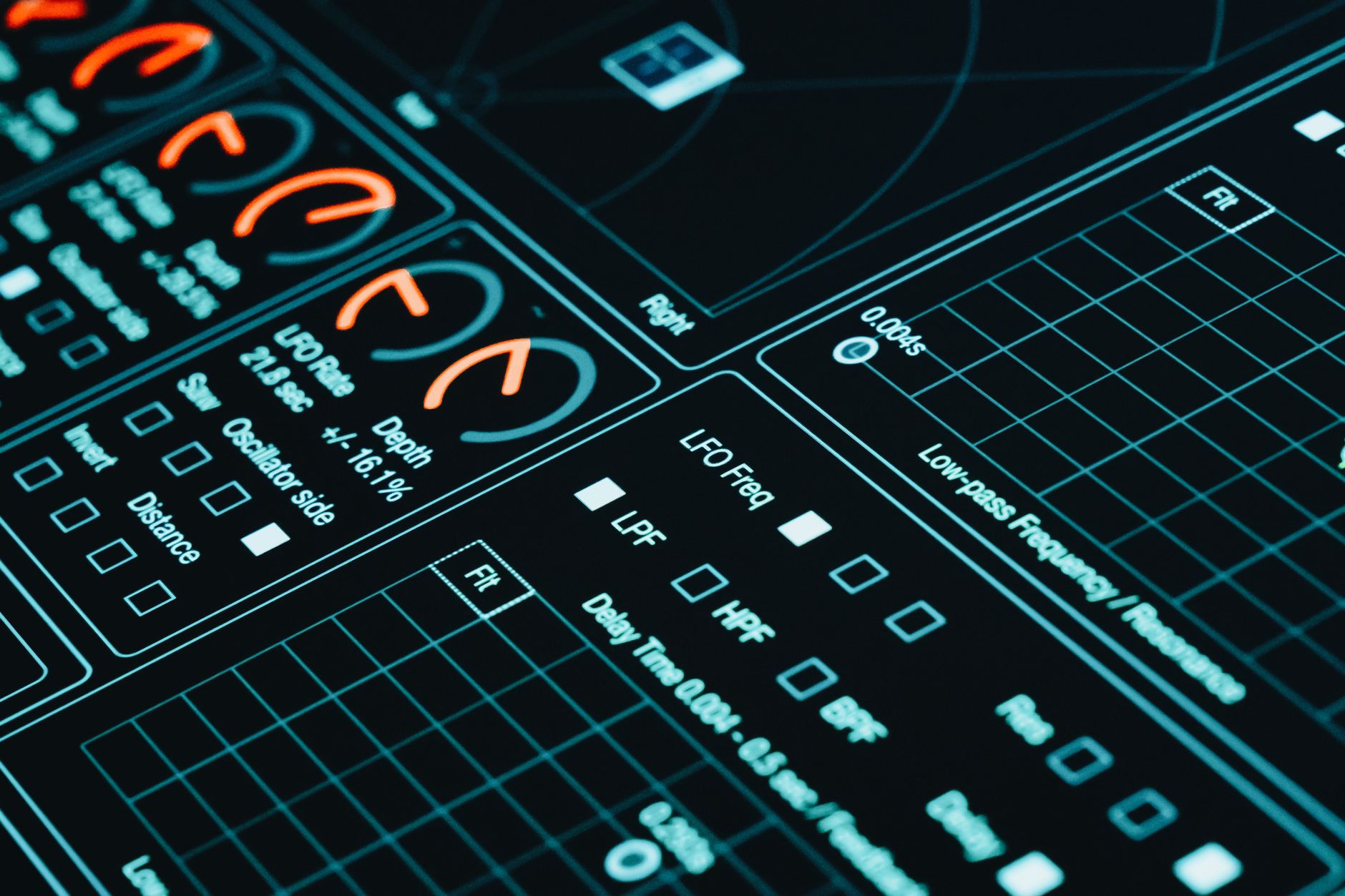
HUDs almost always use a glowing, monochromatic palette — typically cyan, blue, or green, occasionally orange or red. Applying a glow to the elements makes them emit light, reinforcing the high-tech, screen-projected feel.
This consistent glowing color unifies the interface and gives it the luminous quality of a real display. The cyan-on-dark look is the sci-fi standard, instantly reading as a futuristic HUD, though the color can match your project’s theme.

Add Data and Text
Readouts of text and numbers make a HUD feel functional. Adding labels, scrolling data, percentages, coordinates, and technical-looking text, often in a monospaced font, suggests the interface is actively processing information.
Animating these readouts — numbers ticking, data updating, text typing on with our typewriter effect — makes the HUD feel alive and operational. This data layer is what turns decorative graphics into a believable working interface.
Animate the Elements
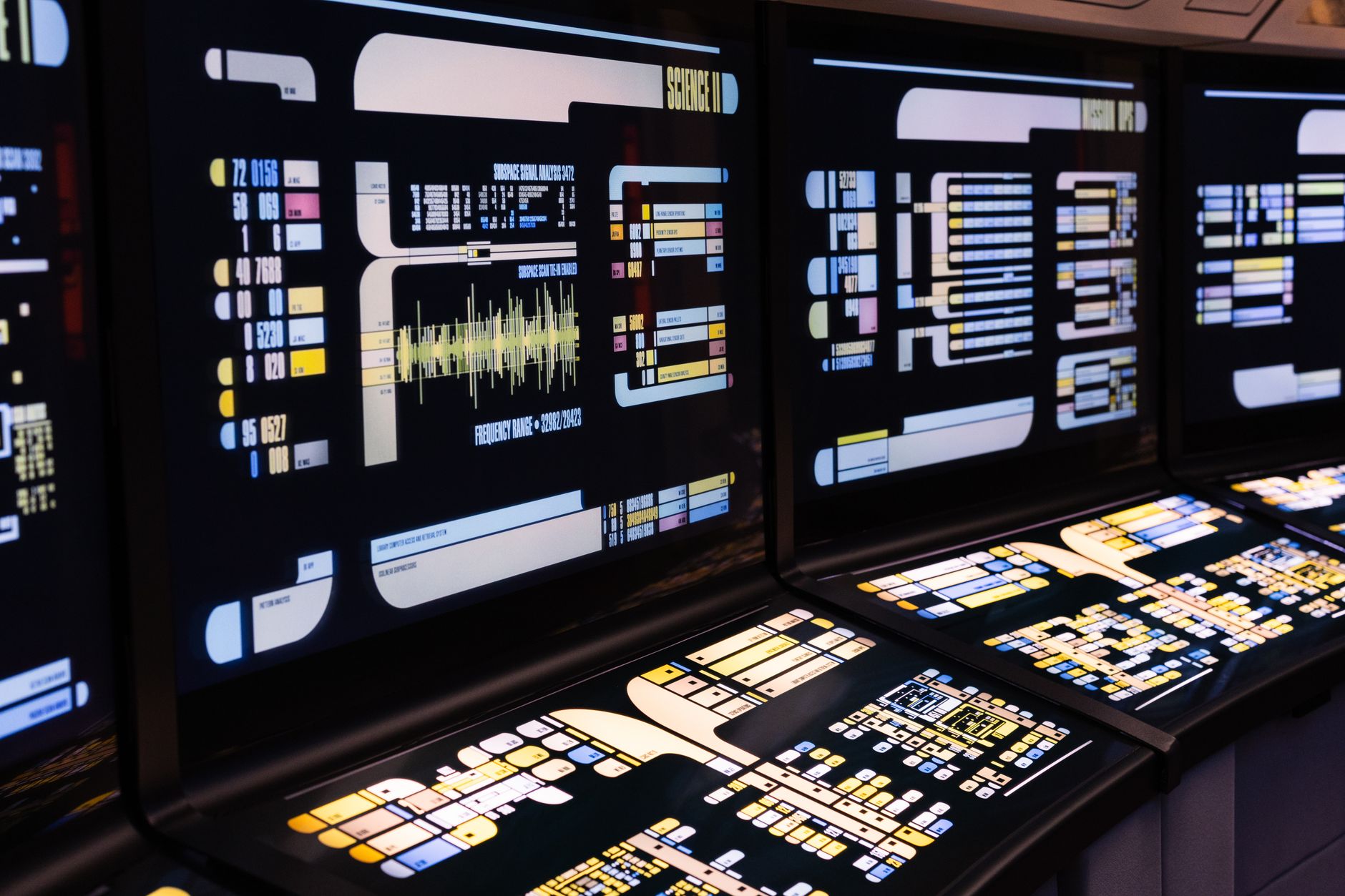
A HUD must move to feel real. Animating rings rotating, arcs sweeping, elements assembling and updating, and data flowing gives the interface constant, subtle motion that suggests active systems, using the easing from our keyframe guide.
Rotating segmented rings, pulsing elements, and graphics that build on screen are HUD staples. This continuous, purposeful animation is essential — a static HUD looks like a graphic, while an animated one feels like a live, functioning display.
Add Flicker and Glitch
Subtle imperfections make a HUD feel like a real projection. Adding a faint flicker, occasional glitch, and scan lines suggests the interface is being projected or transmitted, much like a hologram.
These touches, kept subtle, add life and a sense of advanced, slightly unstable technology. A HUD that occasionally stutters or flickers feels more like a live system than a perfectly clean graphic, enhancing the sci-fi believability.
Track It to Footage
To overlay a HUD on live action, track it to the footage. Using motion tracking to lock HUD elements onto moving objects or the camera makes them appear part of the scene, like a display following a person or device.
This tracking integrates the HUD into the real world, whether attached to a moving subject or locked as a screen overlay. A tracked HUD that moves convincingly with the footage sells the illusion of advanced technology within the scene.
Assemble the Full Interface
A complete HUD combines all these elements into a cohesive composition — rings, data, text, and graphics arranged with purpose and animated together. Building it within the broader skills of our motion graphics guide produces an immersive interface.
Arranging the elements with visual hierarchy and consistent style, all glowing and animating in harmony, creates the convincing sci-fi display. The whole, with its coordinated motion and cohesive look, is far more than the sum of its individual graphics.
HUD Best Practices
- Build from precise geometric shapes — rings, arcs, brackets.
- Use a glowing monochromatic palette like cyan on dark.
- Add animated data, text, and constant subtle motion.
- Add flicker and track the HUD to footage for realism.
Common HUD Mistakes
- Static elements that look like a graphic, not a display.
- Sloppy, inconsistent geometry that breaks the tech feel.
- No glow, so the interface doesn’t read as projected light.
- Cluttered design with no visual hierarchy.
A Real HUD Example
Imagine overlaying a scanner HUD on footage of someone holding up a device. You build concentric rotating rings, corner brackets that frame the screen, and scrolling data readouts, all in glowing cyan with a soft glow. The rings spin, numbers tick, and a faint flicker suggests a live projection, while motion tracking locks it all to the moving device.
A synced electronic hum and a subtle scan line complete the illusion that the device is projecting an advanced interface. That coordinated stack of geometric elements, glowing color, constant motion, and tracking is what transforms plain footage into a convincing sci-fi moment straight out of a blockbuster.
HUDs for Titles and Tech Branding
HUD elements aren’t only for sci-fi scenes — they make striking titles and branding for technology, gaming, and esports content. A title framed by glowing brackets and animated data readouts instantly signals a high-tech, cutting-edge theme, giving channels and products a futuristic identity.
Keeping the HUD elements consistent with your brand color and reusing them across a series builds a recognizable, modern look. Combined with the techniques in our motion graphics guide, HUD-style graphics turn ordinary titles into energetic, tech-forward designs that suit any content with a digital or futuristic edge.
Keep HUDs Readable and Purposeful
A common HUD mistake is cramming in so many elements that it becomes visual noise rather than a believable interface. Real displays have hierarchy and purpose, so giving your HUD a clear focal point and arranging supporting elements around it keeps it readable and convincing.
Restraint also helps the HUD support the footage rather than overwhelm it, especially when overlaid on live action. A focused, well-organized interface with intentional motion reads as advanced technology, while a cluttered one just looks busy, so designing with clarity in mind is key.
Sci-fi panels often sit on creating frosted glass in After Effects to separate them from the footage behind.
A floating display is really a HUD in 3D space, so creating a hologram effect in After Effects extends the same glowing-UI techniques.
Key Takeaways
- A HUD is a futuristic interface of glowing geometric elements.
- Build from precise shapes in a glowing monochromatic palette.
- Add animated data and constant subtle motion.
- Add flicker and track it to footage for immersive realism.
Frequently Asked Questions
How do I create a HUD in After Effects?
Build geometric shape elements — rings, arcs, grids, brackets — in a glowing monochromatic palette like cyan, add data readouts and text, then animate everything with rotation, sweeping, and updating data. Track it to footage to overlay on live action.
What color should a sci-fi HUD be?
HUDs almost always use a glowing monochromatic palette — typically cyan, blue, or green, sometimes orange or red. Apply a glow so the elements emit light, reinforcing the high-tech, screen-projected look.
How do I make a HUD feel alive?
Animate the elements constantly — rotating rings, sweeping arcs, updating data, ticking numbers — and add subtle flicker, glitch, and scan lines. Continuous, purposeful motion is what makes a HUD feel like a working display rather than a static graphic.
Sources: Adobe’s reference for the generate effects used in HUD graphics.
Build futuristic UI at Adobe Video World
Train hands-on with Adobe Certified Instructors across 100+ Premiere Pro & After Effects sessions.



