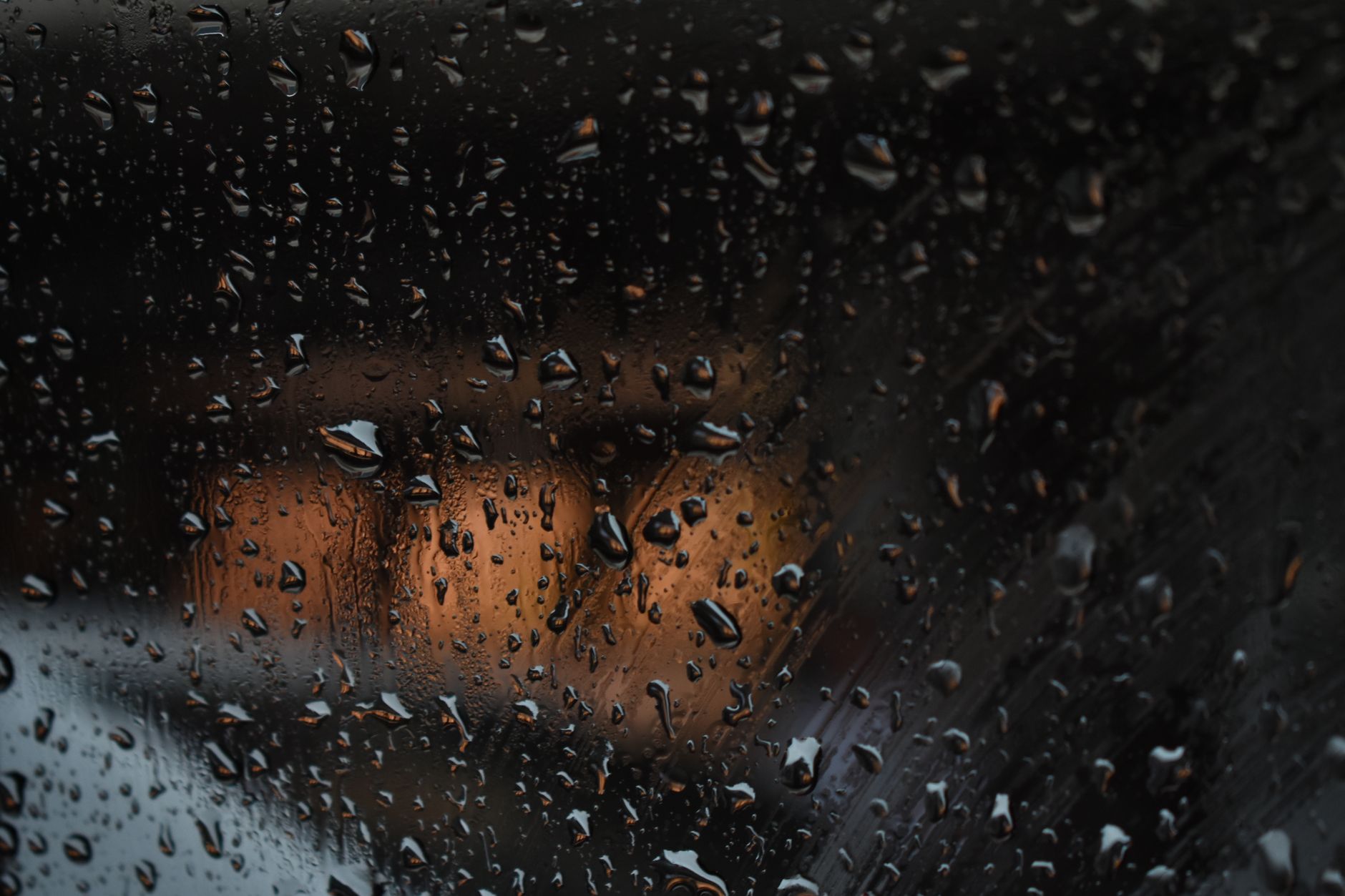
A workflow taught by Adobe Certified Instructors at Adobe Video World.
Rain instantly adds mood, drama, and atmosphere — a moody noir scene, a melancholy moment, or a stormy backdrop. After Effects can generate rain with built-in effects and particles, or composite real rain overlays for realism. This guide covers creating rainfall, adding splashes and atmosphere, and making it believable rather than a flat overlay.
What Makes Rain Believable
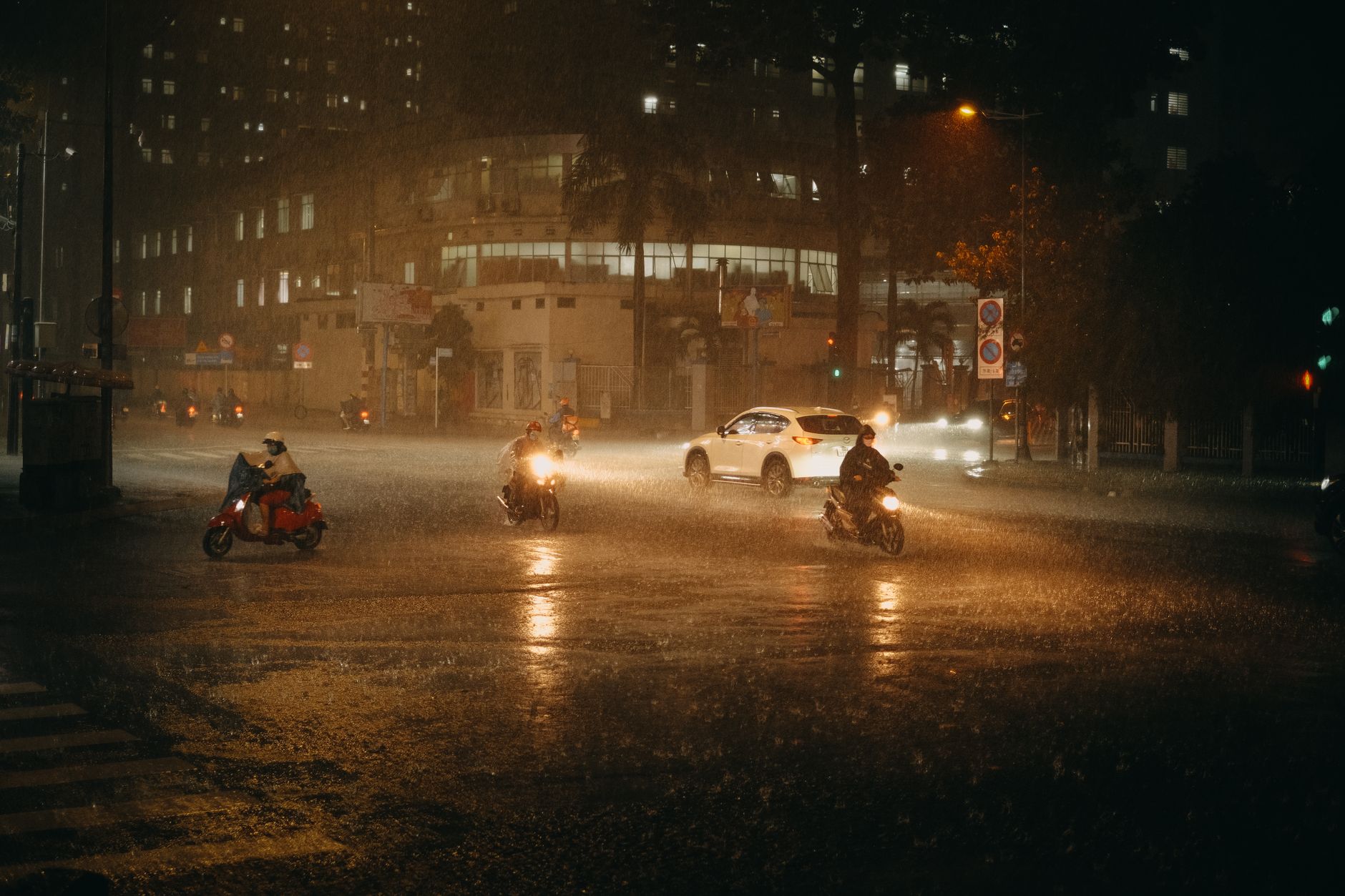
Convincing rain has several qualities: streaks falling at a consistent angle, varied speeds and sizes for depth, slight motion blur, and the way it catches light. Real rain also interacts with the scene, creating splashes, wet surfaces, and atmosphere.
Flat, uniform streaks read as fake immediately. Capturing the variation, blur, and interaction of real rainfall is what separates atmospheric, believable rain from an obvious effect pasted over your footage.
Use the CC Rain Effect
After Effects includes a built-in CC Rain effect that quickly generates falling rain. Apply it to a layer and adjust the amount, speed, angle, and drop size to create a sheet of rainfall over your scene with minimal setup.
CC Rain is the fastest route to instant rain and works well for many shots. Tuning its controls so the rain falls at a natural angle and density gives you a solid base you can then enhance with extra detail.
Build Rain with Particles
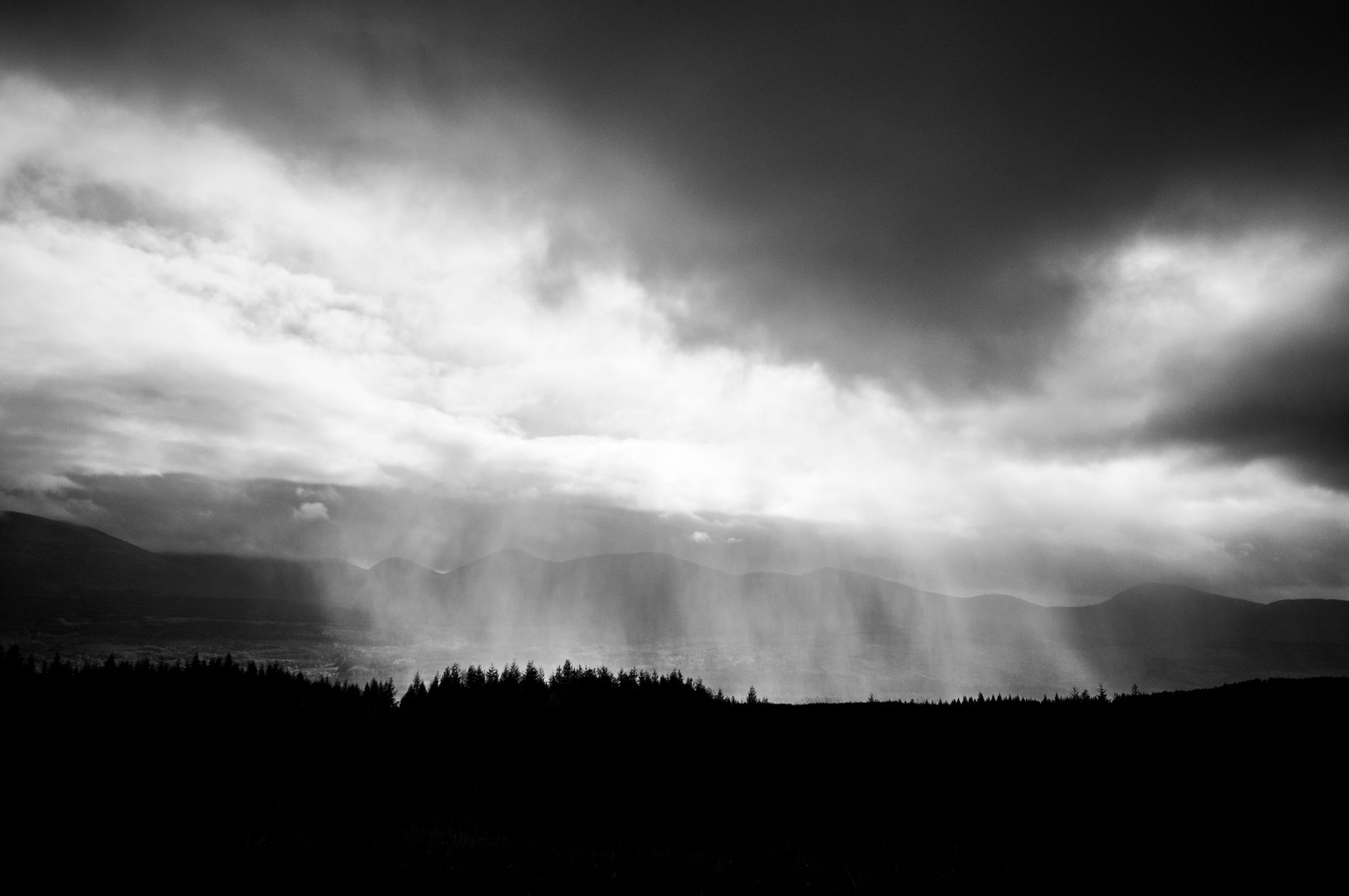
For more control, generate rain with a particle system like CC Particle World. Configure the particles as thin streaks falling downward at speed, with gravity pulling them down and a slight angle for wind.
Particles let you control every aspect — density, speed, length, and direction — for custom rainfall. Varying the particle size and speed adds the depth real rain has, with closer drops larger and faster than distant ones.
Add Depth with Layers
Real rain has depth, so build it in layers. Create a foreground layer of large, fast, blurred streaks and a background layer of smaller, slower, fainter ones, so the rain fills the space between camera and scene convincingly.
This layering, ideally with 3D layers a camera can move through, gives rainfall a genuine sense of volume. A single flat sheet of rain never feels as real as multiple layers at different distances.
Use Real Rain Overlays
As with smoke and fire, real rain footage shot against black is the most authentic option. Drop a rain overlay onto a layer set to Screen or Add, and the black drops out, leaving genuine rain to composite over your shot.
Real rain carries natural variation and light that’s hard to fully generate. Blending overlays with the techniques from our blending modes guide is often the quickest way to add believable rainfall, especially for hero shots.
Add Motion Blur
Rain falls fast, so it should streak with motion blur rather than appear as sharp lines. Enabling motion blur on your rain layers smears the drops into natural streaks, which is exactly how a camera captures real rain.
Without blur, generated rain can look like sharp, fake scratches. The blur is what gives each drop its characteristic streak, and it’s one of the most important touches for making artificial rain read as the real thing.
Add Splashes and Wet Surfaces
Rain interacting with the scene sells the effect. Adding small splash particles where rain hits the ground, and a wet, reflective sheen on surfaces, grounds the rainfall in the environment rather than floating it over a dry scene.
These interactions are subtle but powerful — a dry street under heavy rain breaks the illusion instantly. Splashes, drips, and wet reflections, even simple ones, make the audience believe the rain is really falling in the space.
Build the Atmosphere
Rain rarely comes alone. Adding a hazy, desaturated atmosphere, a cooler color grade, and perhaps distant fog completes the moody, stormy feel that rain implies, tying the whole scene together.
A cool, slightly desaturated grade with soft atmosphere reinforces the emotional tone rain creates. Combining the rainfall with this overall mood, rather than adding rain to an otherwise bright scene, is what makes the effect feel cinematic and intentional.
Rain Effect Best Practices
- Use CC Rain for speed or particles for full control.
- Layer foreground and background rain for depth.
- Enable motion blur so drops streak naturally.
- Add splashes, wet surfaces, and a moody atmosphere.
Common Rain Mistakes
- Flat, uniform streaks with no variation or depth.
- Sharp rain with no motion blur.
- Rain falling over a dry scene with no splashes.
- Bright footage that contradicts the stormy mood.
A Real Rainy Scene Example
Picture turning a flat daytime street shot into a moody downpour. You drop a real rain overlay on a Screen layer for the main fall, add a second faint particle layer in the background for depth, and enable motion blur so every drop streaks. Then you scatter small splash particles along the pavement and add a wet sheen to the road.
Finally you cool and slightly desaturate the grade and drift a thin haze through the scene. The dry street becomes a convincing rainy night, because the rain doesn’t just fall over the shot — it interacts with the ground and sits inside a matching, moody atmosphere, which is what truly sells weather effects.
Rain Through Windows and Glass
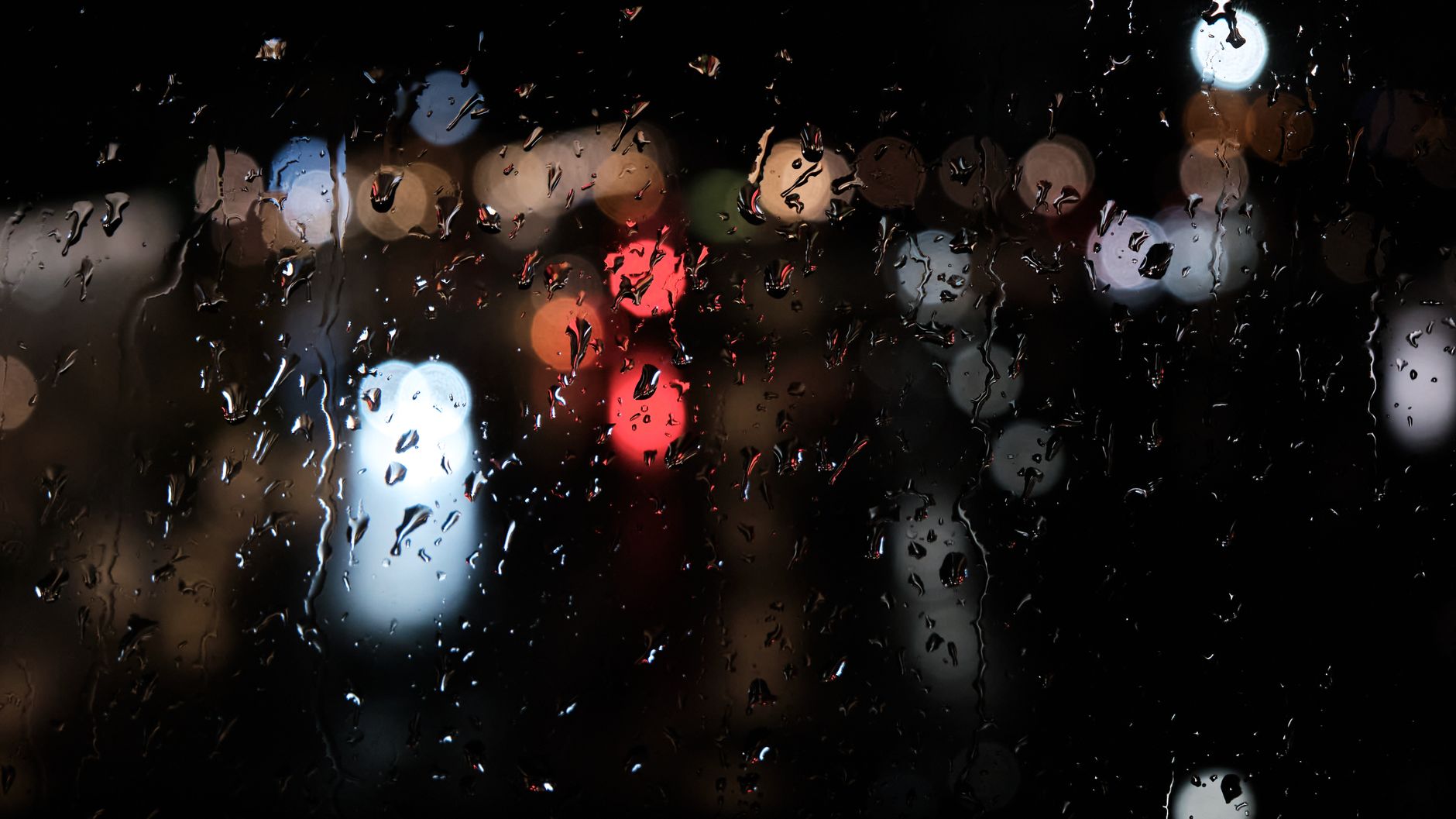
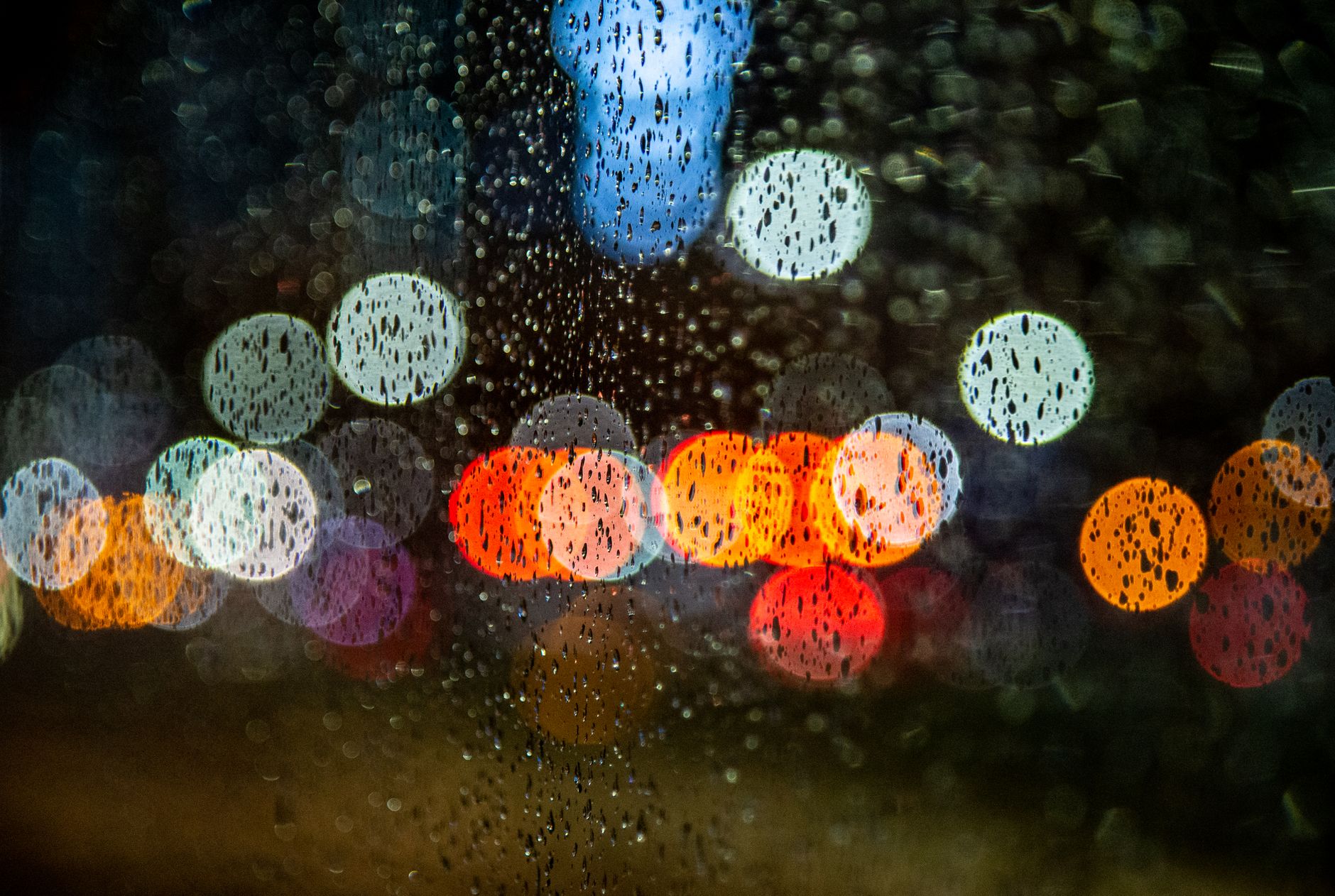
Some of the most atmospheric rain isn’t falling through the air but running down glass. Creating droplets and rivulets sliding down a window, with the world blurred behind them, evokes a quiet, contemplative mood that’s a staple of music videos and emotional scenes.
You can build this with displacement and refraction on a blurred background layer, or composite real rain-on-glass footage. Combined with a soft glow on any lights beyond the glass, the effect turns a simple shot into an intimate, rain-streaked moment that carries real emotional weight.
Match Rain to Your Story’s Mood
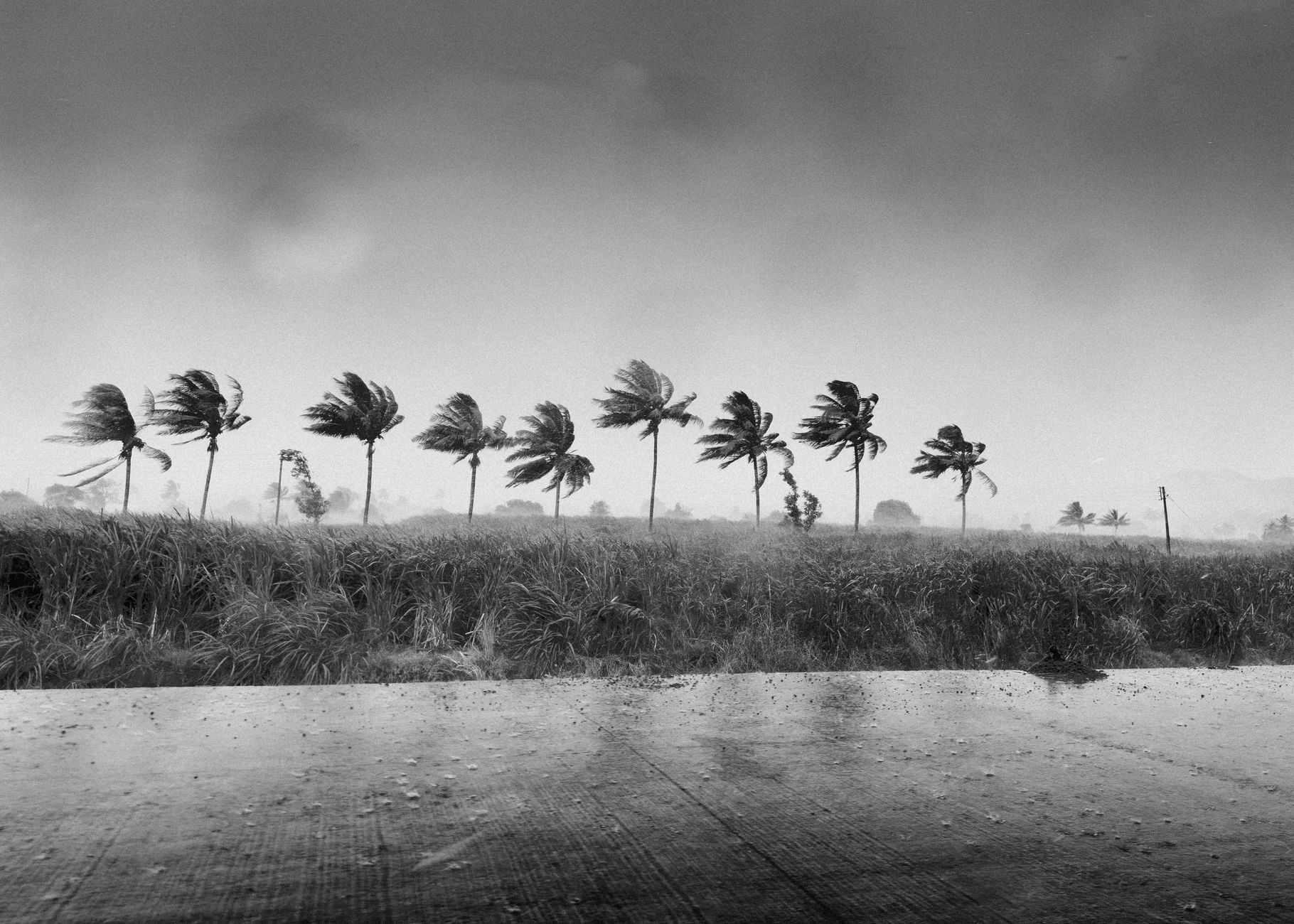
Rain carries strong emotional weight, so the way you stage it should match what a scene is feeling. A gentle, sparse drizzle suits a quiet, reflective moment, while a driving, wind-blown downpour amplifies conflict, tension, or despair. The density, angle, and speed of your rain are storytelling choices, not just technical ones.
Pairing the rainfall with the right grade and sound seals the mood — a cold, desaturated look and the steady hiss of rain deepen melancholy, while harsh lightning and heavy drops heighten drama. Thinking about why the scene is wet, and tuning the rain to that emotion alongside the techniques in our cinematic look guide, makes the effect feel purposeful rather than decorative.
Slow the particles and soften them, and creating falling snow in After Effects emerges from the same setup as rain.
A scene can call for steam and flame at once, making the fire effect in After Effects a useful companion to rain.
A downpour begs for the After Effects lightning effect to complete the storm.
Instead of falling water, creating confetti in After Effects showers colorful pieces using similar simulation controls.
Key Takeaways
- Believable rain needs variation, blur, depth, and interaction.
- Use CC Rain, particles, or real overlays on Screen.
- Layer rain at different distances and add motion blur.
- Add splashes, wet surfaces, and a moody grade to finish.
Frequently Asked Questions
How do I create rain in After Effects?
Use the built-in CC Rain effect for quick rainfall, or build it with a particle system like CC Particle World for full control. Composite real rain overlays on a Screen layer for the most realism, and add motion blur.
How do I make rain look realistic?
Layer foreground and background rain for depth, enable motion blur so drops streak naturally, add splashes where rain hits surfaces, and finish with a cool, slightly desaturated grade and atmosphere for a moody feel.
What’s the easiest way to add rain?
Real rain footage shot against black, dropped onto a layer set to Screen or Add so the black disappears, is the quickest route to believable rain. Real overlays carry natural variation that’s hard to generate.
Sources: Adobe’s guide to the simulation effects behind generated rain in After Effects.
Set the mood at Adobe Video World
Train hands-on with Adobe Certified Instructors across 100+ Premiere Pro & After Effects sessions.



