A workflow taught by Adobe Certified Instructors at Adobe Video World.
A freeze frame stops the action on a single frame, holding it still while the rest of your edit continues. It’s used everywhere — introducing a character with their name on screen, emphasizing a moment of impact, or creating a stylish pause. Premiere Pro offers several ways to freeze a frame, and this guide covers each method and when to use it.

What a Freeze Frame Does
A freeze frame takes one moment of your footage and holds it motionless on screen for a chosen duration. The video stops as if paused, then either resumes or cuts to the next shot, drawing the viewer’s eye to that exact instant.
It’s a versatile storytelling device — freezing on a face to introduce someone, on an action to let it land, or at the end of a scene for a dramatic close. Premiere makes it quick once you know which freeze method fits your goal.
Add a Frame Hold
The fastest method is a frame hold. Right-click a clip and choose Add Frame Hold, and Premiere freezes the clip on the frame under the playhead, holding that image for the rest of the clip’s duration.
This is ideal when you want the action to play and then freeze at a specific point. Position the playhead exactly where you want the freeze before adding the hold, and the clip plays normally up to that frame, then locks.
Insert a Frame Hold Segment
To freeze in the middle of a clip and then resume motion, use Insert Frame Hold Segment. Right-click at the chosen frame, and Premiere splits the clip and inserts a frozen segment, with motion continuing on either side.
This creates the classic play-freeze-play effect, where the action pauses for a beat and then carries on. You can drag the edges of the frozen segment to set exactly how long the freeze lasts before motion resumes.
Export and Import a Still Frame
Another approach is to export the frame as an image and bring it back in. Use the Export Frame button (the camera icon) in the Program Monitor to save a still, then import that image and place it on the timeline.
This gives you a standalone frozen image you can treat like any photo — scaling, animating, or adding effects to it. It’s useful when you want to build a whole sequence around a frozen moment rather than a quick in-clip hold.
Control the Freeze Duration
The length of a freeze shapes its impact. A short freeze of half a second adds a subtle beat, while a longer hold of several seconds gives you time to add a title, a graphic, or let a moment sink in.
Adjust the duration by trimming the frozen clip or segment on the timeline. Matching the freeze length to its purpose — a quick punch versus a lingering introduction — keeps the effect feeling deliberate rather than accidental.
Add Titles Over a Freeze
Freeze frames pair naturally with text. Freeze on a person and add their name, freeze on a product and label it, or freeze at a chapter break and add a heading, using the techniques from our titles guide.
The frozen image gives the text a stable backdrop to sit against, which is why the freeze-plus-name introduction is so common in documentaries and sports edits. Animate the title in over the freeze for an extra touch of polish.
Style the Frozen Frame
A freeze is a great moment to add visual flair. Apply a subtle zoom, a color treatment, or a vignette to the frozen frame to make it pop, drawing on our color grading guide for the look.
Some editors desaturate or stylize the freeze to set it apart from the moving footage, signaling ‘this is a special moment.’ These touches turn a plain hold into a designed beat that feels intentional and cinematic.
Use Freezes Without Overdoing It
Like any effect, freeze frames lose impact when overused. A well-placed freeze emphasizes a key moment, but freezing constantly makes an edit feel choppy and gimmicky, so reserve them for moments that genuinely deserve the spotlight.
Think about why you’re freezing — to introduce, to emphasize, to pause — and let that purpose guide you. A few deliberate freezes across a video land far harder than a freeze on every other shot.
Freeze Frame Best Practices
- Use Add Frame Hold to play, then freeze at a chosen frame.
- Use Insert Frame Hold Segment for play-freeze-play motion.
- Match the freeze duration to its purpose.
- Add titles and styling to make the freeze a designed beat.
Common Freeze Frame Mistakes
- Freezing on the wrong frame — set the playhead first.
- Holds too short to register or too long to hold attention.
- Overusing freezes until the edit feels choppy.
- Leaving a freeze plain when a title or style would lift it.
A Real Freeze Frame Intro Example
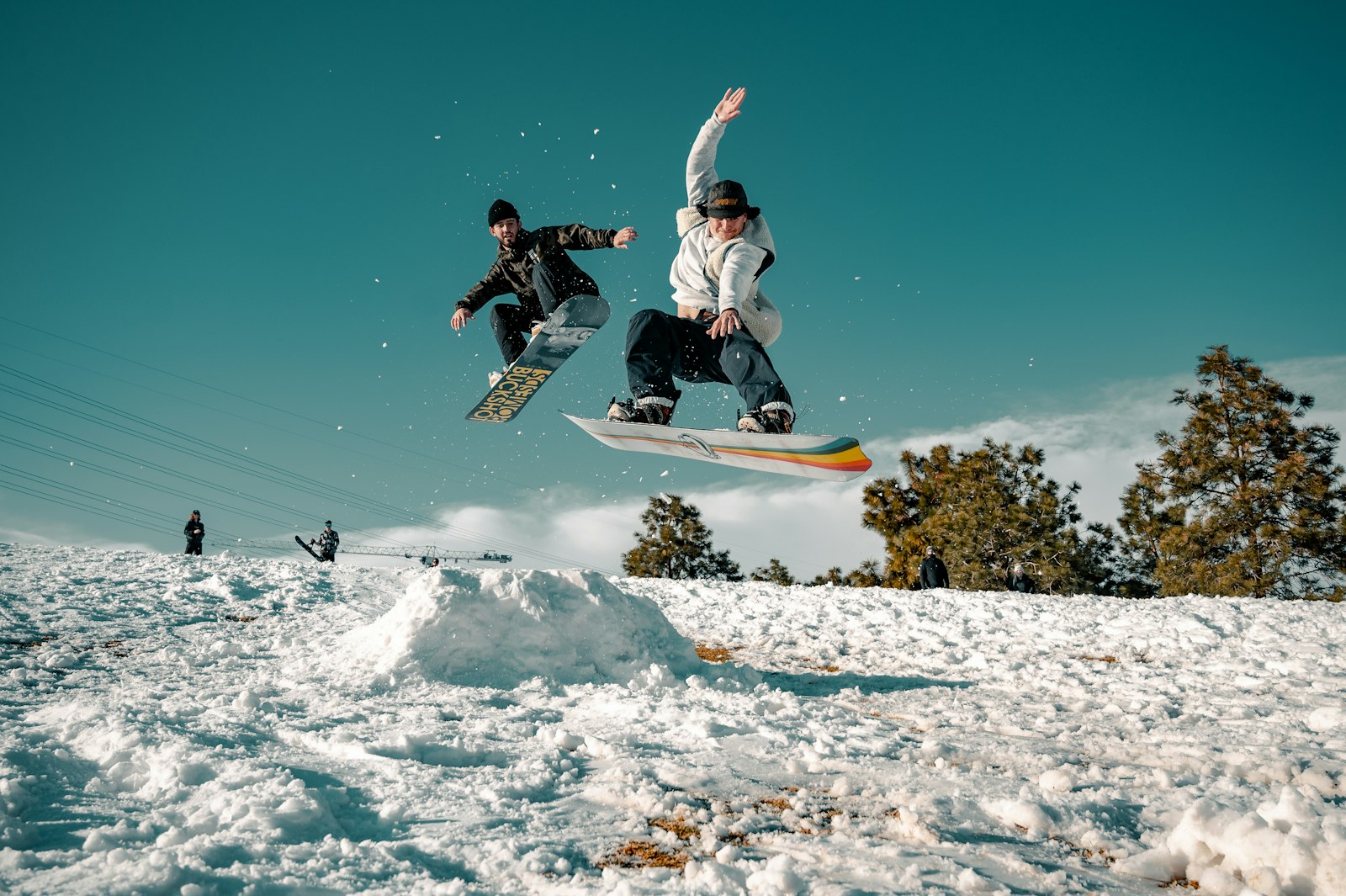
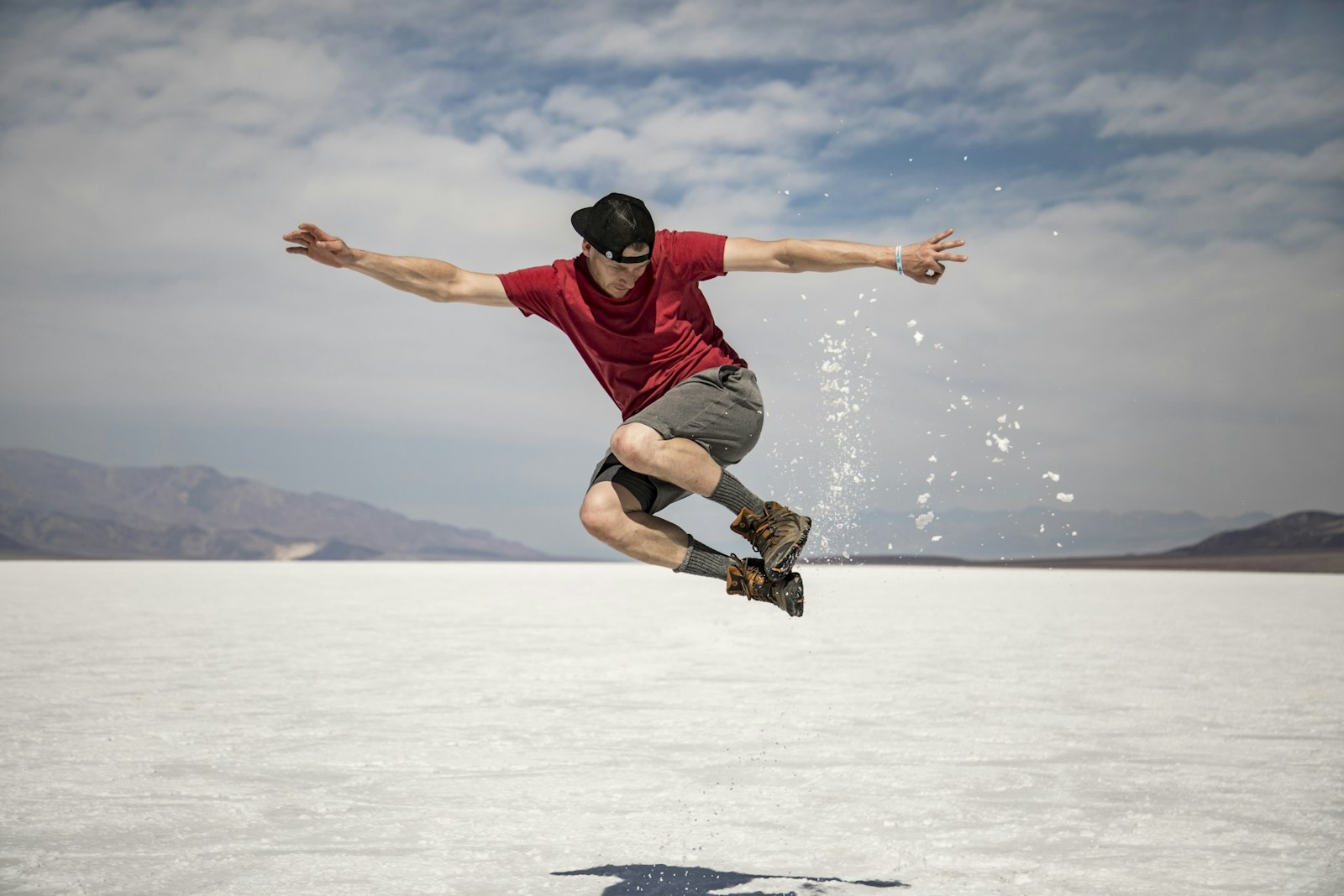
Picture opening a sports highlight reel. An athlete leaps for a catch, and at the peak of the jump the action freezes mid-air. As the frame holds, their name and stats slide in beside them, and a subtle zoom pushes toward the frozen figure before motion snaps back and they complete the catch.
That whole sequence is built from one Insert Frame Hold Segment, a title, and a gentle scale animation. The freeze gives the introduction a stable canvas and a moment of drama, which is exactly why the technique is a staple of sports, documentary, and reality-TV openings.
Freeze Frames at the End of a Scene
Freezes aren’t only for introductions — a freeze on the final frame of a scene makes a strong, deliberate ending. Holding on a character’s expression as the music swells, then fading to black, gives a moment weight and a sense of closure that a hard cut can’t match.
This end-of-scene freeze is common in films and emotional edits, often paired with a slow fade or a color shift. Combined with the pacing ideas in our transitions guide, a well-timed closing freeze leaves the audience sitting with the moment exactly as you intend.
Key Takeaways
- A freeze frame holds one frame still for emphasis or titles.
- Add Frame Hold freezes from a point; Insert Segment freezes mid-clip.
- Export a still frame to build a sequence around a frozen moment.
- Use freezes deliberately and style them for impact.
Frequently Asked Questions
How do I freeze a frame in Premiere Pro?
Position the playhead on the frame you want, right-click the clip, and choose Add Frame Hold to freeze from that point, or Insert Frame Hold Segment to freeze mid-clip with motion continuing on either side.
How do I freeze a frame and keep the video playing after?
Use Insert Frame Hold Segment. Premiere splits the clip and inserts a frozen segment, so the action plays, pauses on the freeze, then resumes. Drag the segment’s edges to set how long the freeze lasts.
How do I add a name over a freeze frame?
Freeze on the frame, then add a text layer on the track above. The frozen image gives the title a stable backdrop, which is why the freeze-plus-name introduction is common in documentaries and sports edits.
Sources: Wikipedia’s article on the freeze-frame shot.
Master timing tricks at Adobe Video World
Train hands-on with Adobe Certified Instructors across 100+ Premiere Pro & After Effects sessions.



