A workflow taught by Adobe Certified Instructors at Adobe Video World.
The kaleidoscope effect creates mesmerizing, symmetrical patterns by mirroring and repeating an image around a center — the hypnotic visuals seen in music videos and abstract motion graphics. After Effects builds it with CC Kaleida and mirroring techniques. This guide covers creating kaleidoscope patterns, animating them, and crafting psychedelic visuals.
What a Kaleidoscope Effect Is
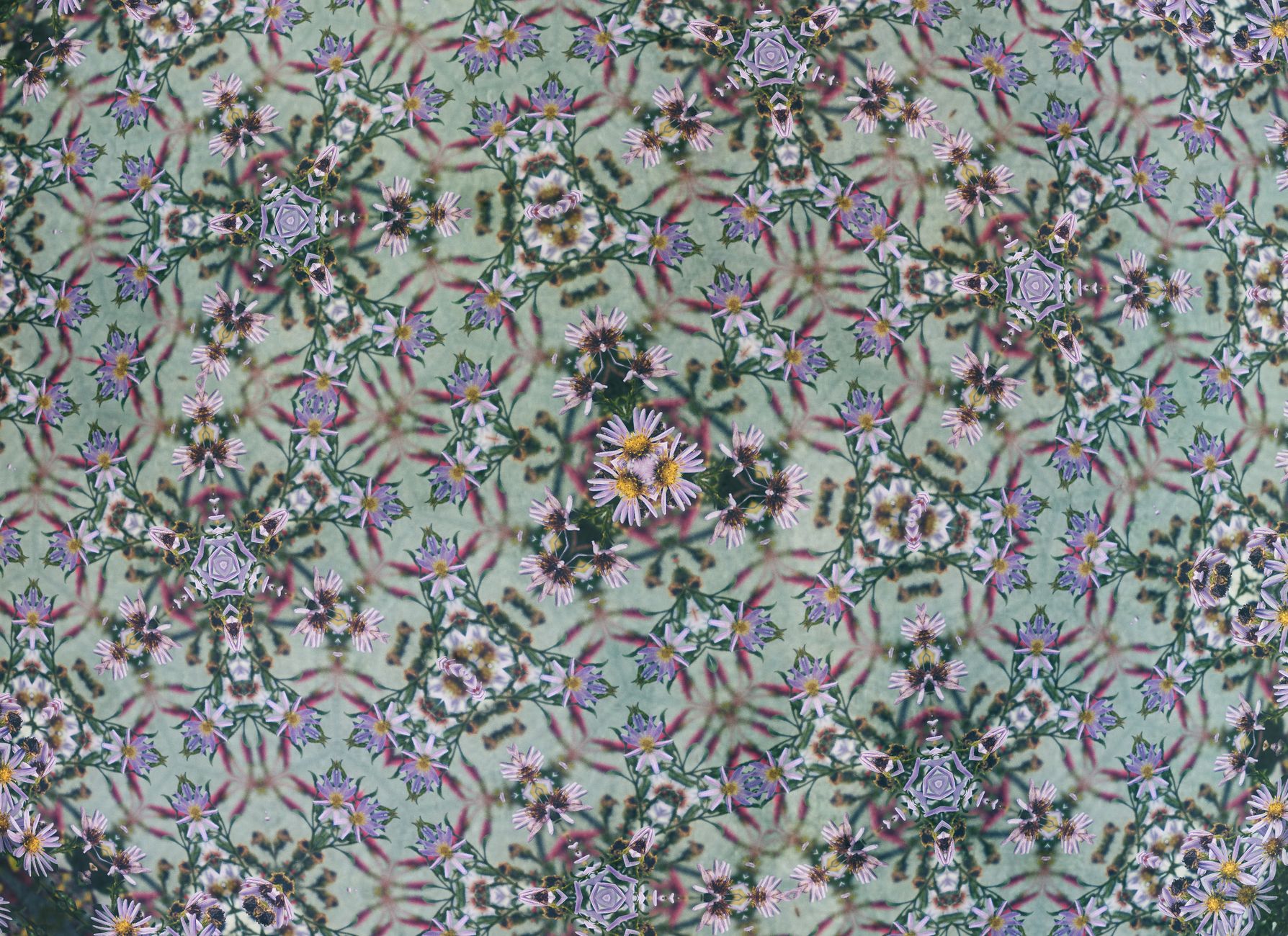
A kaleidoscope effect takes a portion of an image and mirrors it repeatedly around a center point, creating a symmetrical, radiating pattern like the toy. The result is a hypnotic, ever-changing design built from reflected segments.
Because it’s based on symmetry and repetition, even simple source footage becomes a complex, beautiful pattern. Kaleidoscope effects are popular for abstract backgrounds, music visuals, and psychedelic motion graphics, where their mesmerizing quality shines.
Use the CC Kaleida Effect
After Effects includes CC Kaleida, a dedicated kaleidoscope effect. Apply it to a layer, and it mirrors and repeats the image around a center, with controls for the pattern type, size, rotation, and center position.
CC Kaleida is the quickest route to a kaleidoscope, offering several mirroring patterns. Adjusting its Mirroring type and Size shapes the symmetry, instantly turning your footage into a radiating, symmetrical design.
Choose the Mirroring Pattern
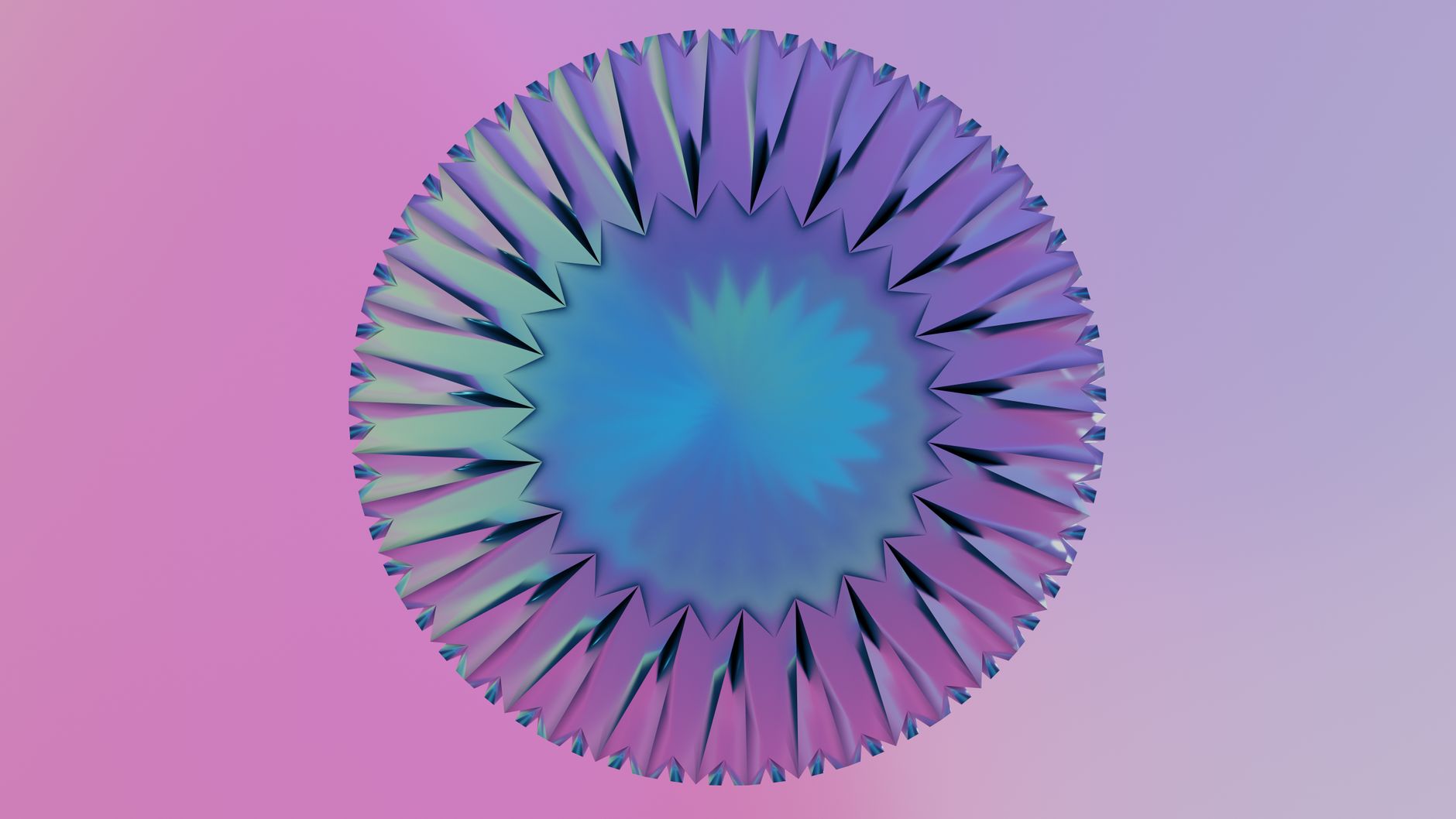
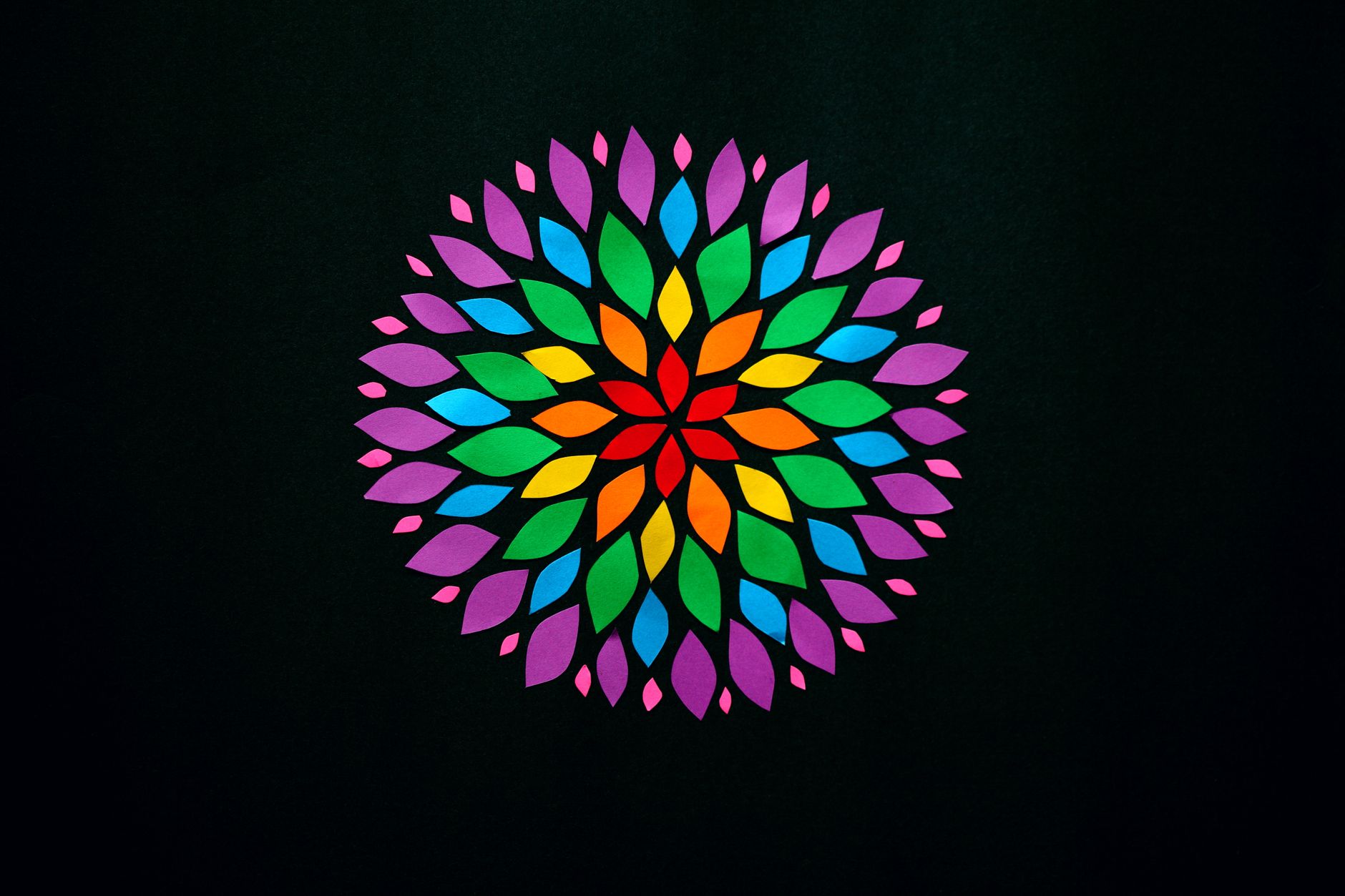
CC Kaleida’s Mirroring setting offers different symmetry types — various fold patterns that determine how the segments reflect. Each produces a distinct kaleidoscope structure, from simple mirrors to complex multi-fold symmetry.
Trying the different mirroring options reveals how dramatically they change the pattern. Choosing the right one sets the character of your kaleidoscope, whether you want a clean, simple symmetry or an intricate, many-segmented design.
Position the Center
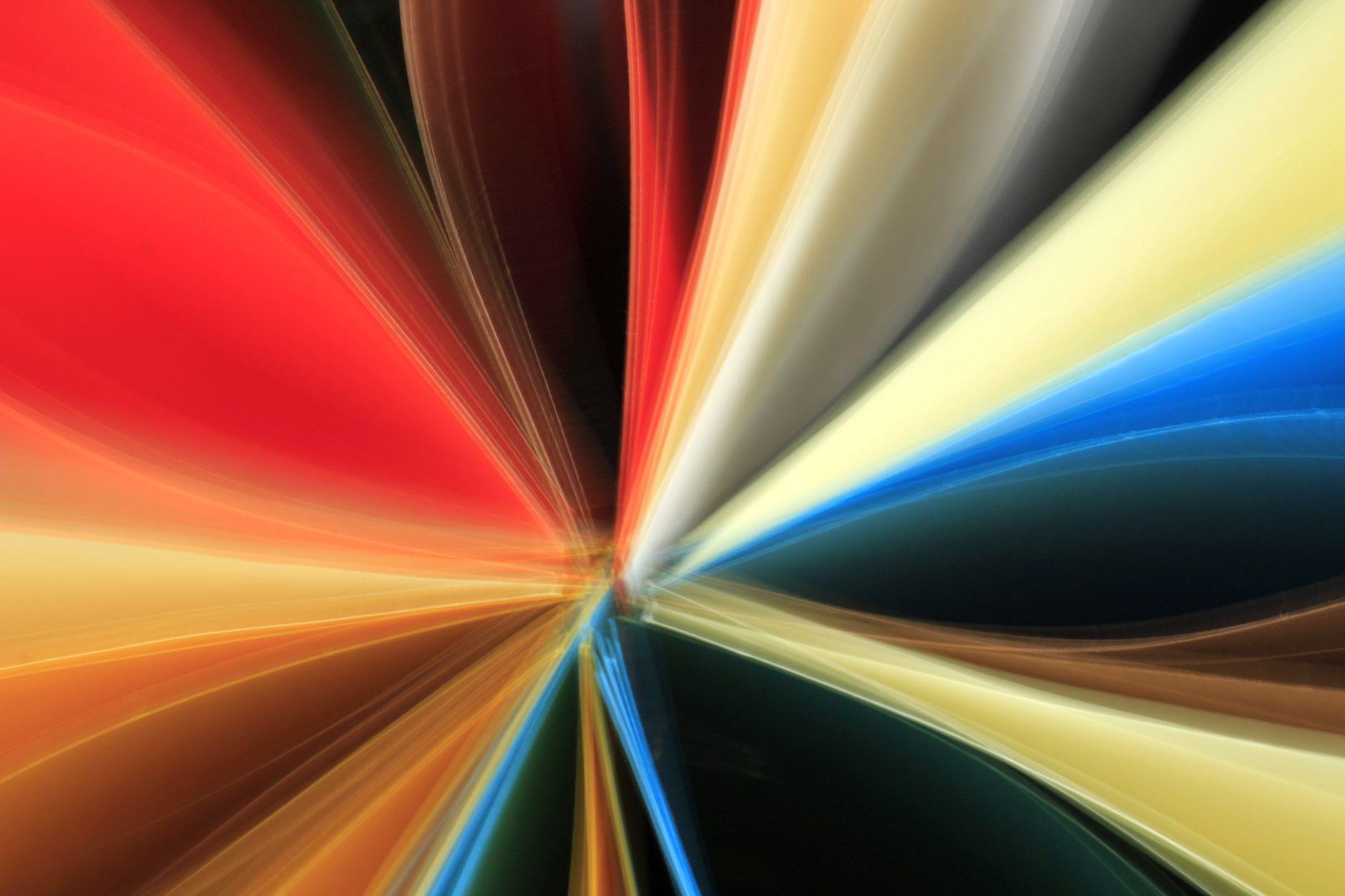
The Center control sets the point the pattern radiates from, and the part of the source image it samples. Moving the center over different areas of your footage changes which colors and shapes the kaleidoscope reflects.
Animating the center to drift across the source creates a constantly shifting pattern, since different parts of the image feed the reflection. Positioning and moving the center is key to controlling and animating the kaleidoscope’s appearance.
Animate the Kaleidoscope
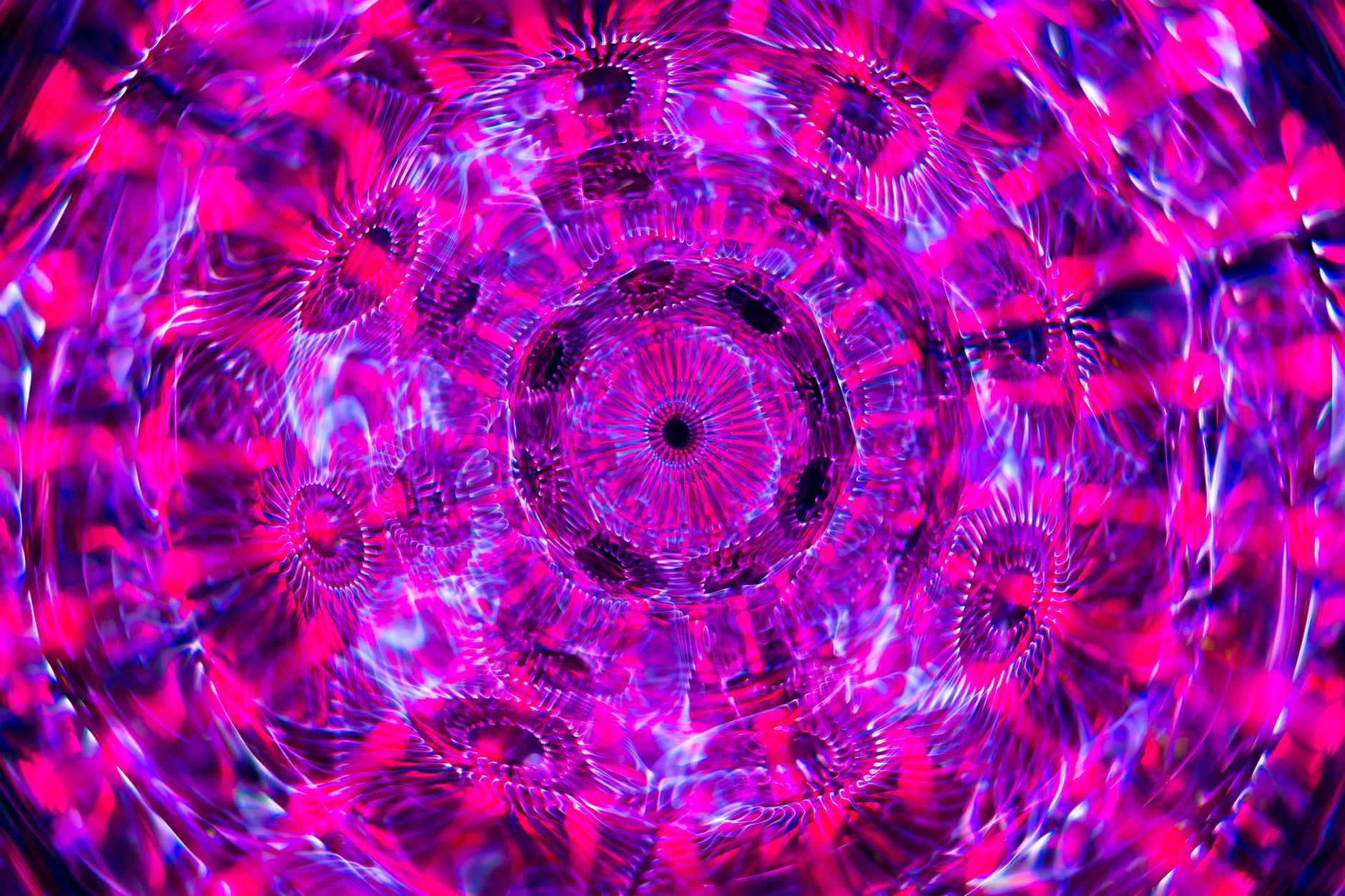
Kaleidoscopes are most striking when animated. Animating the rotation, size, or center, or using moving source footage, makes the pattern shift and evolve continuously, creating the hypnotic, living quality kaleidoscopes are known for.
Rotating the pattern slowly, or feeding it animated footage, produces mesmerizing motion. These animations, eased smoothly, turn a static symmetry into the endlessly changing, psychedelic visual that makes kaleidoscope effects so captivating.
Build Your Own with Mirroring
For more control, build a kaleidoscope manually by mirroring layers. Duplicating a layer, flipping copies, and arranging them around a center with the Motion Tile mirror option or rotated duplicates creates custom symmetry.
This manual approach gives precise control over the segments and symmetry beyond the built-in effect. Combining mirrored, rotated copies of a source lets you design exactly the kaleidoscope structure you want, a more hands-on alternative to CC Kaleida.
Add Color and Glow
Enhancing the pattern with color and light heightens the psychedelic effect. Adding vibrant color, a glow, or feeding colorful source footage makes the kaleidoscope luminous and eye-catching.
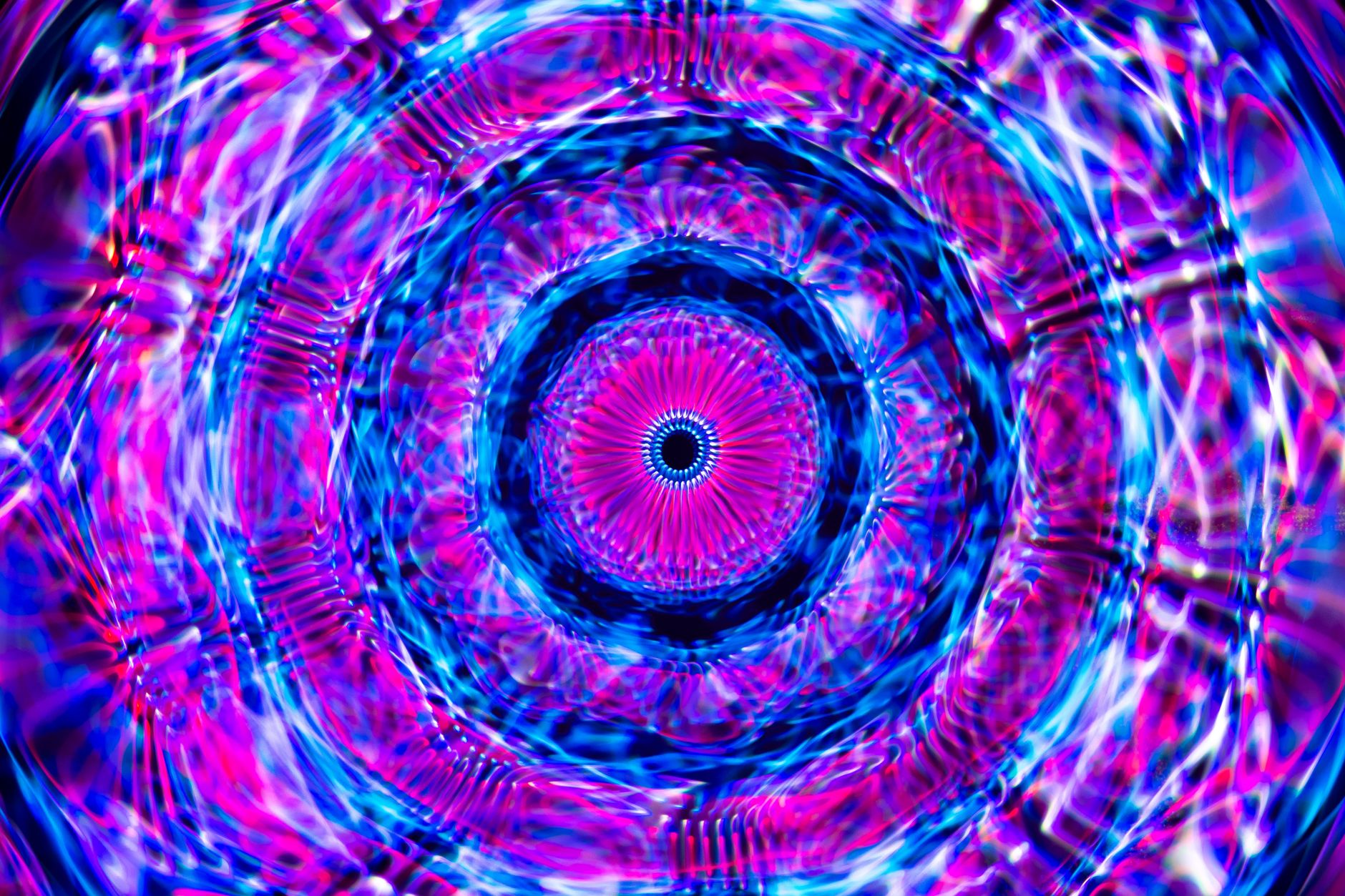
Vivid, glowing kaleidoscopes are the staple of music visuals and trippy backgrounds. Layering color treatment and glow over the symmetrical pattern, especially with colorful animated source, produces the dazzling, hypnotic results the effect is loved for.
Use Kaleidoscopes for Backgrounds and Visuals
Kaleidoscope effects excel as abstract backgrounds, music visualizers, and transitions. A slowly rotating kaleidoscope makes a mesmerizing backdrop, while a quick kaleidoscopic burst makes a striking transition between scenes.
Their endless, symmetrical motion suits content that wants energy and abstraction, from concert visuals to music videos. Used as a living background or a transition, the kaleidoscope adds a hypnotic, professional flourish to motion graphics.
Kaleidoscope Best Practices
- Use CC Kaleida and try its different mirroring patterns.
- Animate the center, rotation, or source for shifting patterns.
- Build custom symmetry by mirroring and rotating layers.
- Add vibrant color and glow for psychedelic visuals.
Common Kaleidoscope Mistakes
- A static pattern that misses the hypnotic, living quality.
- Dull source footage that yields a flat pattern.
- The wrong mirroring type for the design you want.
- Overusing it until the visuals feel chaotic.
A Real Kaleidoscope Example
Picture creating a hypnotic background for a music video. You feed colorful, slowly swirling abstract footage into CC Kaleida, choose a multi-fold mirroring pattern, and animate the center drifting across the source while the whole pattern rotates gently. The result is an endlessly shifting, symmetrical bloom of color that never quite repeats.
Adding a glow and pushing the saturation makes it luminous and trippy, perfect behind the artist or lyrics. That combination of colorful moving source, mirroring, and animated rotation is exactly what gives a kaleidoscope its mesmerizing, living quality — turning simple footage into a captivating, professional visual.
Kaleidoscopes in Music and Event Visuals
The kaleidoscope is a staple of concert visuals, club projections, and event backdrops, where its hypnotic symmetry pairs perfectly with music. A reactive, rotating kaleidoscope behind a stage adds energy and spectacle, and feeding it footage that changes with the show keeps the visuals fresh throughout.
Linking the kaleidoscope’s motion or color to the music, using the audio-reactive ideas from our audio spectrum guide, makes it pulse with the beat for an immersive effect. Whether for a live event or a music video, the kaleidoscope’s endless symmetrical motion is a reliable way to create captivating, rhythm-driven visuals.
Kaleidoscopes and Source Material
The character of a kaleidoscope depends heavily on what you feed it. Colorful, high-contrast, moving footage produces vivid, dynamic patterns, while muted or static source yields flat results, so choosing rich source material is as important as the mirroring settings themselves.
Experimenting with different inputs — abstract footage, light effects, textured graphics — reveals how dramatically the source shapes the outcome. Pairing energetic, colorful source with animated rotation is what gives kaleidoscope visuals their mesmerizing, ever-changing beauty.
A flowing, watery wobble like the After Effects wave warp can feed beautifully into a kaleidoscope.
Mirrored, radial symmetry leans heavily on the polar coordinates effect in After Effects to wrap strips into circles.
Key Takeaways
- A kaleidoscope mirrors an image into symmetrical patterns.
- Use CC Kaleida and choose a mirroring type.
- Animate the center, rotation, or source for living motion.
- Add color and glow for hypnotic, psychedelic visuals.
Frequently Asked Questions
How do I create a kaleidoscope effect in After Effects?
Apply the CC Kaleida effect to a layer, choose a Mirroring pattern, and set the Size and Center. Animate the rotation, center, or use moving source footage for a shifting pattern. You can also build custom symmetry by mirroring layers.
What does CC Kaleida do?
CC Kaleida mirrors and repeats a portion of an image around a center point, creating symmetrical kaleidoscope patterns. It has controls for the mirroring type, size, rotation, and center position to shape the design.
How do I make a kaleidoscope animate?
Animate the rotation, size, or center of the effect, or feed it moving source footage. This makes the symmetrical pattern shift and evolve continuously, creating the hypnotic, living quality kaleidoscopes are known for.
Sources: Adobe’s guide to the After Effects distort effects.
Create mesmerizing patterns at Adobe Video World
Train hands-on with Adobe Certified Instructors across 100+ Premiere Pro & After Effects sessions.



