A workflow taught by Adobe Certified Instructors at Adobe Video World.
Motion Tile is an underrated After Effects effect that repeats a layer to fill or extend the frame — invaluable for stretching backgrounds, preventing edges from showing when you move a layer, and building seamless patterns. This guide explains how Motion Tile works and the practical problems it solves in everyday motion graphics work.
What Motion Tile Does
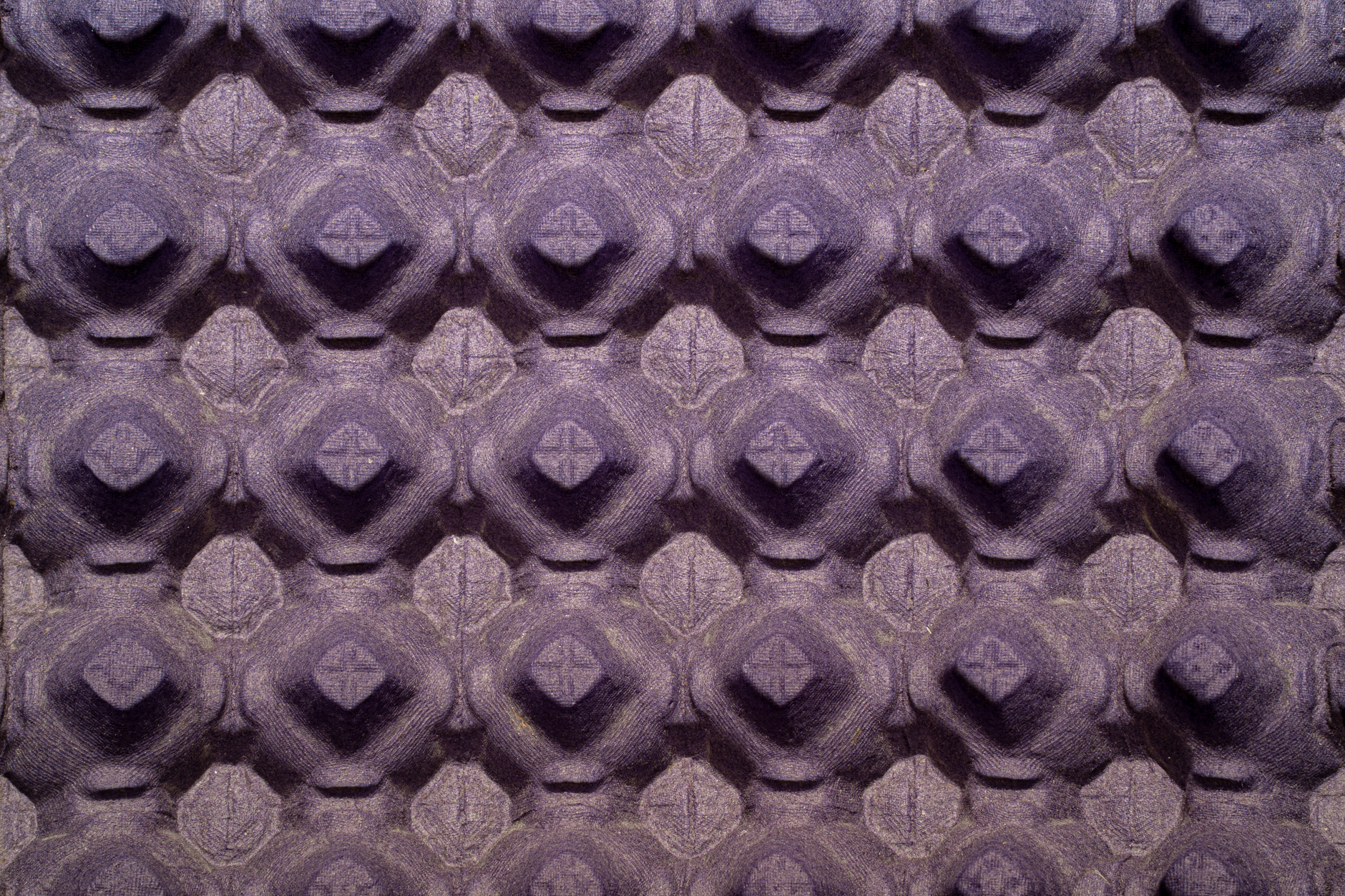
Motion Tile takes a layer and repeats it across a larger area, tiling copies of the image to fill or extend the frame. This lets a single layer cover more space than its original size, which solves several common animation problems.
The most frequent use is extending a background so its edges never show when you scale or move it. Rather than the layer running out and revealing empty space, Motion Tile fills beyond its bounds with repeated copies of the image.
Apply Motion Tile
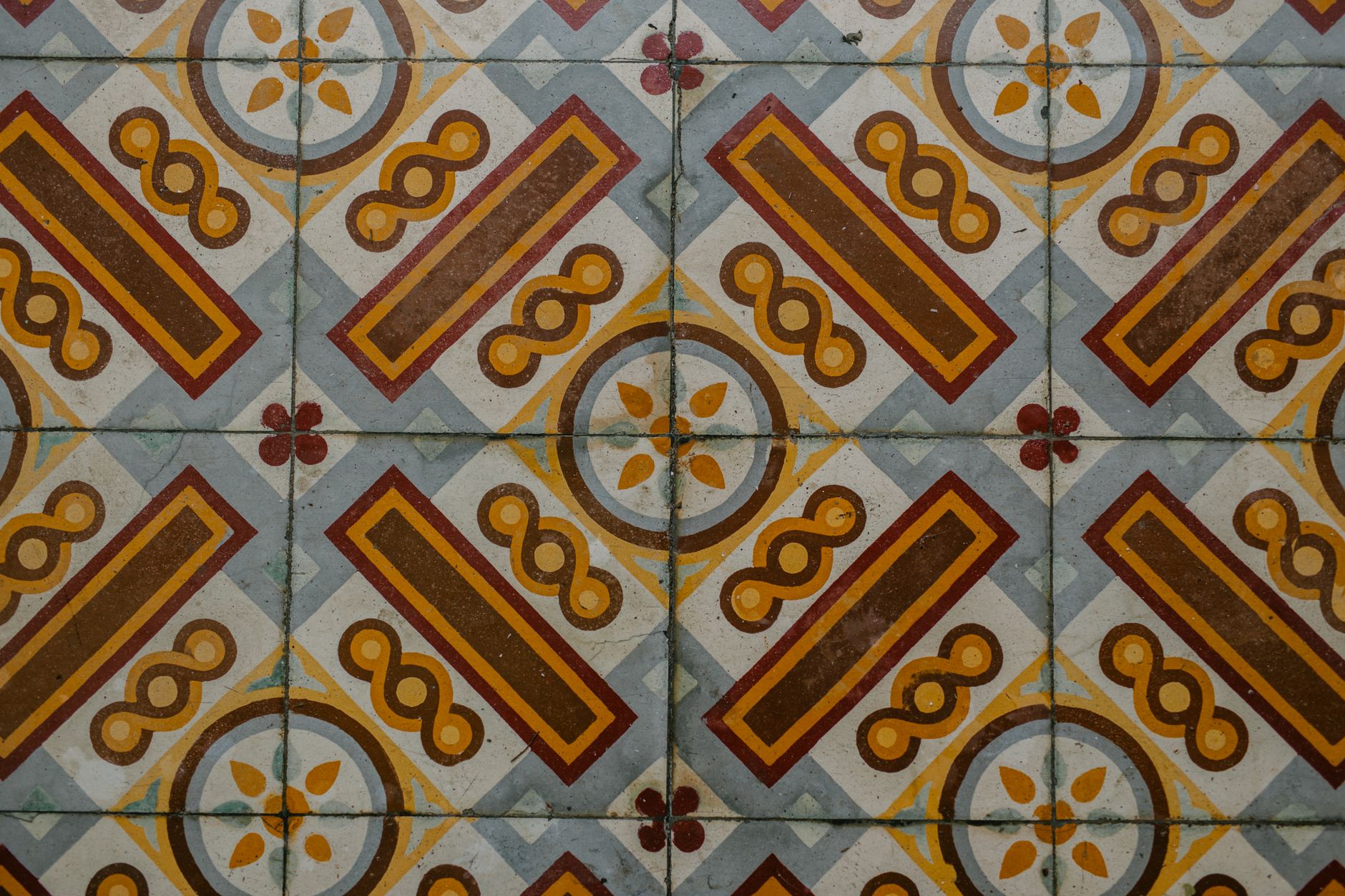
Apply Motion Tile from the Stylize category to your layer, and it immediately tiles the image based on its default settings. The effect’s controls then let you set how the tiling behaves — its size, position, and how the edges join.
From the moment it’s applied, your layer can extend beyond its original frame. Adjusting the controls shapes whether the tiling is seamless, mirrored, or arranged to fill a specific area, depending on what you need.
Extend a Background
The headline use is preventing edges from showing. When you animate a background scaling or sliding, its edges can drift into frame, revealing emptiness — Motion Tile fills that space with the repeated image so the background appears infinite.
Setting the Output Width and Output Height above 100% extends the tiled area beyond the frame, so no matter how you move the layer, its edges never appear. This is a constant lifesaver when animating textures and backgrounds.
Create Seamless Tiles
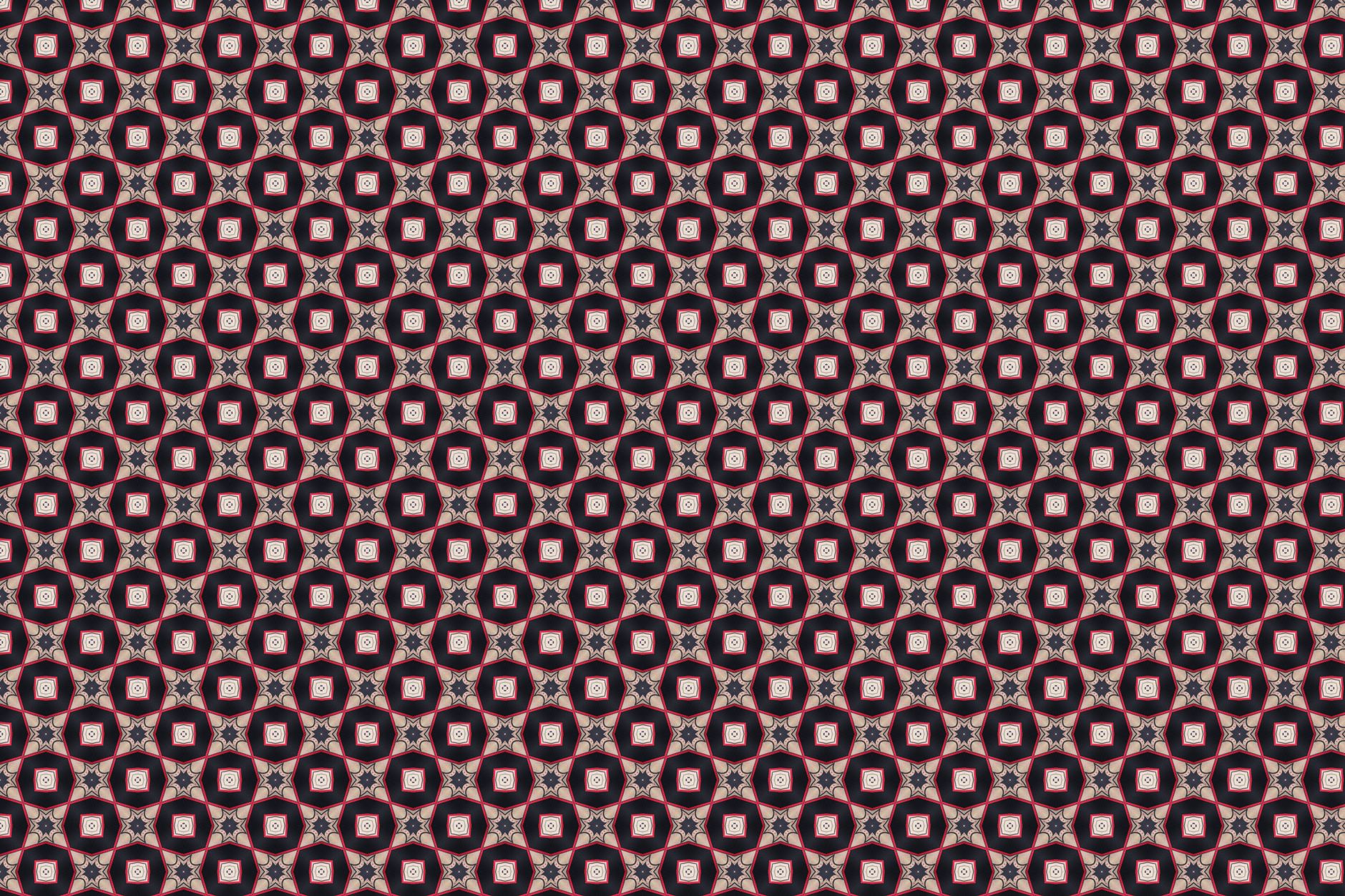
Motion Tile’s Mirror Edges option makes the repeated copies flip at their boundaries, so the tiling joins smoothly without a hard seam. This turns even a non-seamless image into a continuous pattern by mirroring at each edge.
Mirroring is the key to making a texture tile believably, since the flipped edges meet naturally. For backgrounds and patterns where an obvious repeat seam would distract, Mirror Edges produces a clean, continuous fill from a single image.
Build Infinite Patterns
Beyond filling space, Motion Tile creates repeating patterns. Tiling a graphic element produces a grid of copies, and animating the Tile Center makes the whole pattern scroll, creating an endlessly moving background of repeated shapes.
Combined with a single designed element, this generates rich patterns efficiently, much like the Repeater does for shapes. Animating the tile center for continuous scrolling is a simple way to build a living, infinite patterned backdrop.
Use It with Moving Footage
Motion Tile helps when you need footage to fill a frame it doesn’t quite cover, or when stabilizing pushes edges into view. Tiling or mirroring the footage fills those gaps, preventing the black edges that stabilization and reframing can reveal.
This is a practical fix for the edge problems that come with stabilization and repositioning. Rather than scaling footage up and losing quality, mirroring its edges with Motion Tile can fill the gaps while keeping the original framing.
Combine with Other Effects
Motion Tile works well as a building block with other effects. Tile a layer to extend it, then apply distortion, blurs, or blending modes on top, building complex backgrounds and textures from a simple tiled base.
Its role is often invisible — providing the extended canvas that other effects then shape. Whenever an effect or animation needs more image than a layer provides, Motion Tile quietly supplies it, making it a handy foundation in many setups.
Know Its Limits
Motion Tile repeats an image, so heavily detailed or distinctive images can show obvious repetition. It works best with textures and patterns where repeats blend in, rather than images with unique, recognizable features that look odd when tiled.
For images that don’t tile well, mirroring helps, but the technique suits backgrounds and textures more than focal content. Understanding when tiling will read as seamless versus when it’ll look repetitive lets you use Motion Tile where it shines.
Motion Tile Best Practices
- Set output width and height above 100% to extend a layer.
- Enable Mirror Edges for seamless, continuous tiling.
- Animate the tile center for scrolling infinite patterns.
- Use it to fill edges from stabilization or reframing.
Common Motion Tile Mistakes
- Tiling a distinctive image that shows obvious repeats.
- Forgetting Mirror Edges, leaving hard seams.
- Not extending the output enough, so edges still show.
- Using it on focal content instead of backgrounds.
A Real Motion Tile Example
Picture animating a textured paper background that slowly drifts diagonally behind your title. As the layer moves, its edges would normally slide into frame and reveal emptiness, but you apply Motion Tile, push the output width and height well past 100%, and enable Mirror Edges. Now the texture extends seamlessly in every direction, no matter how far it drifts.
The background reads as an infinite, continuous surface, and the mirrored edges hide any repeat seam. That quiet fix — letting a moving background fill the frame forever — is Motion Tile’s bread and butter, and it’s the kind of invisible problem-solving that keeps animated backgrounds looking clean and professional.
Motion Tile for Reflections and Mirror Effects
Beyond extending backgrounds, Motion Tile’s mirroring creates striking symmetry and kaleidoscope effects. Tiling a layer with Mirror Edges produces reflected copies that meet seamlessly, and animating the tile center makes the symmetrical pattern shift and flow, perfect for hypnotic, abstract motion graphics.
Stacking this with color effects and blending modes turns a simple element into an elaborate, mirrored visual. Whether you want a subtle reflection or a full kaleidoscope, Motion Tile’s ability to repeat and mirror a layer makes it a surprisingly creative tool, not just a practical edge-filler.
Key Takeaways
- Motion Tile repeats a layer to fill or extend the frame.
- Extend output above 100% so edges never show.
- Mirror Edges creates seamless, continuous tiling.
- It’s ideal for backgrounds, patterns, and filling gaps.
Frequently Asked Questions
What does Motion Tile do in After Effects?
Motion Tile repeats a layer to fill or extend the frame, tiling copies of the image across a larger area. It’s used to extend backgrounds so edges don’t show, create seamless patterns, and fill gaps from reframing.
How do I stop a background’s edges from showing?
Apply Motion Tile and set the Output Width and Height above 100% to extend the tiled area beyond the frame. Enable Mirror Edges so the repeats join seamlessly, and the background’s edges will never appear as you move it.
How do I make a seamless tile with Motion Tile?
Enable the Mirror Edges option, which flips the repeated copies at their boundaries so they join smoothly without a hard seam. This turns even a non-seamless image into a continuous pattern.
Sources: Wikipedia’s overview of tiling and tessellation.
Extend your frame at Adobe Video World
Train hands-on with Adobe Certified Instructors across 100+ Premiere Pro & After Effects sessions.



