
A workflow taught by Adobe Certified Instructors at Adobe Video World.
God rays — those dramatic shafts of light streaming through clouds, windows, or trees — add atmosphere, depth, and a sense of the divine to a shot. Also called volumetric light or light rays, they’re created in After Effects with built-in effects. This guide covers making light rays, beaming them through gaps, and building convincing, atmospheric shafts of light.

What Light Rays Add
Light rays, or god rays, are visible beams of light that appear when light streams through an opening into a hazy atmosphere. They add drama, depth, and mood — sunlight through forest trees, beams through a window, or rays bursting from behind clouds.
These shafts make a scene feel atmospheric and cinematic, suggesting light interacting with dust or mist in the air. After Effects can generate them convincingly, turning a flat shot into one with depth and a striking sense of light.
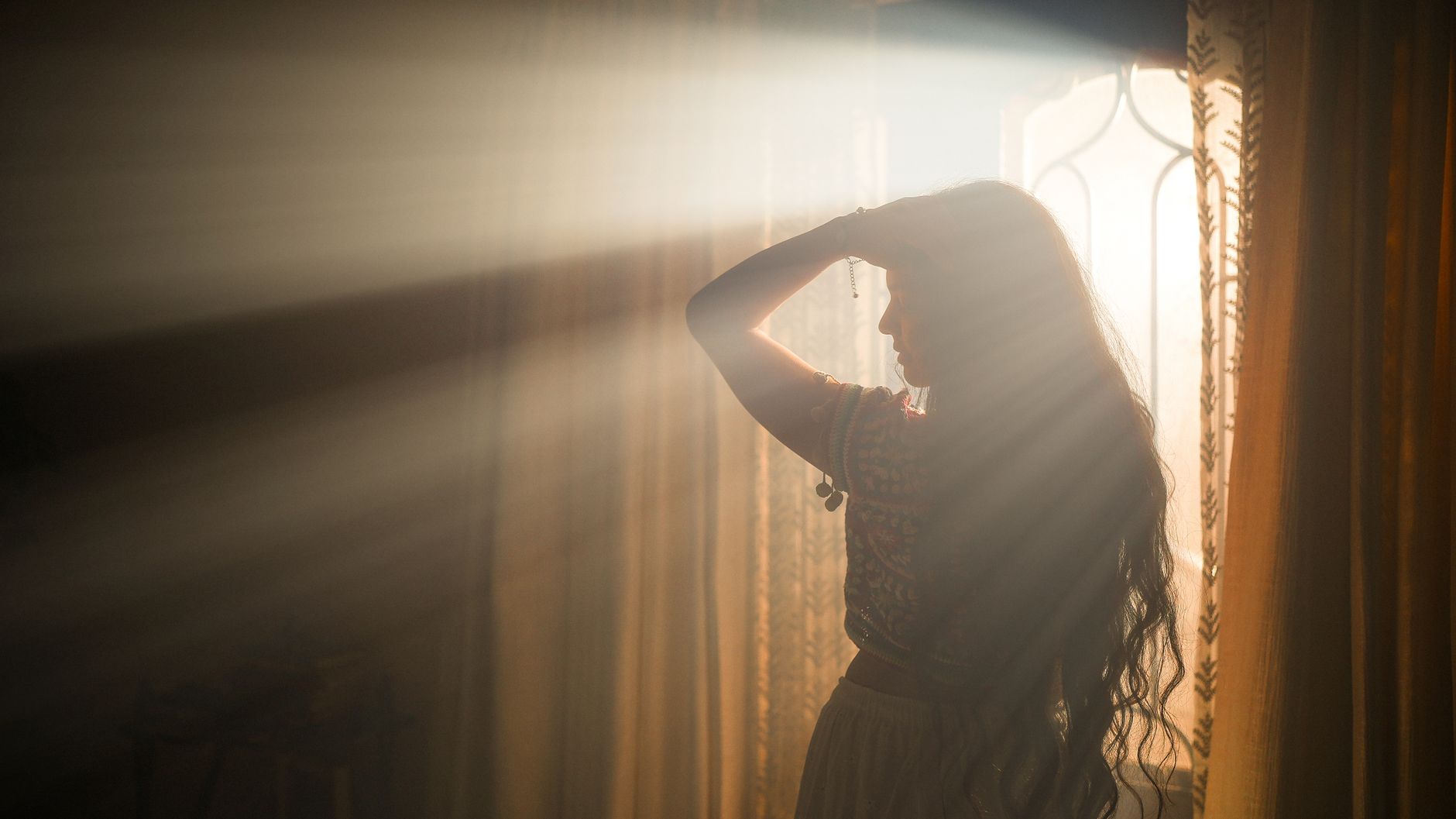
Use the CC Light Rays Effect
After Effects includes CC Light Rays, which radiates light from a point in your image. Apply it to a layer and set the Center to a bright spot — a gap, a window, the sun — and it casts rays outward from there.
CC Light Rays is the quick built-in option, creating a glowing burst of light from your chosen source. Adjusting its intensity and radius shapes how strong and far-reaching the rays are, giving you an instant starting point.
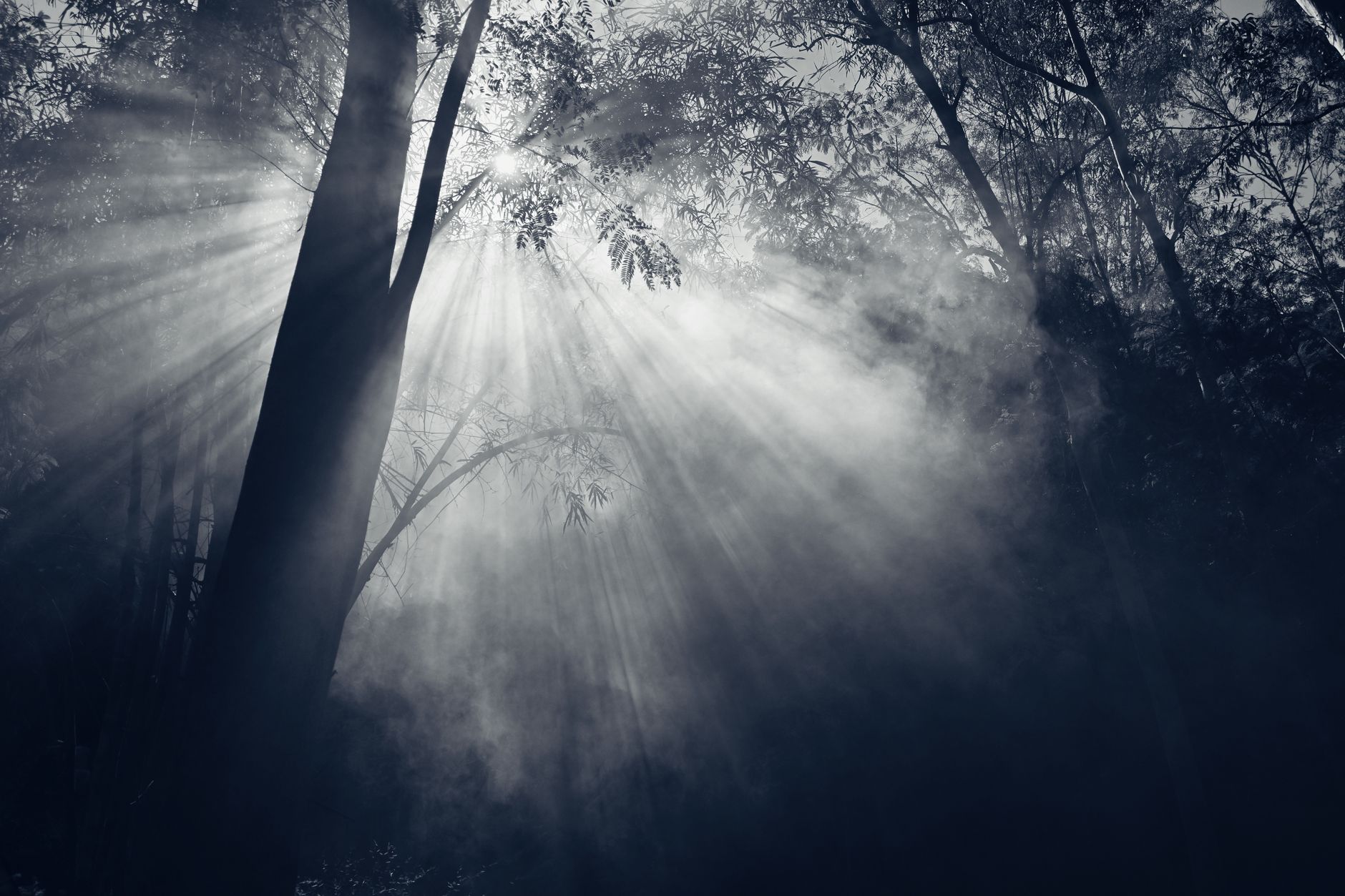
Beam Light Through a Gap
The classic god-ray look comes from light streaming through an opening. Using a layer with bright areas where light should pass — a window, gaps in trees — as the source, the rays emanate from those bright spots as if light is breaking through.
This technique works by having the effect radiate from the bright parts of a layer. Setting up a source where light realistically enters, then casting rays from it, produces the believable shafts that make the effect convincing.

Use a Light Source Layer
For more control, create a separate layer defining where the light comes from — bright shapes where rays should originate, black elsewhere. Applying the rays effect to this layer and blending it over your scene gives precise control over the beams.
This approach lets you art-direct exactly where and how the rays appear. By designing the source, you control the shape and direction of the shafts, producing a more deliberate result than radiating from existing footage alone.

Blend the Rays into Your Scene
Light rays composite over your footage with a blending mode. Setting the rays layer to Add or Screen, using our blending modes guide, drops out the black so only the glowing beams show over the scene.
This blending makes the rays read as actual light layered onto the shot rather than a separate element. Adjusting the layer’s opacity then controls how subtle or dramatic the shafts are, integrating them naturally into the environment.
Add Atmosphere for Realism
God rays only appear when light passes through a hazy medium, so adding atmosphere sells them. A subtle haze or fog in the scene gives the light something to catch, making the beams feel physically present.
Without atmosphere, rays can look artificial, but with a touch of mist for them to illuminate, they become believable. Pairing your light rays with soft atmospheric haze is what grounds them as real shafts of light in a dusty or misty space.
Animate the Light Rays
Subtle animation brings god rays to life. Slowly shifting the light’s intensity, or animating gentle movement in the atmosphere the rays pass through, makes the beams feel alive rather than static, as if dust drifts through the light.
Animating the rays’ source moving — like the sun shifting or clouds passing — also adds realism. These subtle movements, kept gentle, make the light feel natural and dynamic, completing the atmospheric, living quality of convincing god rays.
Keep It Believable
The most common god-ray mistake is overdoing it — beams so bright and obvious they look fake. Real light rays are often subtle, a gentle suggestion of light in the air, so dialing them back usually makes them more convincing.
Match the rays to the light source and atmosphere already in your shot, and keep their intensity realistic. A restrained, well-placed shaft of light reads as genuinely atmospheric, while an aggressive one quickly looks like an obvious effect.
Light Rays Best Practices
- Use CC Light Rays and set the center to a bright source.
- Beam rays from gaps like windows or trees.
- Blend with Add or Screen so only the beams show.
- Add atmospheric haze and keep the rays subtle.
Common Light Ray Mistakes
- Beams so bright and obvious they look fake.
- Rays with no atmosphere for the light to catch.
- Forgetting to blend, leaving a dark box around the rays.
- Light direction that doesn’t match the scene’s source.
A Real God Rays Example
Imagine a forest clip that feels flat and needs atmosphere. You add a layer with bright patches where the canopy gaps are, apply CC Light Rays radiating from one of those gaps, and blend it over the footage on Screen so warm shafts stream down between the trees. A faint drifting haze gives the beams something to catch.
Lowering the opacity keeps the rays subtle, and a gentle animation makes the light shimmer as if dust floats through it. The ordinary forest shot becomes a magical, sun-dappled scene — proof that god rays are mostly about a believable source, a hazy atmosphere, and the restraint to keep the light gentle rather than blasting it across the frame.
Light Rays for Logos and Reveals
God rays aren’t only for landscapes — a burst of rays behind a logo or title makes a powerful reveal. Placing light rays radiating from behind a mark as it appears suggests it’s emerging from a brilliant source, adding drama and a premium, heroic feel to the moment it lands.
Timing the rays to bloom as the logo settles, then easing them back, keeps the effect punchy rather than overwhelming. Combined with a glow and the techniques in our logo animation guide, a controlled burst of god rays turns a simple logo reveal into a genuinely cinematic flourish.
Once you’ve cast volumetric light rays, creating a neon sign in After Effects is a natural next build using glows and blend modes.
Organic streaks of light pair beautifully with adding light leaks in After Effects for a dreamy, analog feel.
The same masked, animated light that builds rays creates a light sweep effect in After Effects across a logo.
Volumetric rays often start from the same bright source as a lens flare in After Effects.
Key Takeaways
- God rays are shafts of light through a hazy atmosphere.
- Use CC Light Rays radiating from a bright source.
- Blend with Add or Screen and add atmospheric haze.
- Keep the rays subtle and matched to the scene’s light.
Frequently Asked Questions
How do I create god rays in After Effects?
Apply the CC Light Rays effect and set its Center to a bright source like a window or gap in trees, so rays radiate from there. Blend the layer with Add or Screen and add atmospheric haze for realism.
Why do my light rays look fake?
Often they’re too bright and obvious, or there’s no atmosphere for the light to catch. Dial the intensity back, add subtle haze or fog so the beams have something to illuminate, and match the light direction to the scene.
What are god rays?
God rays, or volumetric light, are visible shafts of light that appear when light streams through an opening into a hazy atmosphere — like sunlight through trees or beams through a window — adding drama and depth.
Sources: Adobe’s guide to the generate effects behind light rays in After Effects.
Light up your scenes at Adobe Video World
Train hands-on with Adobe Certified Instructors across 100+ Premiere Pro & After Effects sessions.



