Based on techniques taught at Adobe Video World by Adobe Certified Instructors.
A believable green screen composite lives and dies on the quality of the key. After Effects ships with Keylight — a professional-grade keyer — but getting a clean edge takes more than clicking the green. Here’s the workflow the pros use.
It Starts on Set
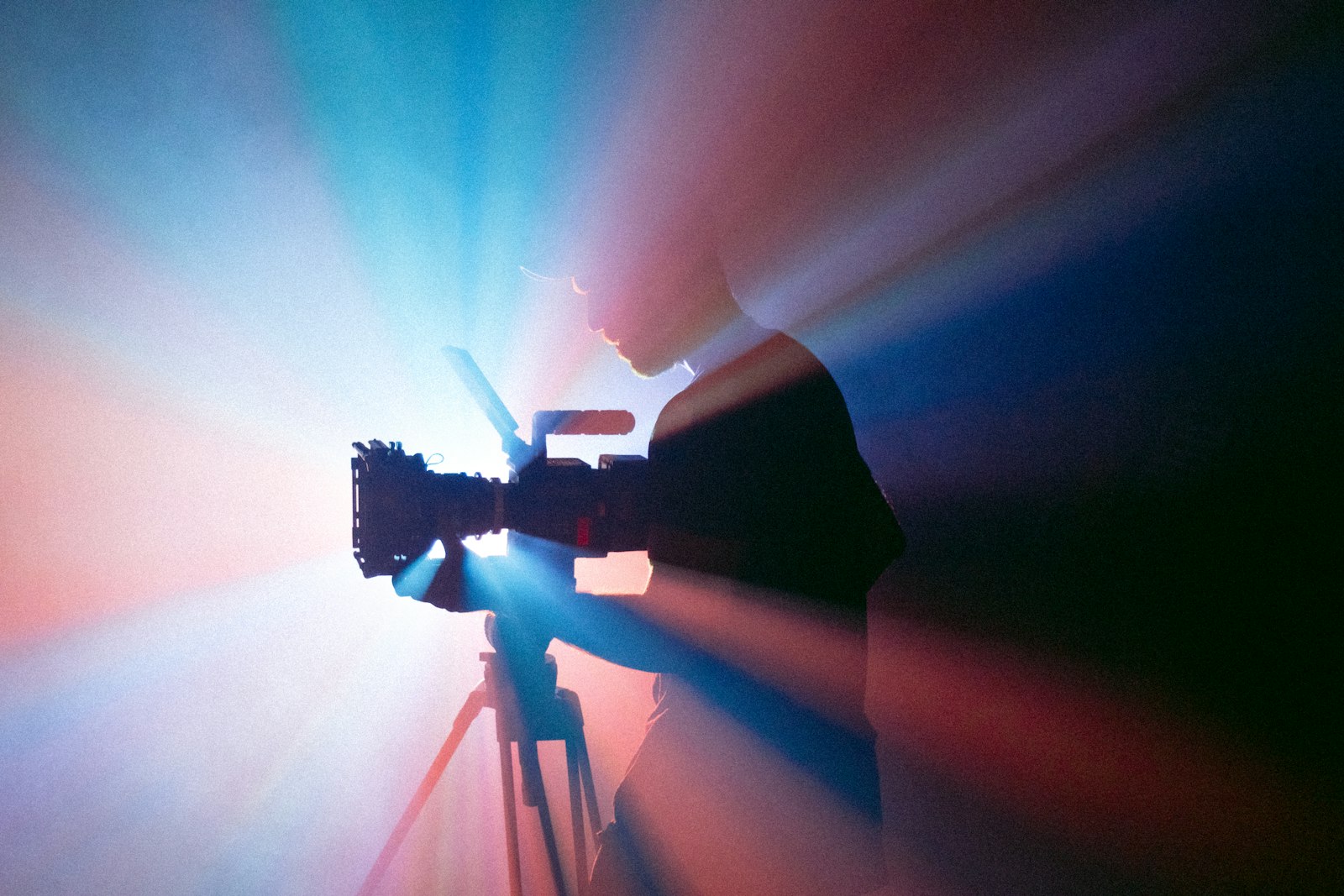
The best key is shot, not fixed. Light the screen evenly and separately from your subject, keep the talent a few feet off the screen to avoid spill, and expose the green to a clean, mid-level value. Even a perfect keyer can’t save a wrinkled, unevenly lit screen.
Apply Keylight
Add Effect > Keying > Keylight (1.2) to your footage layer. Use the Screen Colour eyedropper to sample the green right next to your subject’s edge — not a random corner. You’ll get an instant rough key.
Refine the Matte
Switch the View dropdown to Screen Matte — this shows your key in black and white. The goal: subject is pure white, background is pure black, with a crisp edge.
- Raise Clip Black until the background is fully black (no gray noise).
- Lower Clip White until the subject is fully white (no holes).
- Add a touch of Screen Shrink/Grow and Softness to clean the edge.
Make small moves — pushing the clip levels too far creates a hard, cut-out look.
Kill the Green Spill
Green light bounces onto your subject’s edges and hair. Keylight’s Screen Colour handles some of it automatically, but add Spill Suppressor or use the Despill Bias to neutralize the fringe. Sampling a despill bias from your subject’s skin tone keeps edges natural.

Composite and Color Match
Place your new background below the keyed layer. The final step that sells the shot is color matching — grade the foreground so its contrast and color temperature match the background plate. A subtle Lumetri or Curves adjustment ties the two worlds together.
Go deeper at Adobe Video World
Learn hands-on from Adobe Certified Instructors across 100+ Premiere Pro & After Effects sessions.
Premiere’s own keyer mirrors Keylight, so once you’ve used one, the Ultra Key effect in Premiere Pro will feel familiar for fast green-screen work.
Sources: Adobe’s documentation on keying effects and Keylight in After Effects.



