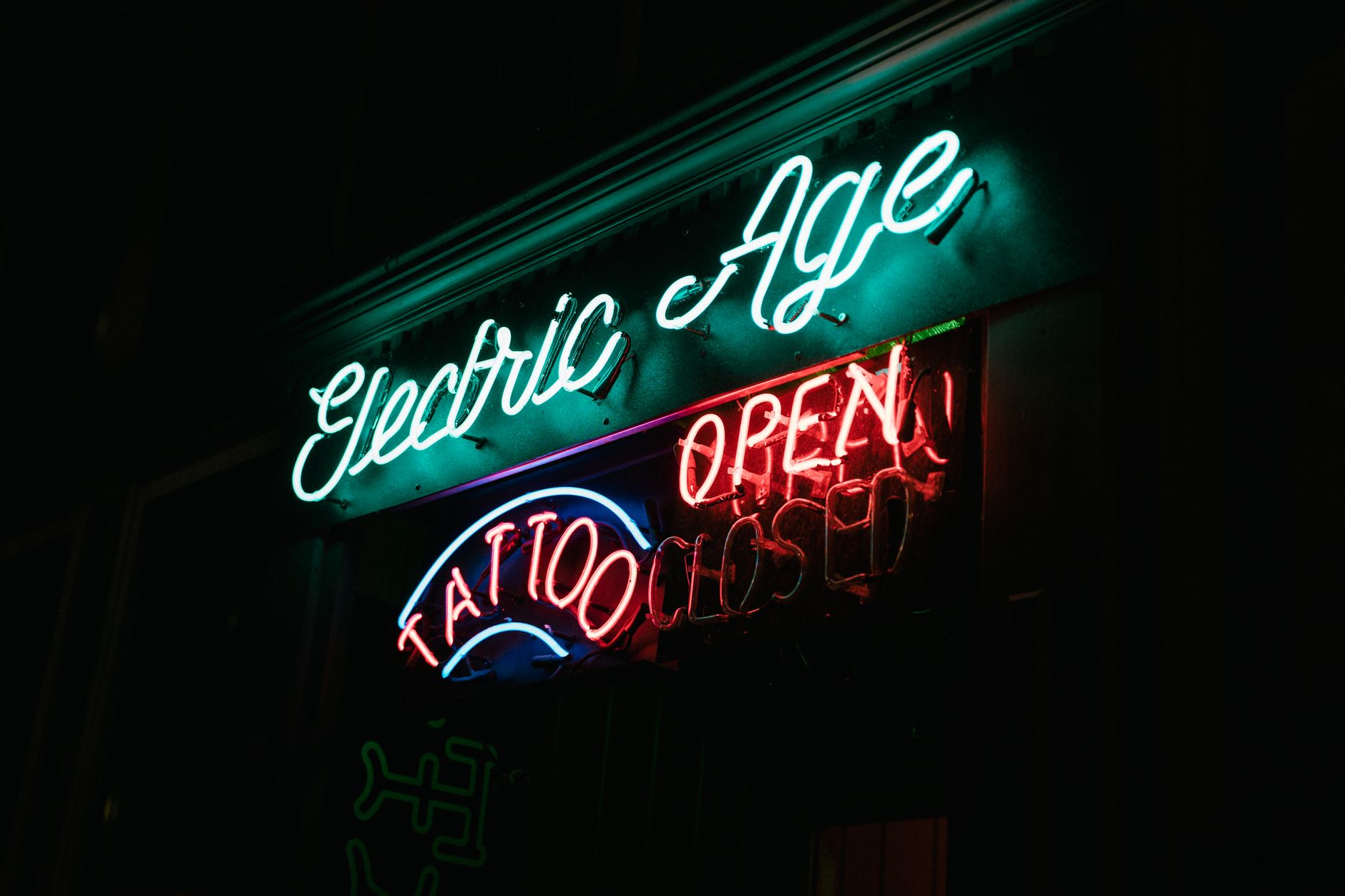
A workflow taught by Adobe Certified Instructors at Adobe Video World.
A glow effect adds light, energy, and atmosphere — making neon signs pulse, logos shine, and titles feel luminous. After Effects has a built-in Glow effect that’s easy to apply but rewards a little understanding to use well. This guide covers creating glows for text, logos, and footage, plus how to keep them looking polished rather than overdone.
What the Glow Effect Does
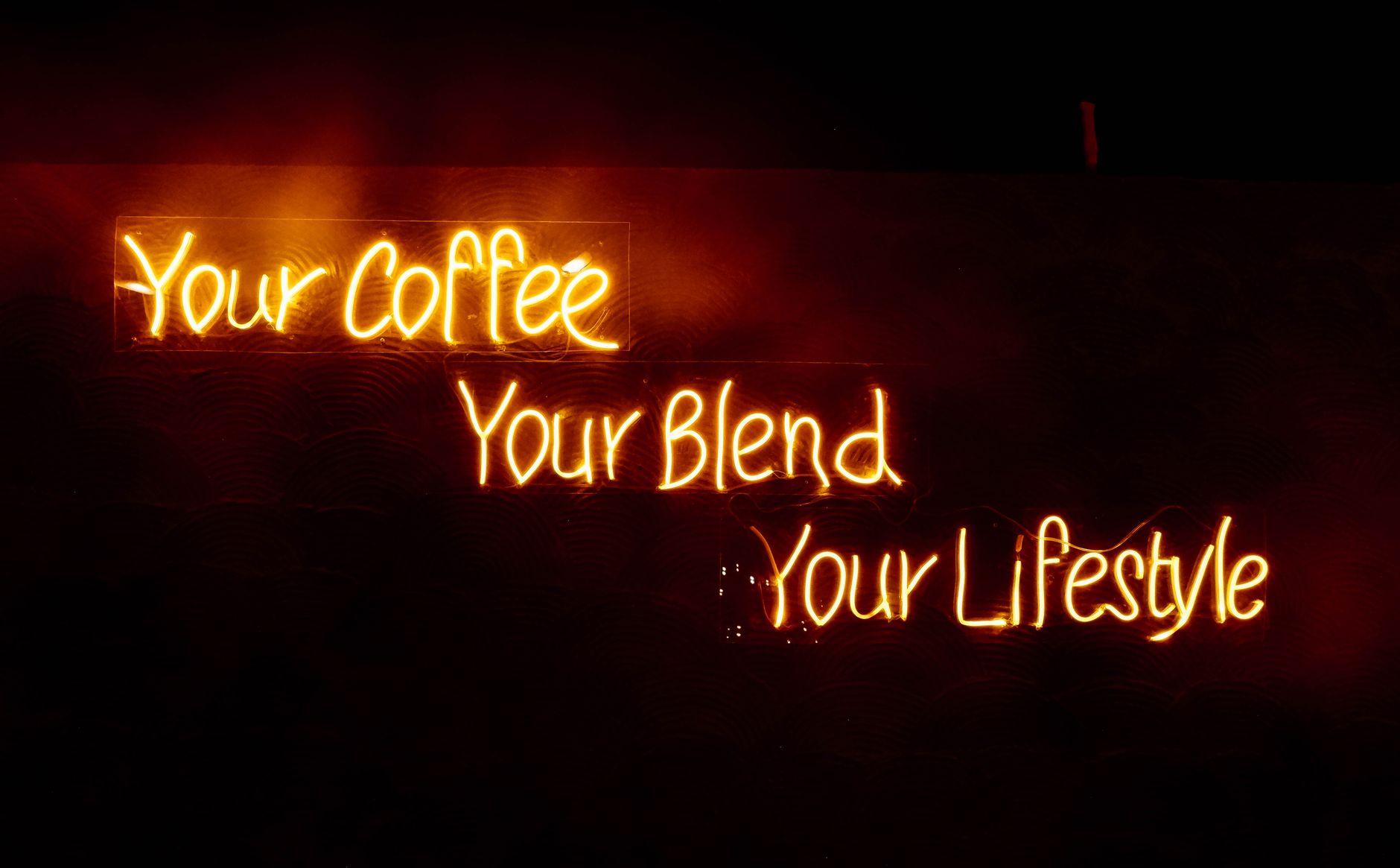
The Glow effect spreads the bright areas of a layer outward into a soft halo of light, mimicking how real light blooms around bright objects. It makes glowing elements like neon, screens, and highlights feel genuinely luminous rather than flat.
Because it works from the brightest parts of your image, glow is most dramatic on high-contrast elements — bright text on a dark background, a light source, or a saturated color. Understanding that it keys off brightness helps you predict and control where the glow appears.

Apply the Glow Effect
Adding a glow takes seconds. Select your layer, then apply Effect > Stylize > Glow, and After Effects immediately spreads light from the layer’s bright areas. The default look is often too strong, so you’ll tune it from there.
The Glow effect appears in your Effect Controls panel with a set of parameters to shape it. Start by applying it to a piece of bright text on a dark background, where the effect is easy to see and adjust.
Tune the Glow Parameters
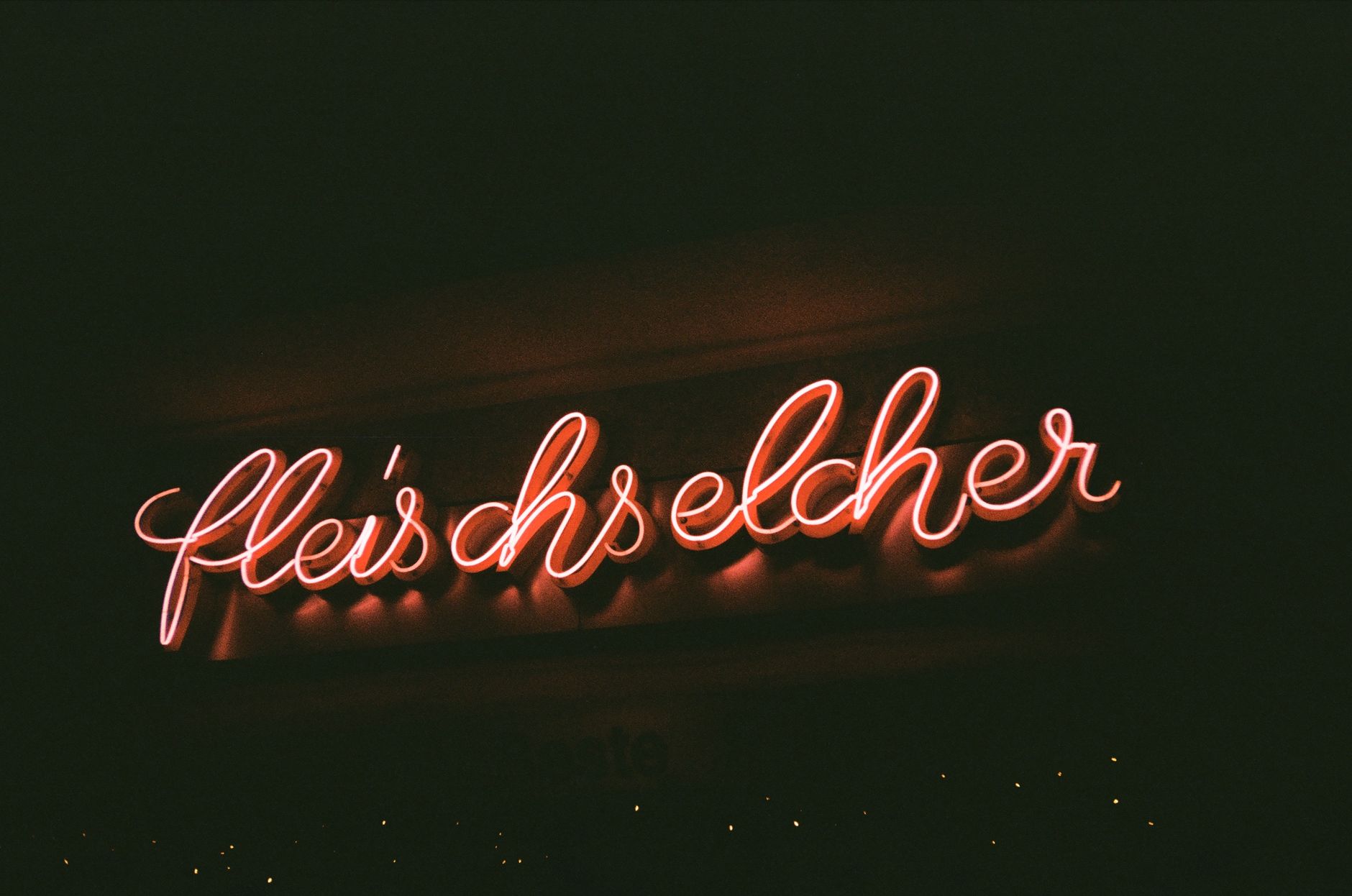
A few key controls shape the look. Glow Threshold sets how bright a pixel must be to glow, Glow Radius controls how far the light spreads, and Glow Intensity sets its strength. Together these determine whether you get a subtle sheen or a blazing halo.
Lower the threshold to make more of the image glow, raise the radius for a soft, wide bloom, and keep intensity moderate to avoid blowing out the picture. Tuning these three is the whole craft of a good glow, so experiment until it feels right.
Create a Neon Look
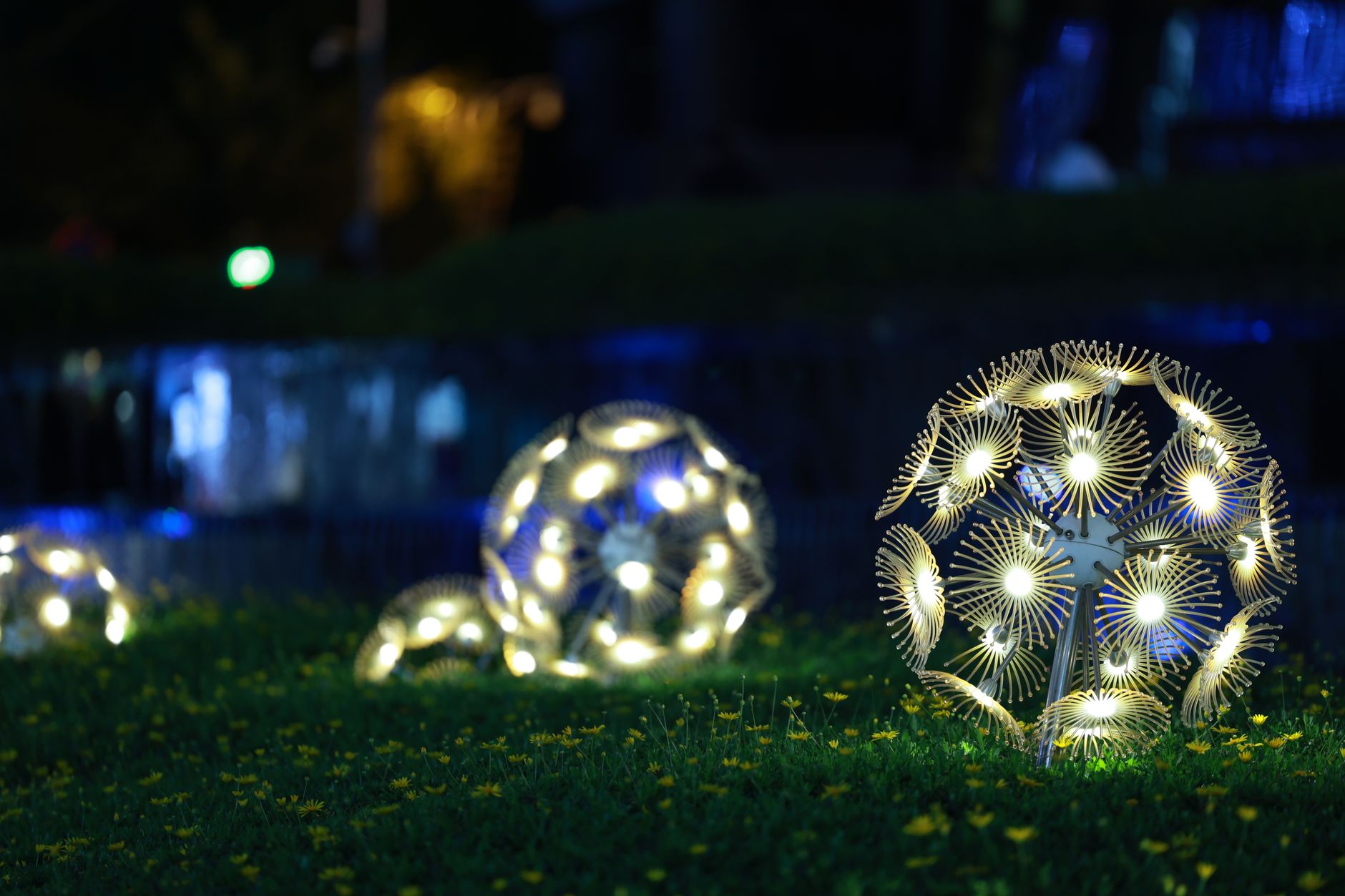
Glow is the secret to neon. Build your text or shape in a bright, saturated color on a dark background, then apply Glow to make it radiate light like a real neon sign. Adding a second, wider glow on a duplicate layer deepens the effect.
For an authentic neon feel, keep the core bright and let the glow bleed softly into the surrounding darkness. A subtle flicker animation, driven by a wiggle expression, adds the final touch of realism to a neon sign.

Glow Text and Logos
Glowing a title or logo adds instant polish and energy. Apply Glow to your animated logo or text and keep it subtle, so the element looks lit from within rather than buried in haze.
A gentle glow helps text stand out against busy footage and gives logos a premium, illuminated quality. The key is restraint — a soft sheen reads as professional, while a heavy glow reads as amateur and makes text harder to read.
Use Glow on Footage
Glow isn’t only for graphics — it can enhance real footage too. A light bloom on highlights, the glow of a screen, or the haze around a light source can all be lifted with a carefully masked Glow effect for a dreamy, cinematic atmosphere.
Mask the glow to specific bright areas so it doesn’t wash out the whole frame, and keep it subtle. Used delicately, glow adds the soft, luminous quality of film, complementing a strong color grade.
Animate the Glow
An animated glow feels alive. Keyframe the Glow Intensity or Radius to make a logo pulse, a sign flicker, or a title bloom on as it appears, tying the light to your animation’s key moments.
A glow that grows as an element scales in, then settles, adds energy and draws the eye. Combined with the eased motion from our keyframe guide, an animated glow turns a static shine into a dynamic, attention-grabbing effect.
Keep It Tasteful
The most common glow mistake is using too much. A heavy glow washes out detail, makes text illegible, and instantly looks cheap, while a restrained glow adds a touch of magic. When in doubt, dial it back further than feels necessary.
Match the glow’s strength to your project: bold and bright for a neon or gaming aesthetic, soft and subtle for an elegant or cinematic one. A well-judged glow enhances; an overdone one distracts, so let restraint guide every adjustment.
Glow Effect Best Practices
- Apply glow to bright elements on darker backgrounds.
- Tune Threshold, Radius, and Intensity together for the right look.
- Stack two glows — tight and wide — for a richer neon effect.
- Mask glow on footage so it doesn’t wash out the whole frame.
Common Glow Mistakes
- Too much intensity, washing out detail and text.
- Glowing dark elements that have no bright areas to bloom.
- Forgetting to mask glow on footage, hazing the whole shot.
- A static glow where an animated one would add life.
A Real Neon Sign Example
Imagine creating a glowing neon ‘Open’ sign. You type the word in a bright, saturated pink on a dark background, then apply the Glow effect and add a second, wider glow on a duplicate layer for depth. The text begins to radiate light convincingly, just like real neon tubing against a dark wall.
To finish the illusion, you add a subtle flicker with a wiggle expression on the glow intensity, so the sign occasionally stutters like aging neon. A faint reflection or a dark background texture completes the scene, turning flat text into an atmospheric, glowing sign.
Glow Plugins and Alternatives
After Effects’ built-in Glow is capable, but third-party plugins offer more advanced, optical-quality glows with finer control over color bleed and falloff. For demanding hero shots, these specialized tools can produce a richer, more realistic bloom than the standard effect alone.
That said, the built-in Glow covers the vast majority of needs once you understand its parameters. Learning to tune Threshold, Radius, and Intensity well means you’re never dependent on a plugin, and you can always layer two built-in glows for extra depth before reaching for anything more advanced.
Key Takeaways
- Glow spreads light from a layer’s bright areas.
- Control it with Threshold, Radius, and Intensity.
- Use it for neon, logos, titles, and subtle footage bloom.
- Animate it for energy, and always keep it tasteful.
Frequently Asked Questions
How do I add a glow in After Effects?
Select your layer and apply Effect > Stylize > Glow. Then tune Glow Threshold, Radius, and Intensity in Effect Controls to control how much the bright areas bloom into light.
How do I make a neon effect in After Effects?
Create bright, saturated text or shapes on a dark background, apply the Glow effect, and stack a second wider glow for depth. Add a subtle wiggle expression for an authentic neon flicker.
Why does my glow look bad?
Usually the intensity or radius is too high, washing out detail and text. Dial the glow back until the element looks lit from within rather than buried in haze, and apply it to bright areas.
Sources: Wikipedia’s article on the bloom lighting effect.
Add light and energy at Adobe Video World
Train hands-on with Adobe Certified Instructors across 100+ Premiere Pro & After Effects sessions.



