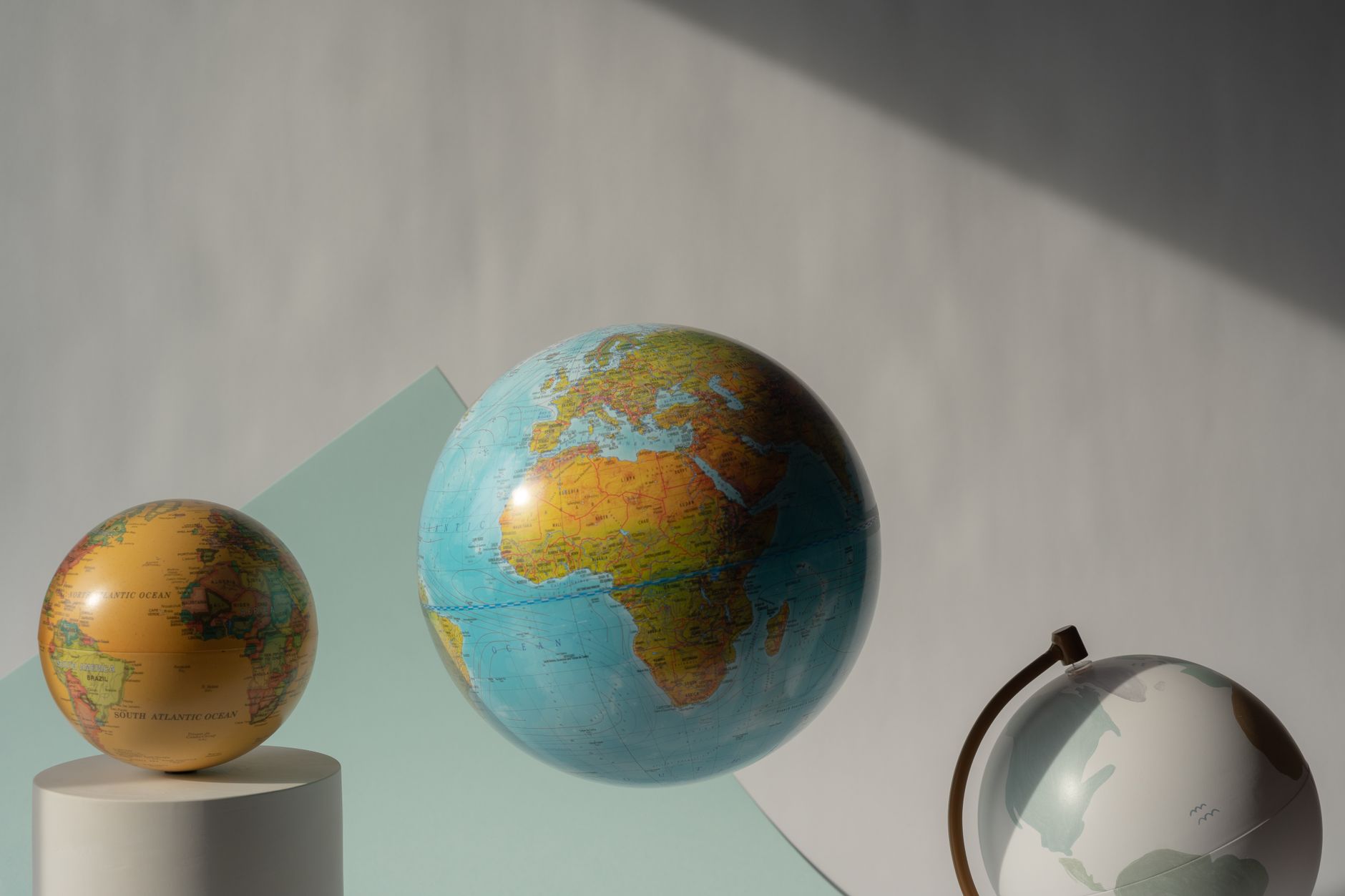
A workflow taught by Adobe Certified Instructors at Adobe Video World.
CC Sphere wraps a flat layer onto a 3D sphere, creating spinning globes, planets, wrapped text, and rotating sphere effects with lighting and shading. It’s a quick way to make 3D-looking spheres without 3D software. This guide covers using CC Sphere to wrap footage and graphics onto a sphere and animate it convincingly.
What CC Sphere Does
CC Sphere takes a flat layer — an image, map, or graphic — and wraps it onto a 3D sphere with realistic shading and lighting. This creates spinning globes, planets, and wrapped designs without needing actual 3D software.
The effect maps your 2D layer onto a sphere’s surface, complete with lighting and the ability to rotate. It’s a fast, accessible way to create convincing 3D sphere effects, popular for globes, planets, and creative wrapped graphics.
Apply CC Sphere
Apply CC Sphere from the Perspective category to your layer, and it immediately wraps the flat image onto a sphere. The effect’s controls then let you adjust the rotation, lighting, shading, and size of the sphere.
From the moment it’s applied, your flat layer becomes a 3D-looking sphere. Adjusting the controls shapes how it looks and rotates, so applying CC Sphere is the quick first step toward a globe, planet, or wrapped sphere effect.
Create a Spinning Globe
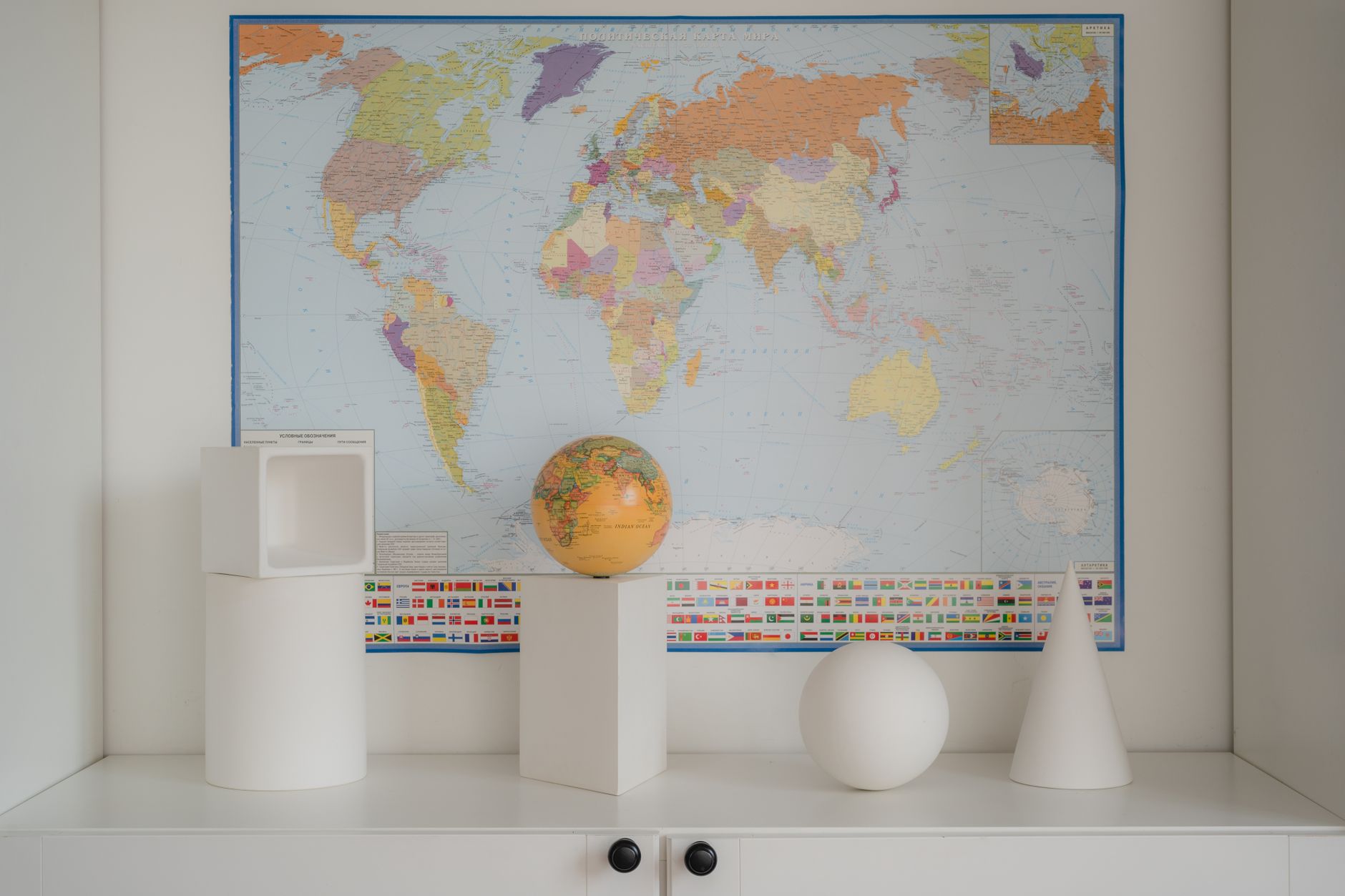
The classic use is a rotating globe. Applying CC Sphere to a world map, then animating the Rotation Y property, makes the globe spin convincingly, with the map wrapping around the sphere as it turns.
This spinning globe is a staple for travel, news, and global-themed content. Using a flat map as the source and animating the rotation, with appropriate lighting, creates a believable Earth that the CC Sphere effect makes simple to produce.
Control Rotation and Lighting
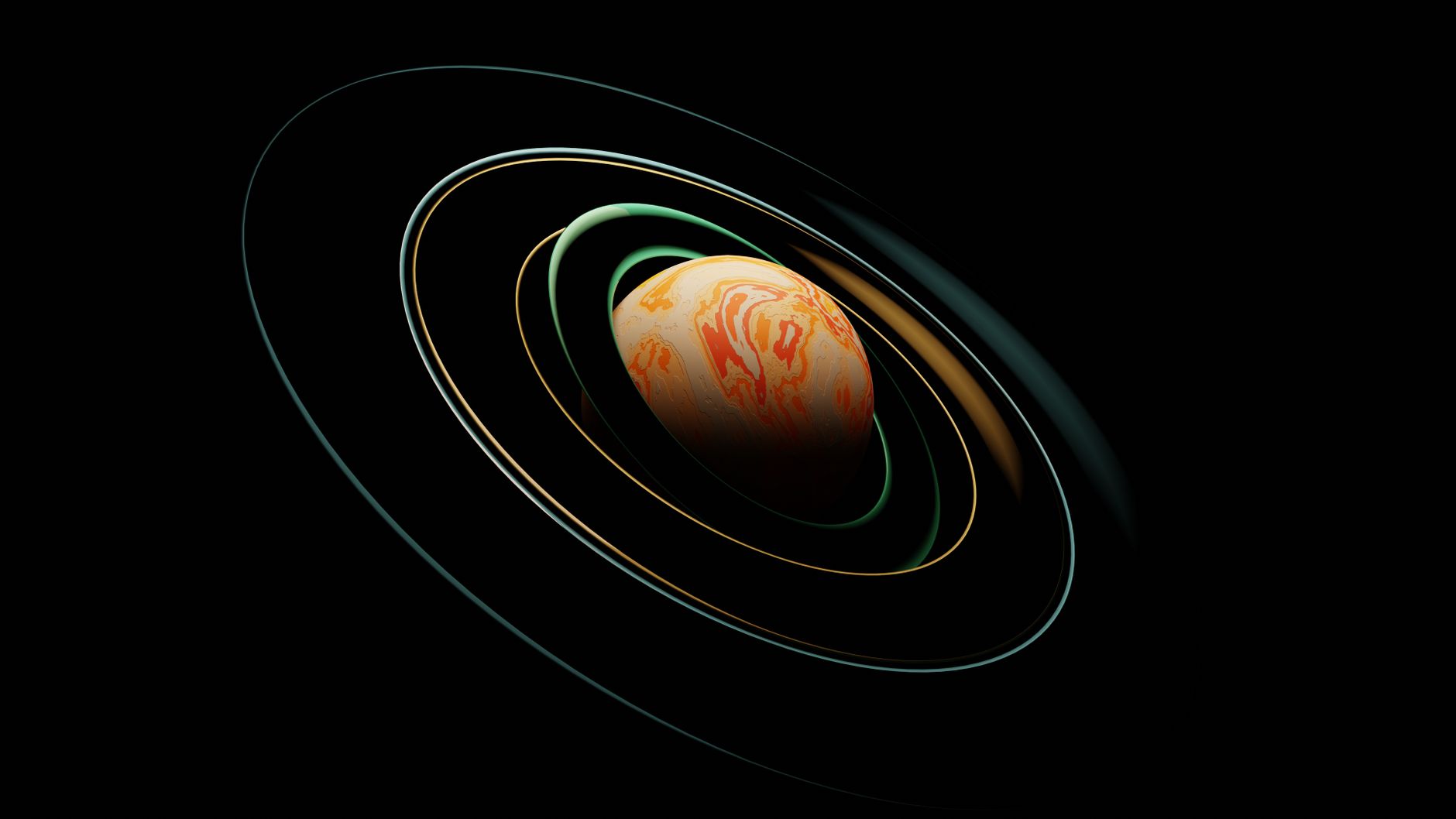
CC Sphere offers full rotation and lighting control. The Rotation properties spin the sphere on any axis, while the Light settings position and color the light, adding the shading that makes the sphere look three-dimensional.
These controls shape the sphere’s appearance and movement. Animating the rotation creates the spin, while positioning the light adds realistic shading and highlights, together making the wrapped sphere look genuinely 3D and dynamic.
Create Planets
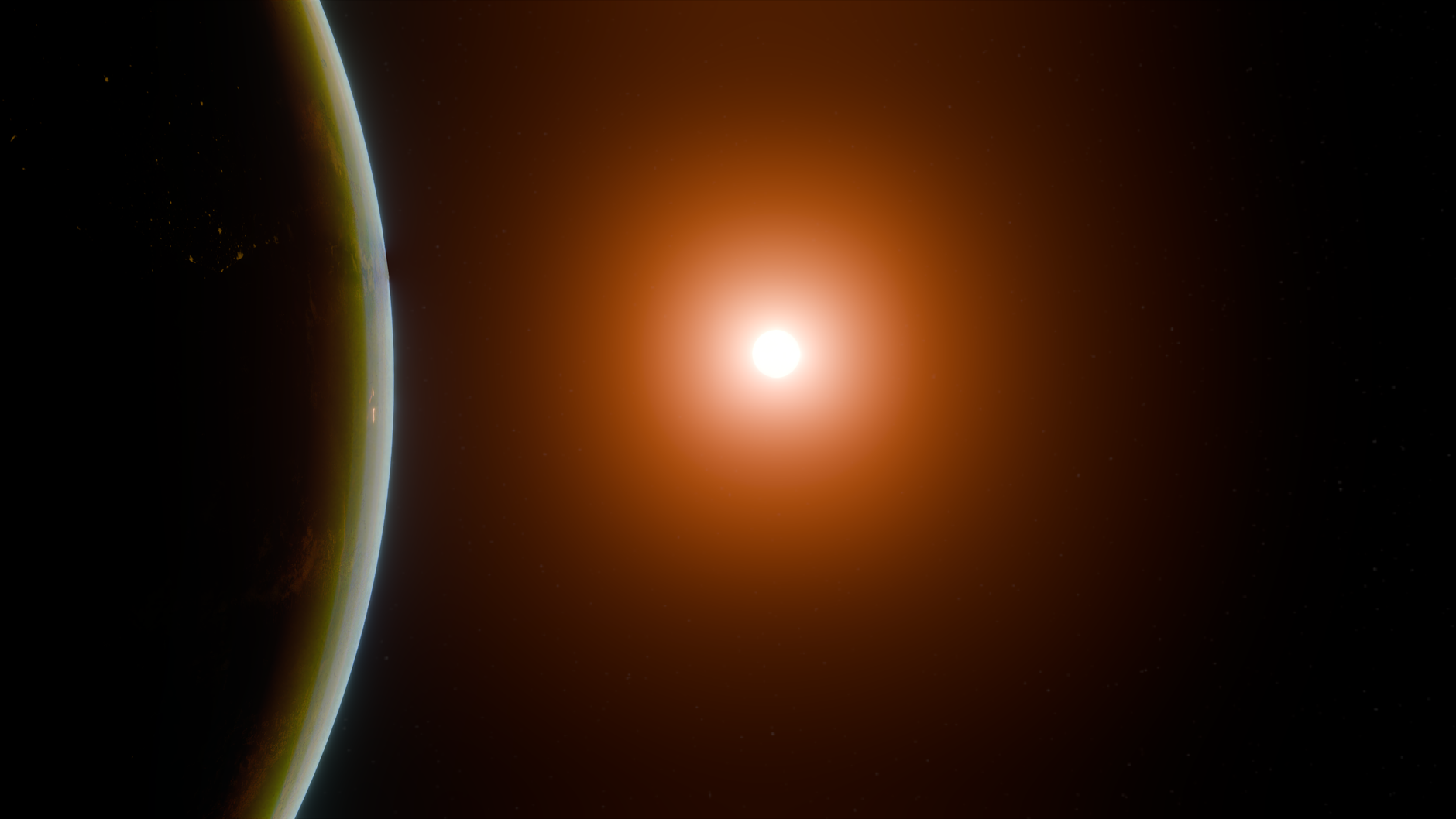
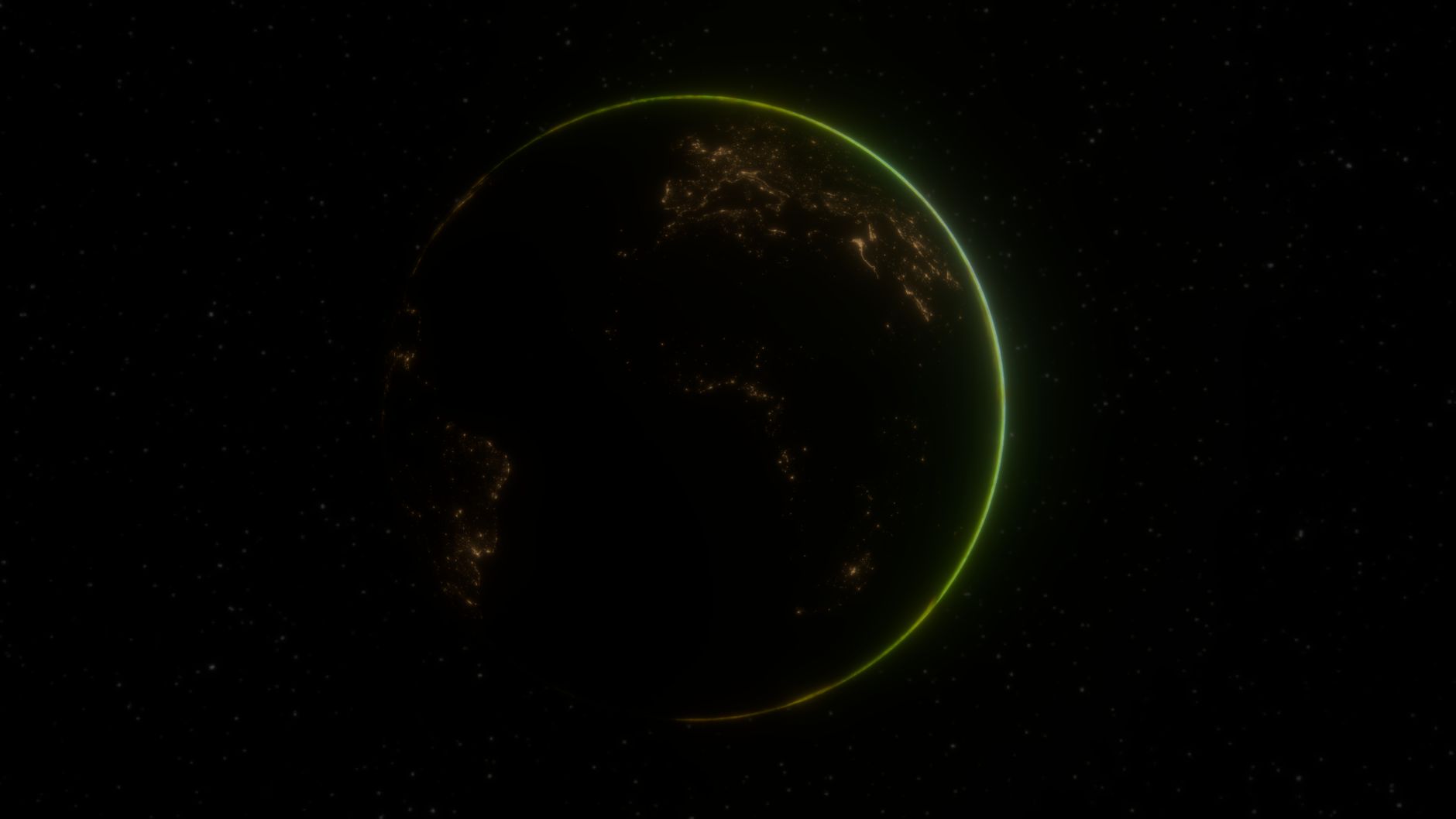
CC Sphere is great for planets. Wrapping a planet texture onto the sphere, adding lighting for a realistic terminator (the line between day and night), and animating slow rotation creates convincing planets for sci-fi and space content.
Adding a glow for an atmosphere, and layering clouds or rings, builds detailed planets. The CC Sphere effect, with the right texture and lighting, produces the rotating planets seen in space scenes and sci-fi motion graphics.
Wrap Text and Graphics
Beyond globes, CC Sphere wraps text and graphics creatively. Wrapping text or a design onto a sphere and rotating it creates distinctive curved, rotating typography and graphic effects.
This creative use produces eye-catching wrapped designs, like text curving around a sphere. Experimenting with graphics and text on CC Sphere, animated and lit, opens up stylized 3D effects for titles and motion graphics beyond literal globes.
Combine with Other Elements
CC Sphere spheres work well composited with other elements. Adding a glowing atmosphere, a star background, orbiting elements, or a glow builds complete scenes around the sphere for polished, finished results.
Layering these elements turns a bare sphere into a rich scene — a planet in space, a glowing globe in a graphic. Combining CC Sphere with complementary effects and backgrounds creates the complete, professional sphere visuals seen in finished work.
CC Sphere Best Practices
- Apply CC Sphere to wrap a flat layer onto a sphere.
- Animate Rotation Y for a spinning globe.
- Position the light for realistic shading.
- Use it for globes, planets, and wrapped text.
Common CC Sphere Mistakes
- Flat lighting that doesn’t make the sphere look 3D.
- A distorted source image that wraps poorly.
- A static sphere when rotation would bring it to life.
- A bare sphere with no atmosphere or background.
A Real CC Sphere Example
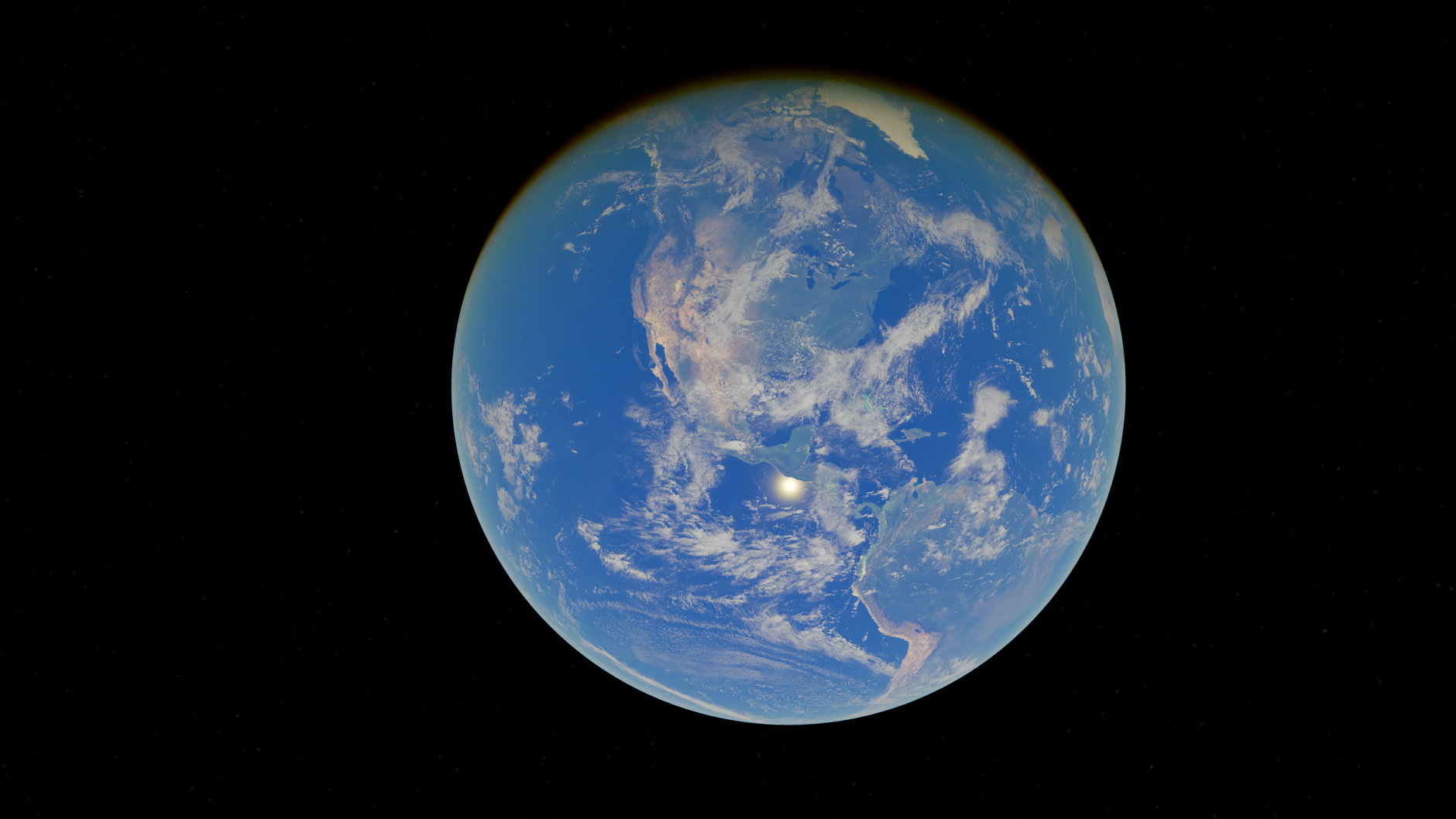
Imagine creating a spinning Earth for a travel channel intro. You apply CC Sphere to a flat world map, animate the Rotation Y so the globe turns steadily, and position a light to give it a realistic day-night terminator. Adding a soft blue glow around the edge for atmosphere and a starfield behind it, the flat map becomes a convincing planet rotating in space.
Built entirely with CC Sphere and a few complementary effects, the globe looks genuinely three-dimensional without any 3D software. That combination of a wrapped map, animated rotation, directional lighting, and an atmospheric glow is exactly how you create polished, spinning globes and planets quickly in After Effects.
Texture Quality and CC Sphere
The realism of a CC Sphere globe depends heavily on the source texture. A high-resolution, properly equirectangular map wraps cleanly onto the sphere, while a low-resolution or wrongly-projected image distorts or blurs at the poles, undermining the effect.
Choosing or preparing the right texture, projected to wrap correctly, is as important as the lighting and rotation. Pairing a quality map with good lighting and a complementary background gives the most convincing sphere, proving that source material matters as much as the effect settings.
Animate CC Sphere Creatively
Beyond steady rotation, CC Sphere can animate in expressive ways. Tumbling the sphere on multiple axes, scaling it as it spins, or animating the light moving across its surface all add dynamism, while wrapping animated footage rather than a still image makes the sphere’s surface come alive.
These creative animations turn a simple globe into an eye-catching motion graphic. Combined with the easing and motion principles in our keyframe guide, animating CC Sphere with intention produces distinctive rotating sphere effects that go well beyond a basic spinning globe.
CC Sphere and the 3D Workflow
CC Sphere offers quick 3D sphere effects without true 3D software, but understanding where it fits helps you choose the right approach. For simple spinning globes and wrapped graphics, it’s fast and effective, while complex 3D scenes may warrant the Cinema 4D renderer or dedicated 3D software.
Knowing this distinction lets you pick the efficient tool — CC Sphere for quick sphere effects, full 3D for elaborate scenes. Many projects need only a simple rotating globe, which CC Sphere delivers far faster than building actual 3D geometry.
Combining CC Sphere with complementary effects like glow and particles, and the 3D techniques in our broader guides, lets you create polished sphere visuals efficiently. Understanding its place in the toolkit ensures you reach for it when it’s the smart choice rather than over-engineering simple effects.
Key Takeaways
- CC Sphere wraps a flat layer onto a 3D sphere.
- Animate the rotation for a spinning globe.
- Position the light for realistic shading.
- Use it for globes, planets, and wrapped graphics.
Frequently Asked Questions
How do I use CC Sphere in After Effects?
Apply the CC Sphere effect (under Perspective) to your flat layer, and it wraps onto a 3D sphere. Animate the Rotation Y property to spin it, position the Light for realistic shading, and adjust the size and other controls.
How do I make a spinning globe in After Effects?
Apply CC Sphere to a flat world map, then animate the Rotation Y property to spin the globe. Position the light for shading, and the map wraps around the rotating sphere, creating a convincing spinning Earth.
Can CC Sphere make planets?
Yes. Wrap a planet texture onto the sphere, add lighting for a realistic day-night terminator, animate slow rotation, and add a glow for atmosphere. CC Sphere is a quick way to create rotating planets for sci-fi and space content.
Sources: Wikipedia’s overview of UV mapping and texturing.
Wrap the world at Adobe Video World
Train hands-on with Adobe Certified Instructors across 100+ Premiere Pro & After Effects sessions.



