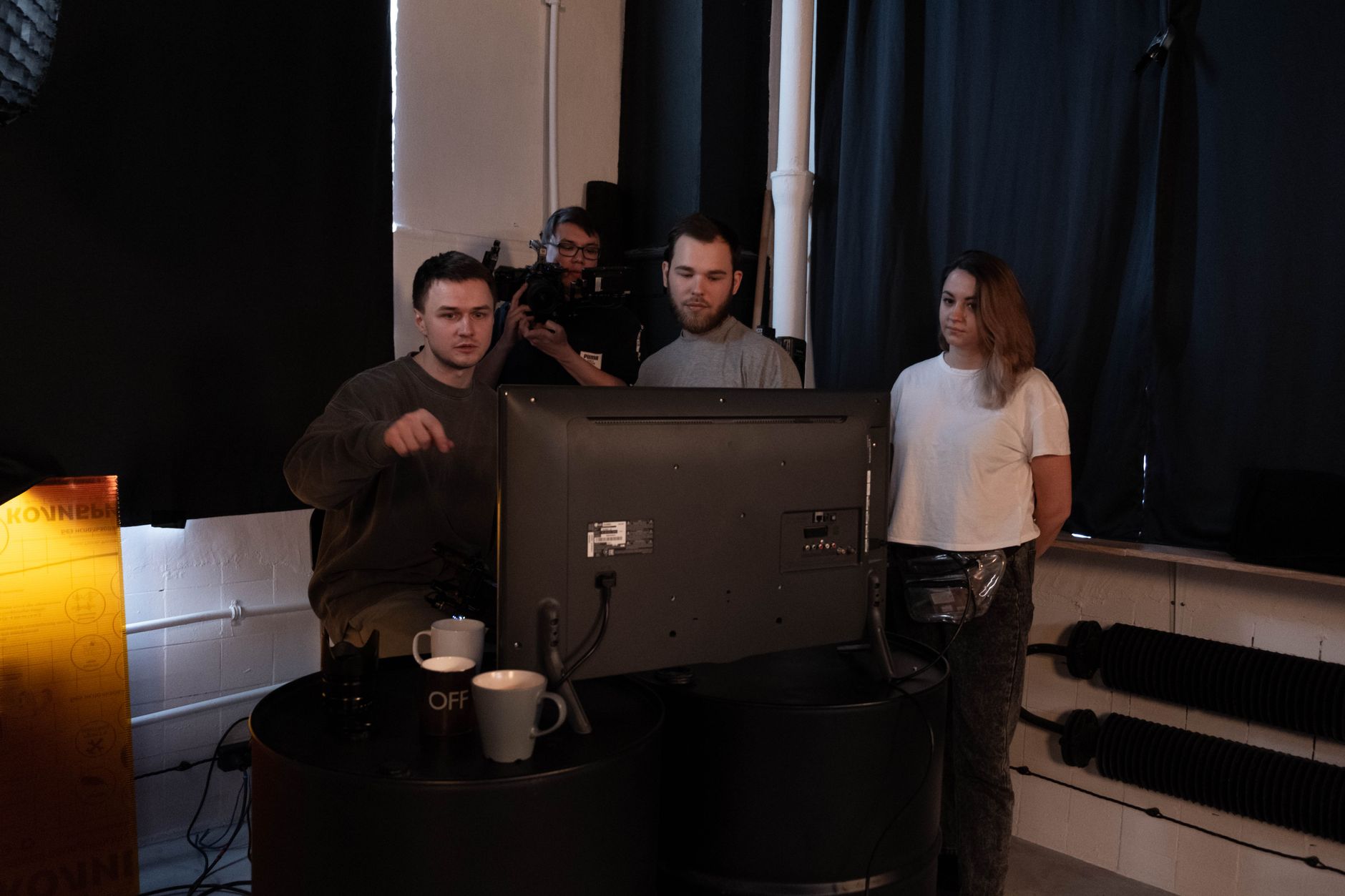
A workflow taught by Adobe Certified Instructors at Adobe Video World.
Productions in Premiere Pro is a system for organizing large, complex projects and enabling collaboration — managing multiple linked projects, sharing media, and letting teams work together. It’s built for big edits like films and series. This guide covers using Productions to organize ambitious projects and collaborate efficiently.
What Productions Are
Productions organize multiple Premiere projects under one structure, sharing media and assets between them. Rather than one massive project, a Production breaks work into linked projects, which is ideal for large, complex edits and team collaboration.
This structure keeps big projects manageable and enables multiple editors to work on the same Production. Understanding that a Production is a folder of linked projects sharing resources is the foundation of using this system for ambitious work.

When to Use Productions
Productions are for large, complex projects and collaboration. Films, series, documentaries, and any project too big for a single project file, or worked on by a team, benefit from the organization and sharing Productions provide.
For solo editors on small projects, a single project is fine, but big work benefits from Productions. When a project grows unwieldy or multiple editors need to collaborate, Productions provide the structure and sharing that keep the work organized and efficient.

Create a Production
Set up a Production through the Productions panel, which creates a structured folder containing multiple projects. Organizing your work into separate projects within the Production — by scene, reel, or section — keeps the large edit manageable.
This organization breaks a big project into logical pieces that share media. Structuring the Production with projects for different parts of the work, all linked and sharing assets, is what makes managing a large, complex edit feasible.
Share Media Across Projects
A key benefit is shared media. Productions let multiple projects reference the same media without duplication, so footage and assets are shared across the projects in the Production, saving space and keeping things consistent.
This sharing avoids the duplication and disorganization of separate projects each copying media. With shared assets across the Production, every project accesses the same footage and resources, keeping a large collaborative edit consistent and efficient.
Collaborate with a Team
Productions enable team collaboration. Multiple editors can work within a Production, each on different projects, with a locking system preventing conflicts so people don’t overwrite each other’s work on the same project.
This collaboration, with project locking to manage access, lets teams work on a large edit together. Understanding how the locking and sharing work, so editors coordinate without conflicts, is key to using Productions effectively for collaborative projects.
Manage Project Locking
Productions use locking to prevent conflicts. When an editor opens a project as editable, it locks so others can’t change it simultaneously, while they can still reference it, preventing the conflicts that would otherwise arise in collaboration.
This locking system is central to safe collaboration, ensuring only one person edits a project at a time. Coordinating who works on what, and understanding the locked and read-only states, keeps a team working smoothly within a Production without overwriting each other.
Keep the Production Organized
A well-organized Production stays manageable. Naming projects clearly, structuring them logically, and managing the shared media keeps even a large, collaborative Production navigable and efficient, as our organization principles apply.
This organization matters more as the Production grows and more people work in it. Keeping the structure clear and the projects logically arranged ensures the Production remains usable, which is essential for the large, complex work it’s designed for.
Productions Best Practices
- Use Productions for large projects and team collaboration.
- Organize work into logical linked projects.
- Share media across projects to avoid duplication.
- Use project locking to collaborate without conflicts.
Common Productions Mistakes
- Using a single massive project instead of a Production for big work.
- Disorganized projects that make the Production unwieldy.
- Editors conflicting by not coordinating locks.
- Duplicating media instead of sharing it.
A Real Productions Example
Picture a small team editing a documentary series. They set up a Production with separate projects for each episode plus shared projects for graphics and music, all referencing the same media without duplication. One editor cuts episode three while another builds the title sequence, the locking system preventing them from overwriting each other’s work.
Because the Production keeps everything organized and shared, the team collaborates smoothly on a project far too large for a single file. That structure — logical linked projects, shared assets, and safe collaboration through locking — is exactly what makes Productions indispensable for large, multi-editor work.
Productions vs a Single Project
Knowing when to graduate from a single project to a Production keeps your workflow appropriate. A short solo video is fine in one project, but as a project grows unwieldy, slows down, or needs multiple editors, a Production’s organization and sharing become worth the added structure.
Starting a clearly large or collaborative project as a Production from the outset avoids a painful migration later. Recognizing the signs that a project has outgrown a single file — sluggishness, complexity, or team needs — and using Productions accordingly is part of managing ambitious work efficiently.
Back Up a Production
Because a Production holds significant, often collaborative work, backing it up is critical. Regularly backing up the entire Production folder, including all linked projects and shared media, protects against the loss of a large, valuable edit that represents many hours of team effort.
Combining Production backups with the consolidation and archiving the Project Manager provides keeps even your biggest projects safe. Treating a Production’s backup with the seriousness its scale warrants, following solid media management practices, ensures a large collaborative edit is never at risk of being lost.
Productions and the Future of Collaboration
As video projects grow more collaborative and complex, systems like Productions become increasingly important. The ability for teams to work together on large edits, sharing media and coordinating safely, reflects how modern video is often made collaboratively.
Understanding collaborative tools positions you for professional team environments, where solo project files don’t scale. Knowing how to organize and share work across a team, using Productions, is a valuable skill as collaborative workflows become the norm for larger projects.
Combining Productions with cloud collaboration and review tools creates a complete team workflow. As the industry moves toward more connected, collaborative production, mastering these systems, alongside solid organization habits, prepares you to work effectively on the ambitious projects teams tackle together.
Key Takeaways
- Productions organize multiple linked projects sharing media.
- They’re built for large projects and team collaboration.
- Share media across projects and organize logically.
- Use project locking to collaborate without conflicts.
Frequently Asked Questions
What are Productions in Premiere Pro?
Productions organize multiple Premiere projects under one structure, sharing media and assets between them. Rather than one massive project, a Production breaks work into linked projects — ideal for large, complex edits and team collaboration.
When should I use Productions?
Use Productions for large, complex projects like films, series, and documentaries that are too big for a single project file, or for any project worked on by a team. They provide the organization and media sharing that keep big work manageable.
How do multiple editors collaborate with Productions?
Multiple editors work within a Production, each on different projects, with a locking system that prevents conflicts. When someone opens a project as editable, it locks so others can’t change it simultaneously, though they can still reference it.
Sources: Wikipedia’s overview of collaborative software.
Scale your projects at Adobe Video World
Train hands-on with Adobe Certified Instructors across 100+ Premiere Pro & After Effects sessions.



