A workflow taught by Adobe Certified Instructors at Adobe Video World.
Parenting links one layer to another so the child follows the parent’s movement — the mechanism behind rigs, connected animations, and efficient motion design. Once you understand parent and child relationships, you can animate complex groups of elements with a fraction of the effort. This guide covers how parenting works and how to use it well.
What Parenting Does
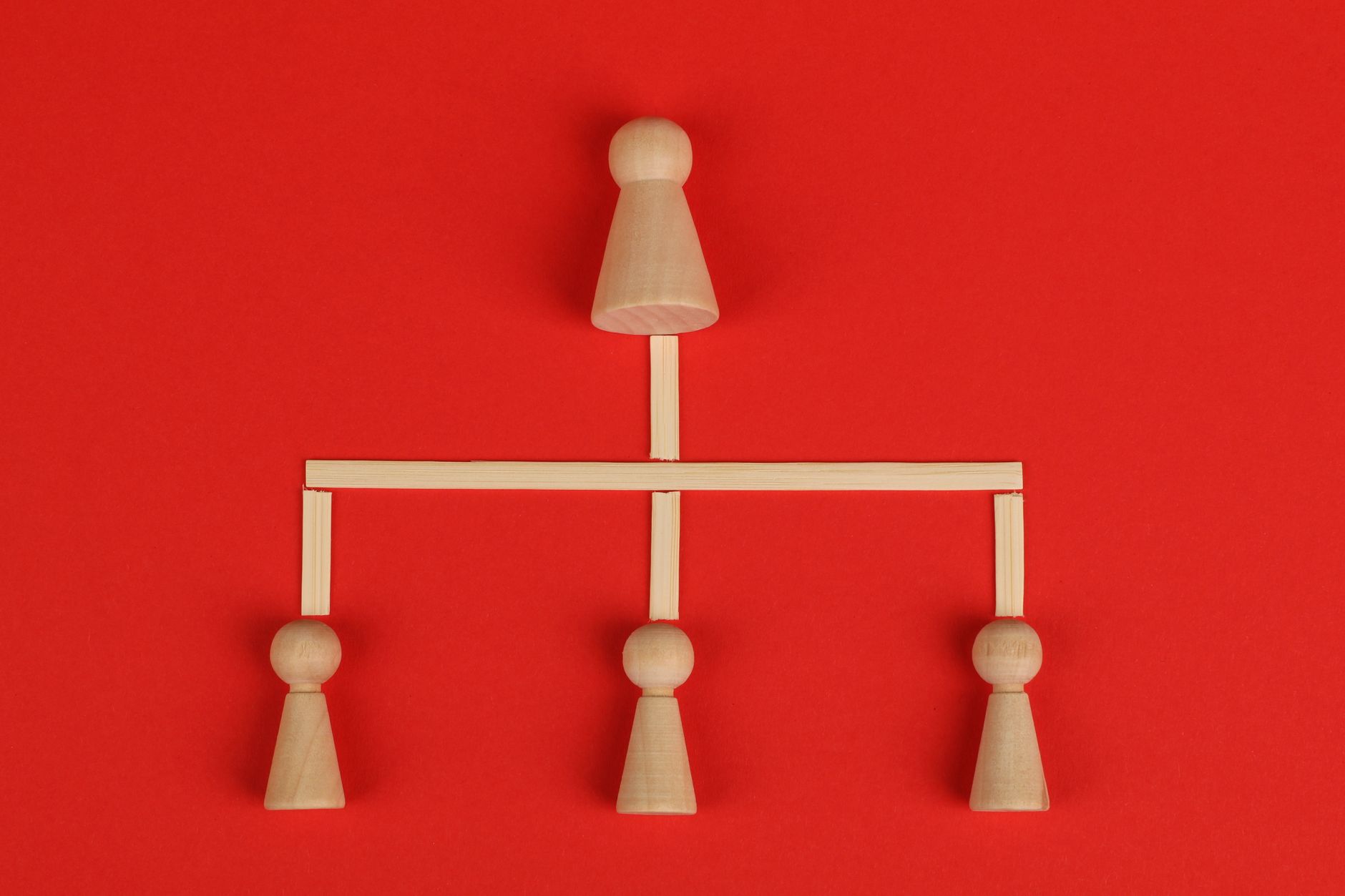
Parenting creates a link between two layers where one becomes the parent and the other the child. The child inherits the parent’s transformations, so when the parent moves, scales, or rotates, the child follows along automatically.
Crucially, the relationship is one-way: the child follows the parent, but the parent ignores the child. This lets you move a whole connected group by animating the parent, while each child can still have its own independent animation layered on top.
Parent with the Pick Whip
The main way to parent is the pick whip, a small spiral icon in the Parent column of the timeline. Click and drag the child layer’s pick whip onto the layer you want as its parent, and the link is created instantly.
Alternatively, use the parent dropdown menu in the same column to select a parent by name. Both methods do the same thing, and the pick whip is usually faster when you can see both layers in the timeline.
Understand Parent and Child Movement
Once parented, moving the parent moves the child, but the child keeps its own offset and can be animated separately. Picture a hand parented to an arm — moving the arm carries the hand, while the hand can still wave on its own.
This is the key insight: parenting adds the parent’s motion on top of whatever the child does independently. The child’s own keyframes work in the parent’s moving frame of reference, which is what makes layered, natural movement possible.
Build a Hierarchy
Parenting chains together into hierarchies. You can parent a child to a parent, and that parent to another layer above it, creating a chain like fingers parented to a hand, parented to an arm, parented to a body.
Move the body and everything follows; move the arm and only it and the hand follow. These hierarchies, often built with null objects as controllers, are the foundation of character rigs and any animation with connected parts.
Use Null Objects as Parents
Parenting to a null object is one of the most common and powerful techniques. Because a null is invisible and renders nothing, parenting a group of visible layers to it gives you a clean, dedicated controller without adding anything to the frame.
This keeps your visible layers free of animation that’s really about group control. Our null objects guide explores this further, but the pairing of nulls and parenting is the backbone of professional rigging.
Parent for Scale and Rotation Too
Parenting links more than position — the child also inherits the parent’s scale and rotation. Scale the parent and the children grow with it; rotate the parent and the children orbit around its anchor point, which creates natural mechanical motion.
This is how you animate things like a clock’s hands rotating around its center or a planet orbiting a sun. The inherited rotation and scale make parenting indispensable for any animation where parts move in relation to a pivot.
Unparent and Re-parent Cleanly
You can remove a parent link at any time by setting the child’s parent back to None in the dropdown. The child stops following and keeps its current position, so it stays where it was at that moment rather than jumping.
Re-parenting to a different layer is just as easy. This flexibility lets you restructure a rig as your animation evolves, attaching and detaching layers as the scene demands without breaking the work you’ve already done.
Parenting vs. Pre-composing
Parenting and pre-composing both manage multiple layers, but differently. Parenting links transforms while keeping every layer visible and editable in the timeline, ideal for rigs. Pre-composing bundles layers into a nested comp, which tidies the timeline and enables group effects.
Use parenting when you want layers to follow a controller but stay individually accessible, and pre-comps when you want to group and effect a set of layers as one. They complement each other, and skilled animators use both together constantly.
Parenting Best Practices
- Use the pick whip to link a child to its parent.
- Remember the child follows the parent, never the reverse.
- Build hierarchies with null objects as controllers.
- Animate each child independently on top of the parent’s motion.
Common Parenting Mistakes
- Parenting the wrong direction, so the controller follows the child.
- Forgetting that scale and rotation are inherited too.
- Building tangled hierarchies without naming layers.
- Using parenting when a pre-comp would be cleaner.
A Practical Parenting Example
Imagine animating a simple bicycle. You parent each wheel to the bike’s body so they travel with it, then animate each wheel’s own rotation so they spin as the bike moves forward. Moving the body carries everything, while the wheels keep turning independently on top — exactly the layered motion parenting enables.
Extend the idea and you can parent the rider to the bike, the rider’s legs to the rider, and build a whole connected figure. This is the same logic behind character rigs, and starting with a simple object like this is the fastest way to feel how parent and child motion combine.
Avoid Common Hierarchy Tangles
As hierarchies grow, it’s easy to create loops or attach a layer to the wrong parent, which produces baffling movement. After Effects won’t let you parent a layer to its own descendant, but you can still build confusing chains if you’re not deliberate. Naming every layer clearly is the simplest safeguard.
Sketch your hierarchy before building it for anything complex — what controls what — so the structure is intentional. A clean, well-named rig is easy to adjust later, while a tangled one becomes a liability, which is why organization matters as much in parenting as the linking itself.
Key Takeaways
- Parenting links a child layer to follow a parent’s transforms.
- The relationship is one-way: child follows parent only.
- Build hierarchies and rigs, often with null objects.
- Children inherit position, scale, and rotation from the parent.
Frequently Asked Questions
How do I parent layers in After Effects?
Use the pick whip — the spiral icon in the timeline’s Parent column. Drag the child layer’s pick whip onto the layer you want as its parent, and the child will then follow that parent’s movement.
Does the parent follow the child layer?
No, parenting is one-way. The child follows the parent’s position, scale, and rotation, but the parent ignores the child. This lets you move a whole group via the parent while each child animates independently.
What’s the difference between parenting and pre-composing?
Parenting links transforms while keeping layers separate and editable, ideal for rigs. Pre-composing bundles layers into a nested comp for tidiness and group effects. Animators often use both together.
Sources: Adobe’s guide to parent and child layers.
Connect your animation at Adobe Video World
Train hands-on with Adobe Certified Instructors across 100+ Premiere Pro & After Effects sessions.



