A workflow taught by Adobe Certified Instructors at Adobe Video World.
Expressions are small snippets of code that drive your animations automatically — no keyframes required. They sound intimidating, but a handful of simple ones will save you hours and unlock effects that would be impossible by hand. This beginner’s guide starts from zero.
What Expressions Are
An expression is a line of JavaScript attached to a property that tells it how to behave. Instead of setting keyframes, you write a rule — and After Effects calculates the value on every frame.
That means animation that updates itself: a layer that always wiggles, a counter that always counts, a property that always matches another. You write the logic once and it runs forever.
How to Add an Expression
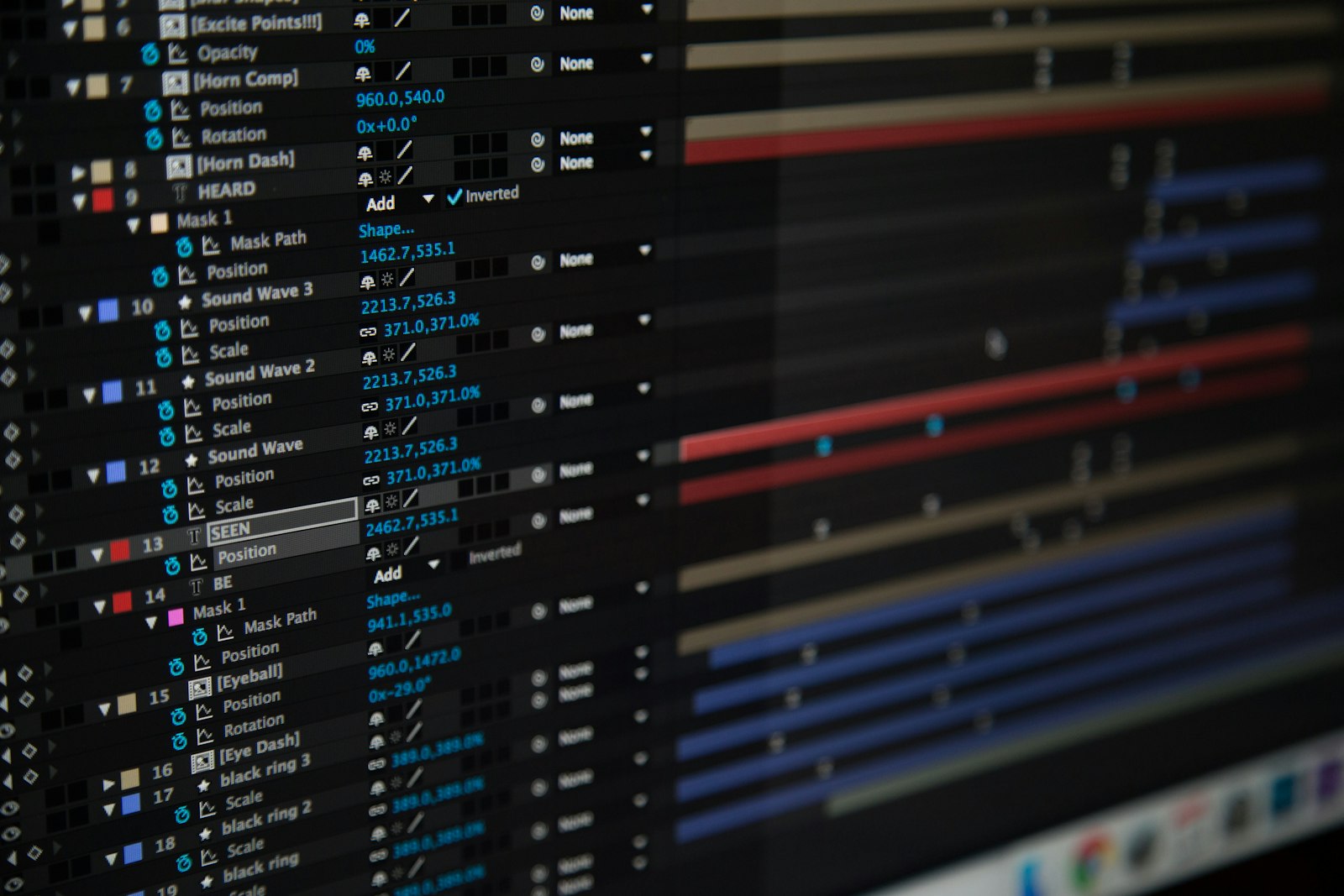
Adding one is easy. Hold Alt (Windows) or Option (Mac) and click the stopwatch next to any property. The timeline opens a text field where you type your expression.
Click away to apply it. A red stopwatch and an equals sign show the property is now driven by an expression rather than keyframes.
Link Properties with the Pick Whip
You don’t need to write code to connect properties. With an expression field open, drag the pick whip (the spiral icon) onto another property, and After Effects writes the link for you.
Now one property follows another — link a layer’s opacity to a slider, or a shape’s rotation to another layer’s position. The pick whip is the friendliest way to start with expressions.

Automate Motion with Wiggle
The most loved beginner expression is wiggle. Type wiggle(2,30) on a Position property and the layer randomly jitters twice per second by 30 pixels — instant handheld camera shake or nervous energy.
Change the two numbers to control frequency and amount. One short line replaces dozens of keyframes, and it never repeats.
Loop an Animation Forever
Animate one cycle of movement with keyframes, then add loopOut() to the property. After Effects repeats your keyframes endlessly without you copying a single one.
Use loopOut("pingpong") to bounce back and forth. Looping is perfect for spinning logos, pulsing icons, and any element that should move continuously.
Add a Counter with Time
The time variable gives you the current time in seconds, which you can turn into all sorts of automatic motion. Put time*100 on Rotation and a layer spins steadily forever.
Combine time with simple math and you can build counters, clocks, and continuous movement with no keyframes at all.
Make Smooth Motion with Ease Functions
Expressions can smooth motion too. Functions like ease() and linear() remap values gently between ranges, letting you create soft, controlled transitions driven by another property.
These are a step up from the basics, but they’re the key to expression-driven animation that feels as polished as hand-keyed work.
Combine Expressions with Keyframes
Expressions and keyframes aren’t either-or. A powerful technique is to keyframe the main motion, then add wiggle on top for a touch of life, or loopOut to repeat your keyframed cycle.
Layering an expression over keyframes gives you the best of both: deliberate motion plus automatic, organic variation.
Why Expressions Are Worth Learning
Beyond saving time, expressions make your animations responsive. Build a graphic where the background reacts to the text, or a rig where one slider controls a dozen properties at once.
This is how studios build reusable templates and complex motion graphics efficiently. A little expression knowledge multiplies what one animator can do.
Common Expression Mistakes
- Syntax errors — a missing bracket turns the expression red; read the error and fix the typo.
- Expecting them to animate alone; many still need a keyframe or a control to drive them.
- Overusing wiggle until everything looks shaky.
- Not labeling expression-controlled properties, making rigs hard to follow.
Practice Projects to Build Expression Skills
Expressions click once you use them on real projects rather than just reading about them. Try a few small challenges: build an endlessly rotating loading spinner with time, a jittery hand-held look with wiggle, and a bouncing logo that loops forever with loopOut.
Then push further — link a layer’s scale to an audio level, or rig a slider that controls several properties at once. Each small project cements a concept, and within a few weeks you’ll reach for expressions instinctively wherever they save time. The goal isn’t to memorize code; it’s to recognize when a rule beats a row of keyframes.
From Keyframes to Code: Why It’s Worth It
Many animators resist expressions because they look like programming, but the payoff is enormous. A single line like wiggle or loopOut can replace dozens of keyframes, and a property linked with the pick whip updates itself whenever its source changes — no manual rework required.
Start small and build confidence with one expression at a time, layering them over your existing keyframe animation rather than replacing it. Within a few projects you’ll reach for expressions instinctively, and you’ll find yourself building flexible, reusable systems instead of one-off animations.
Key Takeaways
- Alt/Option-click the stopwatch to add an expression to any property.
- Use the pick whip to link properties without writing code.
- wiggle() adds automatic movement; loopOut() repeats keyframes forever.
- Combine expressions with keyframes for the best of both worlds.
Five Expressions Worth Memorizing
A tiny vocabulary of expressions covers an enormous amount of everyday work. Beyond wiggle and loopOut, memorize a few staples: time for continuous motion, linear() and ease() to remap one value to another, and index to offset layers automatically so a stack of elements animates in sequence.
With just these, you can build self-animating backgrounds, auto-staggered lists, endless loops, and organic movement — all without keyframes. Keep a personal cheat sheet of the expressions you use most, and add to it as you learn. A handful of reliable snippets will handle the vast majority of situations you’ll meet.
How Expressions Power Templates
Expressions are the engine behind the Motion Graphics Templates editors use every day. By linking many properties to a few simple controls — sliders, checkboxes, and text fields — an animator can build a graphic that someone else customizes without ever opening the complex rig beneath it.
This is how studios scale: one expression-driven template produces hundreds of branded videos. Even as a beginner, linking a property to a slider with the pick whip is the first step toward building reusable, editable systems rather than one-off animations. It’s the difference between animating a thing once and building a tool that animates things forever.
Frequently Asked Questions
What are expressions in After Effects?
Expressions are small snippets of JavaScript attached to a property that calculate its value automatically on every frame — driving animation without keyframes.
How do I add an expression in After Effects?
Hold Alt (Windows) or Option (Mac) and click the stopwatch next to a property. A text field opens where you type the expression, then click away to apply it.
What does the wiggle expression do?
wiggle(frequency, amount) makes a property randomly move by the given amount a set number of times per second — perfect for instant camera shake or organic motion.
Sources: Adobe’s expression basics documentation.
Automate animation at Adobe Video World
Train hands-on with Adobe Certified Instructors across 100+ Premiere Pro & After Effects sessions.



