A workflow taught by Adobe Certified Instructors at Adobe Video World.
Blur is one of the most-used tools in After Effects, with several effects for different purposes — softening backgrounds, faking depth of field, adding motion, and creating focus. Knowing which blur to use matters. This guide covers the main blur effects, what each does, and how to use them for polished, professional results.

Why Blur Matters
Blur does far more than soften — it directs attention, fakes depth, suggests motion, and adds polish. A blurred background isolates a subject, a motion blur conveys speed, and a soft blur smooths and stylizes, making blur a versatile creative tool.
Because there are several blur effects, each suited to different tasks, choosing the right one matters. Understanding what each blur does lets you reach for the correct tool, whether you want a clean depth-of-field look or a streaking motion effect.

Gaussian Blur
Gaussian Blur is the standard, all-purpose blur, producing a smooth, even softening. It’s the go-to for general blurring — softening a background, smoothing an element, or reducing detail, with a single Blurriness control.
Its simplicity and clean result make it the most-used blur. For everyday softening, defocusing, or blending, Gaussian Blur is usually the right choice, offering a smooth, controllable blur without specialized characteristics.

Camera Lens Blur
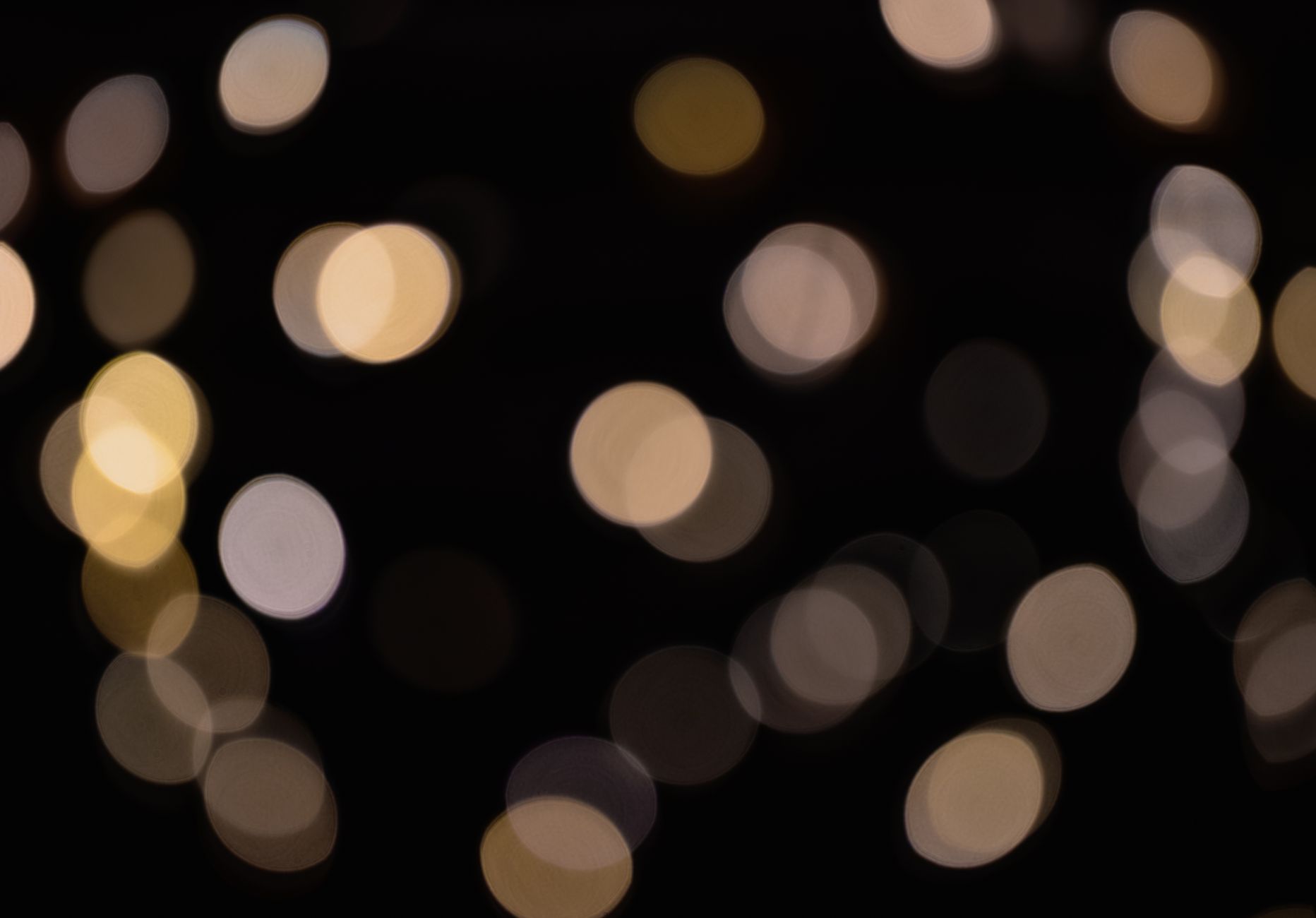
Camera Lens Blur simulates real lens defocus, creating authentic depth-of-field blur with realistic bokeh — the soft, rounded highlights of an out-of-focus background. It’s more realistic than Gaussian for faking shallow focus.
When you want footage to look like it was shot with a shallow depth of field, Camera Lens Blur produces the most convincing result. Its realistic bokeh, especially on bright background highlights, mimics a real lens far better than a plain blur.

Directional Blur
Directional Blur blurs along a single angle, creating a streaking, motion-like effect. It’s used to suggest movement, add speed, or create stylized streaks, with controls for the direction and amount of the blur.
Setting the angle and length lets you streak an element in a specific direction, mimicking fast motion. Directional Blur is useful for fake motion blur, energy effects, and stylized streaking, adding a sense of speed and dynamism.

Radial Blur
Radial Blur blurs around or toward a center point, creating spinning or zooming blur effects. The Spin mode makes a rotational blur, while the Zoom mode creates a blur radiating from the center, like a fast zoom.
These radial effects add dynamic energy — a spin blur for rotation or a zoom blur for explosive movement toward the viewer. Radial Blur is a go-to for transitions and energetic effects, suggesting fast rotational or zooming motion.
Fake Depth of Field
Blur is how you fake shallow depth of field in post. Blurring the background behind a subject, ideally with Camera Lens Blur for realistic bokeh, isolates the subject and adds a cinematic, professional look that flat, all-in-focus footage lacks.
Combining a blur with a mask or depth matte to keep the subject sharp while the background softens creates convincing depth. This faked depth of field, common in composition, draws the eye to the subject.
Animate Blur for Effect
Animating blur creates dynamic transitions and focus pulls. Keyframing a blur from sharp to soft, or pulling focus from one element to another, adds cinematic movement, while a blur that builds at a cut makes a smooth transition.
These animated blurs, eased with our keyframe techniques, mimic real camera focus changes and create stylish transitions. A focus pull or a blur-driven transition adds polish that static blur can’t, bringing movement to the effect.
Use Blur Tastefully
Blur should serve a purpose — focus, depth, motion, or transition — rather than being added arbitrarily. Over-blurring or unmotivated blur looks like a mistake, while purposeful blur enhances the image and guides the viewer’s eye.
Matching the blur type and amount to your intent keeps it effective. A subtle background blur for focus, a realistic lens blur for depth, or a directional blur for motion each works when used deliberately, which is what separates polished blur from careless softening.
Blur Effects Best Practices
- Use Gaussian Blur for general, all-purpose softening.
- Use Camera Lens Blur for realistic depth of field and bokeh.
- Use Directional and Radial Blur for motion and energy.
- Animate blur for focus pulls and smooth transitions.
Common Blur Mistakes
- Using Gaussian Blur where realistic bokeh was needed.
- Over-blurring until the image looks like a mistake.
- Unmotivated blur that doesn’t serve focus or motion.
- Forgetting blur can animate for focus pulls and transitions.
A Real Depth-of-Field Example
Picture a clean, all-in-focus product shot that looks flat. You mask the product to keep it sharp, then apply Camera Lens Blur to the background layer, raising the blur until the bright highlights bloom into soft, rounded bokeh. Suddenly the product pops off a creamy, defocused backdrop as if shot on an expensive lens with a wide aperture.
Adding a subtle gradient so the blur increases toward the back sells the depth even further. That faked shallow focus, built from a mask and the right blur effect, gives ordinary footage the cinematic, professional look of real depth of field — one of the most valuable tricks blur offers.
Blur for Transitions and Focus Pulls
Animated blur is a powerful storytelling and transition tool. Keyframing a focus pull from a foreground subject to a background one guides the viewer’s attention exactly where you want it, while a blur that ramps up at a cut creates a soft, dreamy transition between scenes.
These moves mimic real camera focus and add a cinematic polish that static framing lacks. Combined with the easing in our keyframe guide, blur-driven focus pulls and transitions become an expressive part of your visual language, directing the eye and smoothing the flow between shots.
Keep Blur Realistic
The realism of a blur depends on matching it to how a real lens behaves. Real defocus has rounded bokeh, increases gradually with distance, and never affects a subject and its background equally, so a flat, uniform Gaussian blur across everything often reads as fake compared to a graduated, lens-accurate one.
Using Camera Lens Blur for believable depth, varying the blur amount across the frame, and keeping the in-focus subject crisp all sell the effect. This attention to how real optics work, alongside the framing ideas in our composition guide, is what makes faked depth of field convincing rather than obviously digital.
Key Takeaways
- Different blurs suit different tasks — choose deliberately.
- Gaussian for general softening, Camera Lens for depth.
- Directional and Radial Blur add motion and energy.
- Animate blur for focus pulls and transitions.
Frequently Asked Questions
What blur should I use in After Effects?
Use Gaussian Blur for general softening, Camera Lens Blur for realistic depth of field with bokeh, Directional Blur for motion streaking, and Radial Blur for spinning or zooming effects. Choose the blur that matches your intent.
How do I fake depth of field in After Effects?
Blur the background behind your subject — ideally with Camera Lens Blur for realistic bokeh — while keeping the subject sharp using a mask or depth matte. This isolates the subject and adds a cinematic, shallow-focus look.
What’s the difference between Gaussian and Camera Lens Blur?
Gaussian Blur gives a smooth, even, all-purpose softening, while Camera Lens Blur simulates real lens defocus with authentic bokeh. Camera Lens Blur is more realistic for faking shallow depth of field.
Sources: Wikipedia’s article on Gaussian blur.
Master blur at Adobe Video World
Train hands-on with Adobe Certified Instructors across 100+ Premiere Pro & After Effects sessions.



