A workflow taught by Adobe Certified Instructors at Adobe Video World.
The Repeater is a shape-layer tool that duplicates a shape multiple times with control over position, scale, rotation, and opacity — letting you build grids, patterns, bursts, and intricate geometric designs from a single element. It’s a powerhouse for motion graphics. This guide explains how the Repeater works and how to create stunning patterns with it.
What the Repeater Does
The Repeater takes a shape and creates copies of it, applying an incremental transform to each copy. So a single circle can become a row, a grid, or a spiraling pattern, with each repeat offset in position, rotation, scale, or opacity from the last.
This means complex, repeating designs come from one shape rather than dozens of layers. The Repeater is a cornerstone of geometric motion graphics, generating patterns that would be painful to build and animate by hand.

Add the Repeater to a Shape
The Repeater lives in shape layers. Create a shape, then in its contents click Add and choose Repeater, and After Effects immediately duplicates your shape based on the Repeater’s default settings.
Once added, the Repeater exposes properties controlling how many copies appear and how each is transformed. Starting with a simple shape and one Repeater is the best way to learn, since you can watch each setting reshape the pattern.

Control the Number of Copies
The Copies property sets how many times the shape repeats. Increasing it adds more duplicates, extending your pattern, while the Offset shifts which copy the transforms start from, useful for fine-tuning the arrangement.
Animating the Copies value lets the pattern build up over time, with shapes appearing one after another. This single property, animated, creates satisfying reveals where a grid or row assembles itself piece by piece.
Use the Repeater Transform
The heart of the Repeater is its Transform section, which applies an incremental change to each copy. Set a position offset and the copies spread into a row; add rotation and they fan into a radial pattern; adjust scale and they grow or shrink in sequence.
Because each copy inherits the cumulative transform, small values create big patterns. Experimenting with the Transform’s position, rotation, scale, and anchor point is where the Repeater’s creative magic happens, turning one shape into endless designs.
Create Grids and Rows
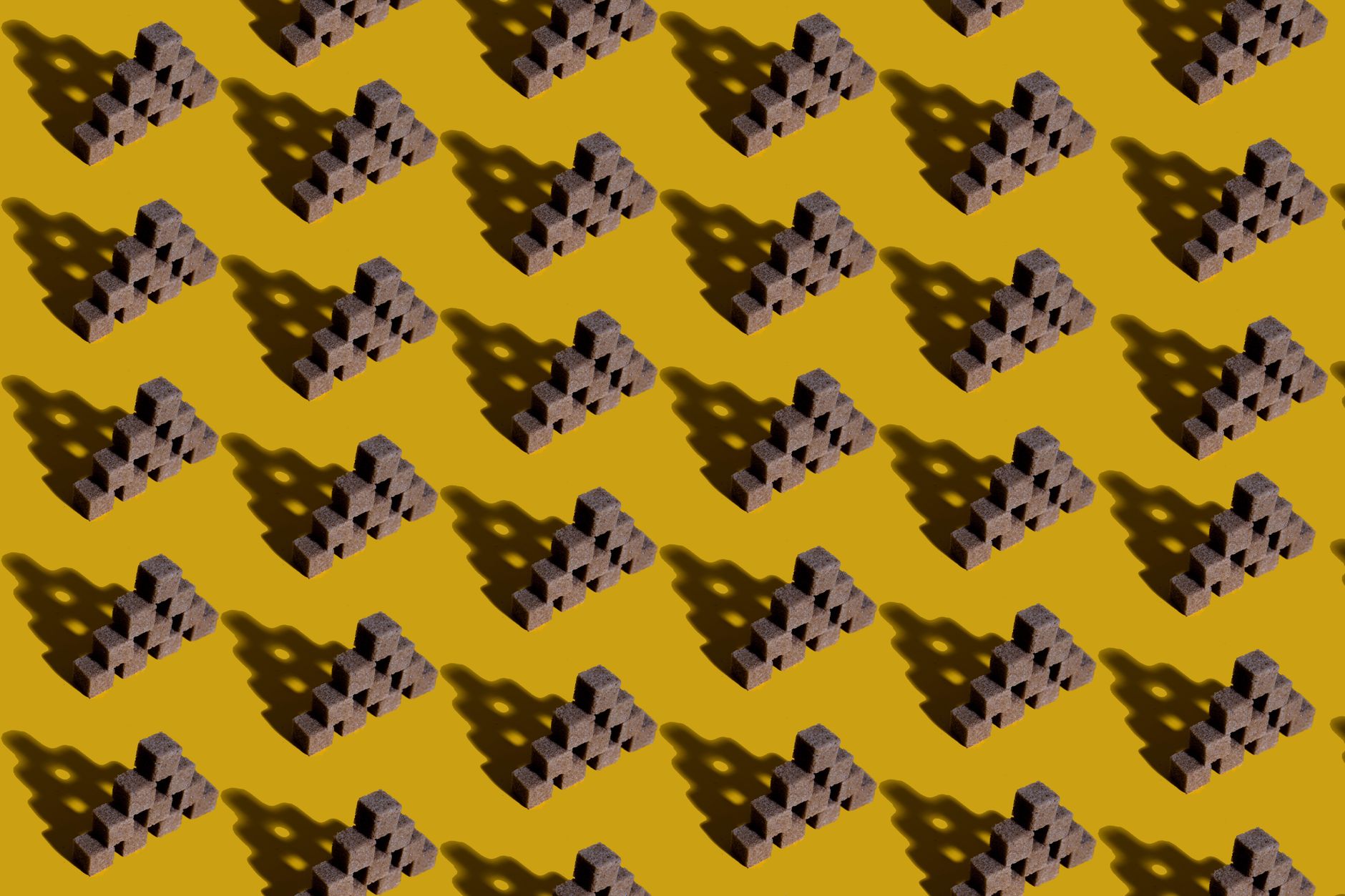
For a row, set a horizontal position offset on the Repeater. For a grid, add a second Repeater that offsets vertically, so the first creates a row and the second repeats that row downward, building a full grid from one shape.
Stacking Repeaters this way is the standard technique for grids and matrices of elements. It’s far cleaner than manually placing each item, and animating either Repeater lets the whole grid build, shift, or pulse together.
Make Radial Bursts and Spirals
Adding rotation to the Repeater Transform fans the copies around a point, creating radial bursts, starbursts, and floral patterns. Moving the anchor point changes the radius, and combining rotation with position creates spiraling designs.
These radial patterns are striking and endlessly variable. A single line or shape repeated with rotation produces sunbursts, loading spinners, and mandala-like designs, all controlled by a few Repeater values you can animate for hypnotic motion.
Animate the Pattern
Every Repeater property can animate, opening up dynamic patterns. Animate the rotation for a spinning burst, the copies for a building grid, or the transform’s opacity for a trailing fade, and the whole pattern comes alive.
These animations, eased with the techniques from our keyframe guide, turn static geometry into mesmerizing motion graphics. The Repeater’s strength is that one animated value drives the entire pattern, keeping complex motion simple to control.
Combine with Other Shape Tools
The Repeater works alongside the rest of the shape layer toolkit. Pair it with Trim Paths to draw repeated shapes on, with gradients for colorful patterns, or with multiple Repeaters for layered complexity.
Layering these tools is how intricate, professional patterns are built. The Repeater handles duplication while other shape modifiers add stroke animation, color, and detail, together producing the sophisticated geometric designs seen in modern motion graphics.
Repeater Best Practices
- Add the Repeater from a shape layer’s contents menu.
- Use Copies for quantity and the Transform for the pattern.
- Stack two Repeaters to build grids from one shape.
- Add rotation for radial bursts and spirals.
Common Repeater Mistakes
- Confusing the shape’s own transform with the Repeater Transform.
- Too many copies, slowing the project down.
- Forgetting the anchor point controls radial radius.
- Building grids by hand instead of stacking Repeaters.
A Real Repeater Pattern Example
Picture building an animated loading spinner. You draw a single rounded bar near the center, add a Repeater set to twelve copies, and give the Transform a thirty-degree rotation so the bars fan evenly into a full circle. Then you stagger their opacity down the copies, so each bar is slightly fainter than the last, creating a trailing fade.
Animating the whole shape layer’s rotation spins the ring, and the fading trail makes it read as a smooth, professional loader. From one little bar and a single Repeater, you’ve built a polished, endlessly looping element — a perfect demonstration of how the Repeater turns one shape into complex, useful motion.
Repeaters for Backgrounds and Transitions
The Repeater isn’t only for icons — it’s a workhorse for full-screen backgrounds and transitions. A grid of repeated shapes can animate on to wipe between scenes, or a field of repeated dots can drift behind your content as a living backdrop, all generated from a single element you can restyle in seconds.
Because everything flows from one shape and a few Repeater values, these backgrounds are easy to recolor and re-time for any project. Paired with the reveal techniques in our motion graphics guide, Repeater-built patterns give you flexible, reusable backgrounds and transitions with very little setup.
Key Takeaways
- The Repeater duplicates a shape with an incremental transform.
- Copies sets quantity; the Transform shapes the pattern.
- Stack Repeaters for grids and add rotation for radial bursts.
- Animate Repeater properties for dynamic geometric motion.
Frequently Asked Questions
How do I use the Repeater in After Effects?
Create a shape layer, click Add in its contents, and choose Repeater. It duplicates your shape, and you control the number of copies and how each is offset in position, rotation, scale, and opacity via the Repeater’s Transform.
How do I make a grid with the Repeater?
Add one Repeater with a horizontal position offset to create a row, then add a second Repeater with a vertical offset to repeat that row downward. Stacking two Repeaters builds a full grid from a single shape.
How do I create a radial burst with the Repeater?
Add rotation to the Repeater’s Transform so the copies fan around a point, and move the anchor point to set the radius. Combining rotation with position offsets creates spirals and starburst patterns.
Sources: Adobe’s guide to shape attributes and the Repeater.
Build patterns fast at Adobe Video World
Train hands-on with Adobe Certified Instructors across 100+ Premiere Pro & After Effects sessions.



